

Your phone is the key to your digital assets.
Imagine this scenario: you're unlocking your phone in a coffee shop, someone nearby quietly memorizes your passcode. The moment you leave to get your drink, your phone is stolen.
Passcode known + phone in hand = your accounts, payments, and privacy are all exposed.
This isn’t hypothetical—it’s a real theft technique.
Apple has provided a powerful countermeasure, but you might not have it enabled yet.
There’s a feature on iPhones called “Stolen Device Protection”, designed specifically to prevent combo attacks like “passcode oversight + device theft.”
How Does Stolen Device Protection Work? 🛡️
Once enabled, just knowing your passcode isn’t enough. The following high-risk actions require Face ID or Touch ID verification:
View passwords saved in your Keychain
Change your Apple ID
Turn off “Find My iPhone”
Erase device data
Other Apple ID-related changes trigger a 1-hour waiting period and a second biometric verification, giving you enough time to detect the theft and remotely lock your device.
In everyday locations like your home or office, these restrictions won’t affect your user experience.
Step 1: Make Sure Stolen Device Protection is Enabled ✅
Check your iOS version: Settings → General → About
iOS 17.3 and above: this feature is supported
Below iOS 17.3: upgrade your system first (Settings → General → Software Update)
Supported devices: iPhones with Face ID or Touch ID
To turn on Stolen Device Protection, you must use two-factor authentication for your Apple Account and set up or enable the following on your iPhone: a device passcode; Face ID or Touch ID; and Significant Locations* (Location Services).
How to enable "Significant Locations":
Go to Settings → Privacy & Security → Location Services → scroll to the bottom and tap System Services → Significant Locations, and make sure the toggle is turned on. Once enabled, your iPhone will automatically learn your frequently visited places — no manual setup needed.
Note: If you've just turned it on, it may take some time for the system to recognize your "familiar locations."
You also need to have Find My turned on, and you can't turn it off while Stolen Device Protection is enabled.
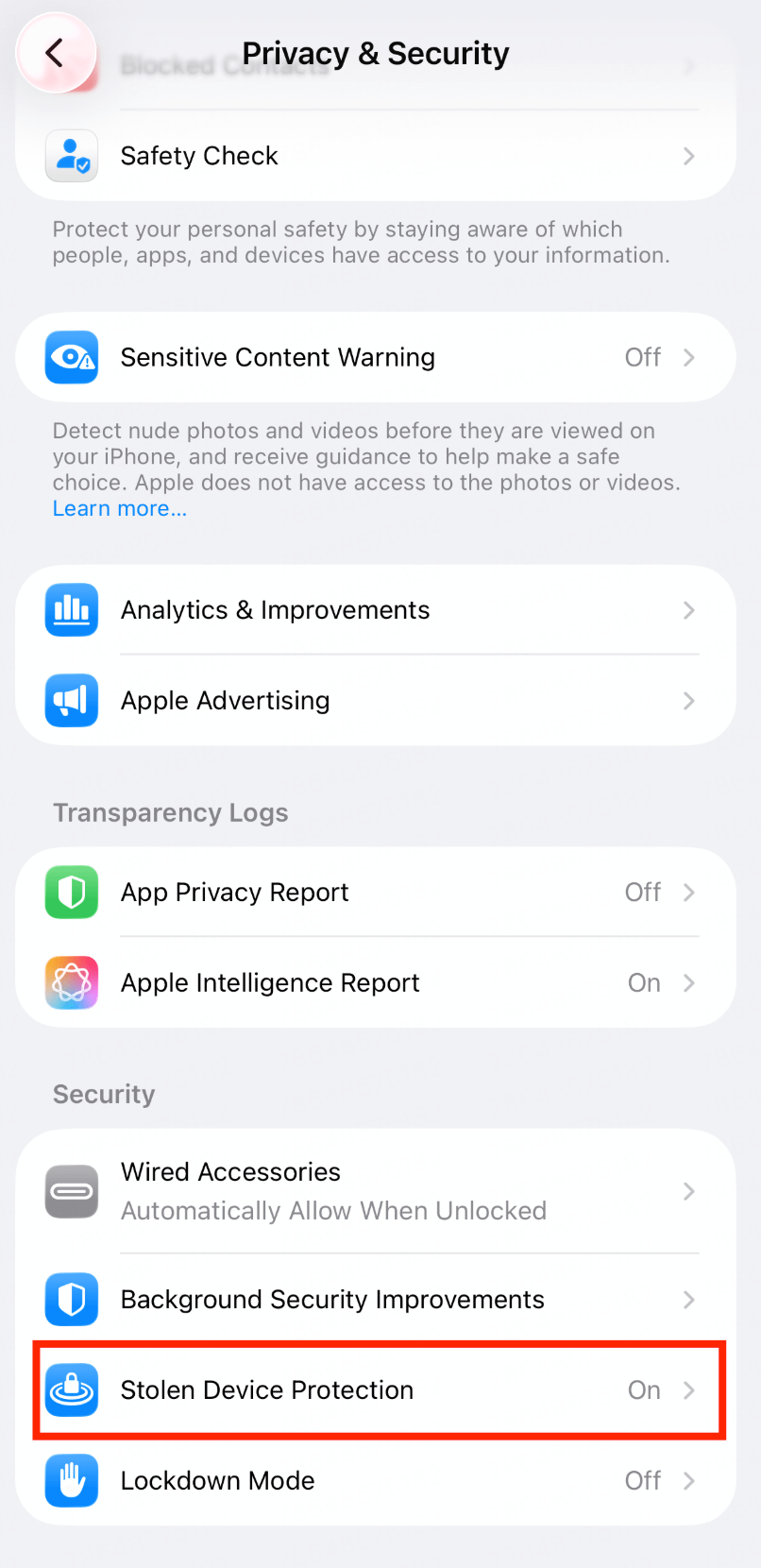
Stolen Device Protection might be turned on by default. If it's not, you can turn the feature on in Settings:
Go to Settings, then tap Face ID & Passcode.
Enter your device passcode.
Tap Stolen Device Protection, then turn Stolen Device Protection on or off.
For more information, please refer to Apple’s official introduction: https://support.apple.com/en-us/120340
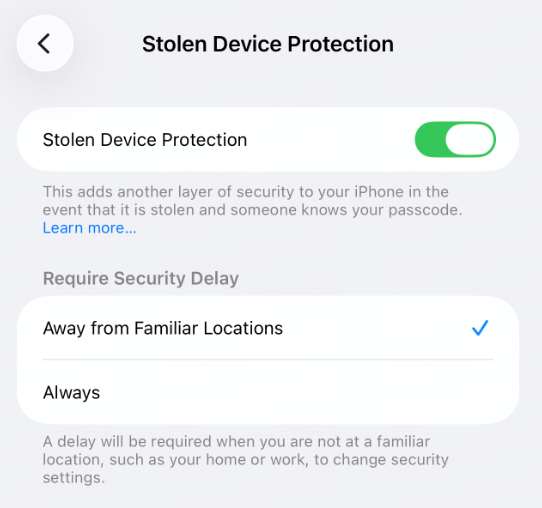
📍 Away from Familiar Locations
This setting determines: where the 1-hour security delay is triggered when you make important changes to your device.
📍 Away from Familiar Locations
✅ Pros:
No delay when you're at home or work — smooth experience
Doesn't affect everyday use
Still protects against theft in unfamiliar locations
❌ Cons:
If your phone is stolen at a "familiar location" (e.g. at home), protection is relatively weaker
Relies on location services — may not work accurately if location is imprecise
🔒 Always
✅ Pros:
Maximum security — protected everywhere, all the time
Prevents quick account takeover even if stolen at a familiar location
❌ Cons:
Even at home, changing your Apple ID password or disabling Face ID requires a 1-hour wait
Inconvenient in emergencies (e.g. needing to reset your password urgently)
More friction in day-to-day use
Step 2: Enable Passkey for Your Binance Account 🗝️
Stolen Device Protection guards the system door, but securing your accounts is just as crucial.
We’ve tested:
Even if someone has your phone and your unlock passcode, when they try to access your Binance assets, the system will require Face ID or Touch ID—PIN code access is not allowed.
Why? iPhone does not permit retrieving your Passkey with just the passcode; biometric authentication is mandatory.
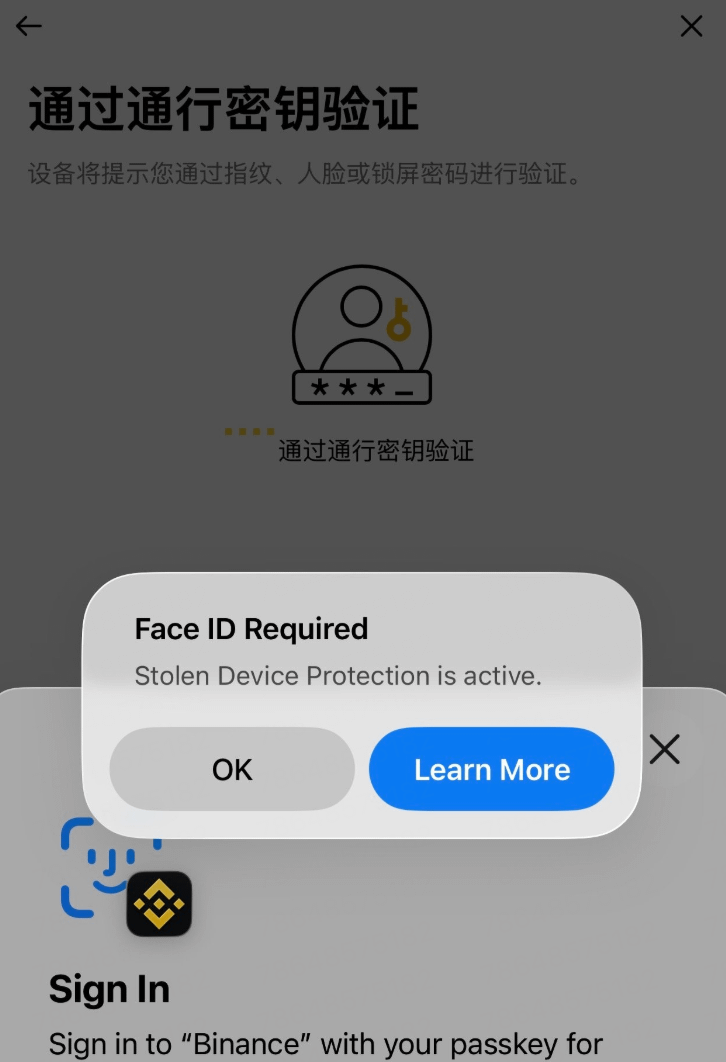
Enabling Passkey is like adding a unique, personal lock on your account.
👉 For a step-by-step guide on setting up a Binance Passkey, see our official documentation:
Binance Official Guide
Security Starts With You 🔐
We deal with numerous real-world risk cases every day, and most start with “device theft and control.”
Your phone stores login credentials, verification codes, and even direct payment channels. Only you can secure the device for your assets.
Two simple steps to lock out real risk:
1️⃣ Enable Stolen Device Protection
2️⃣ Set up Passkey for your Binance account
⚡ Quick to set up, powerful in effect.
Start protecting your digital assets today!