Last update date: 19 May 2025
1. Register for a Binance account or log in to your existing Binance account.
i) Click [Sign Up] on the official Binance website.

ii) Click [Sign up as an entity].

iii) Enter the entity name.

iv) Enter your entity email. You’ll receive a 6-digit code in your email. Enter the code to verify your email.

v) Create a secure password. Click [Create Entity Account].
Note:
vi) You have successfully created an entity account. Click [Next] to start the Entity Verification process.

i) Click [Log In] on the official Binance website.

ii) Go to [Profile] and click [Verify Now].

Please note that if your email has already been linked to a Personal Account, it cannot be upgraded to an Entity Account. Please make sure that you submit the Entity Verification with an unverified account.
2. You’ll now enter the entity verification process.
2.1 Click [Verify] to start.
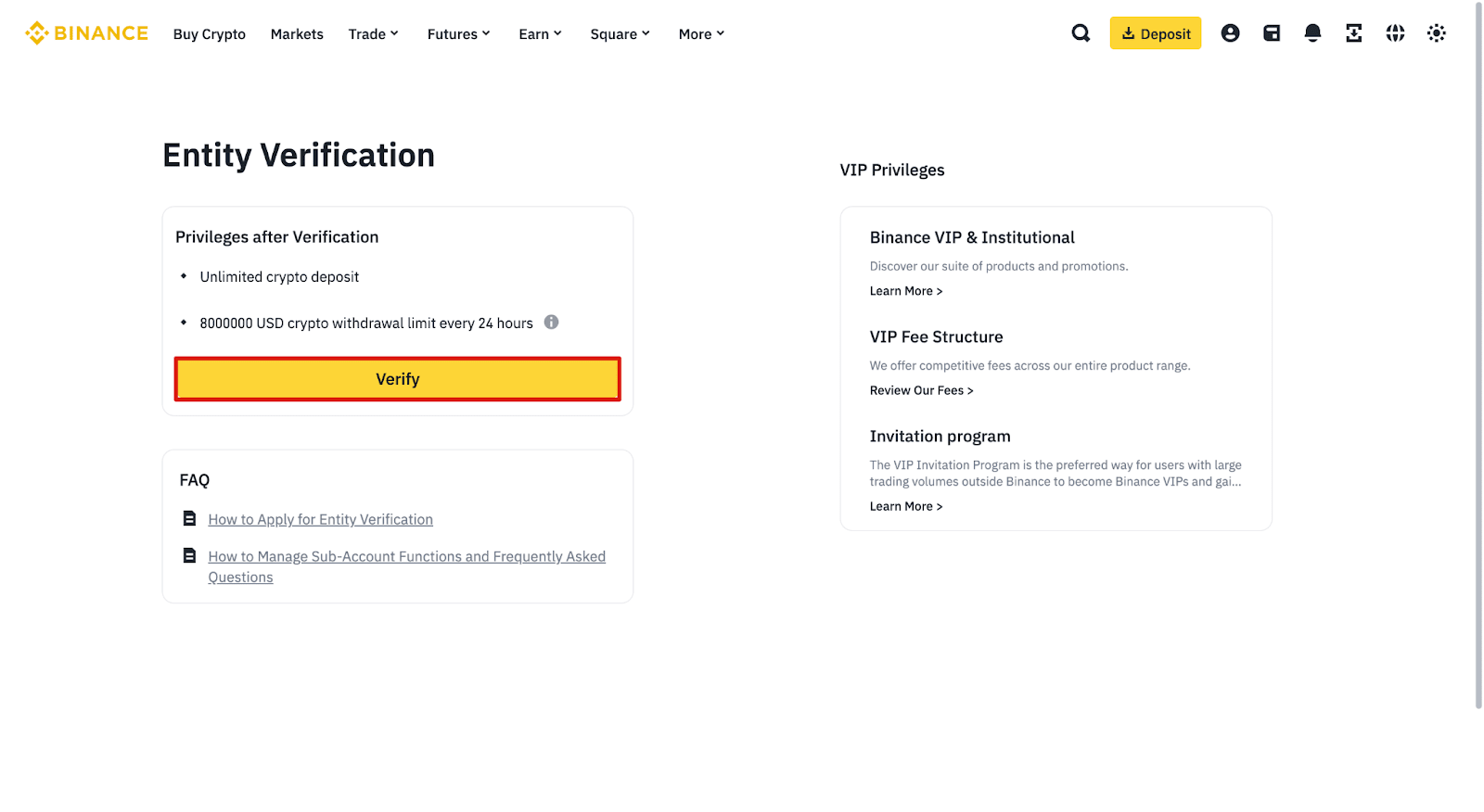
2.2 Enter your [Country of Registration] and [Registration Number] as displayed on the official corporate documents and answer the questions, including the Entity Name, Date of Incorporation, Entity Legal Form, Nature of Business, Shareholding Structure, etc.


If you require fiat services, fill in the questions under the Fiat Enablement section and click [Continue] to submit.
Please note that if you’d like to apply for fiat services in the future, you may go to [Profile] - [Account] - [Identification] to enable it at any time.

Important Note:
Please ensure that all the provided information is correct. If you fail to provide the correct information, it could lead to us rejecting your business verification application and you’ll have to redo the full verification process. If you confirm information is correct, click [Continue].
The required corporate documents for Binance KYB will be different based on your country/region, the legal form, nature of business you choose. The following instructions are examples only. Please refer to the actual requirements, specific to you, on the verification page.
3. Generally, the Entity Verification includes 4 main steps:
You may click [Save As Draft] any time during the verification process.
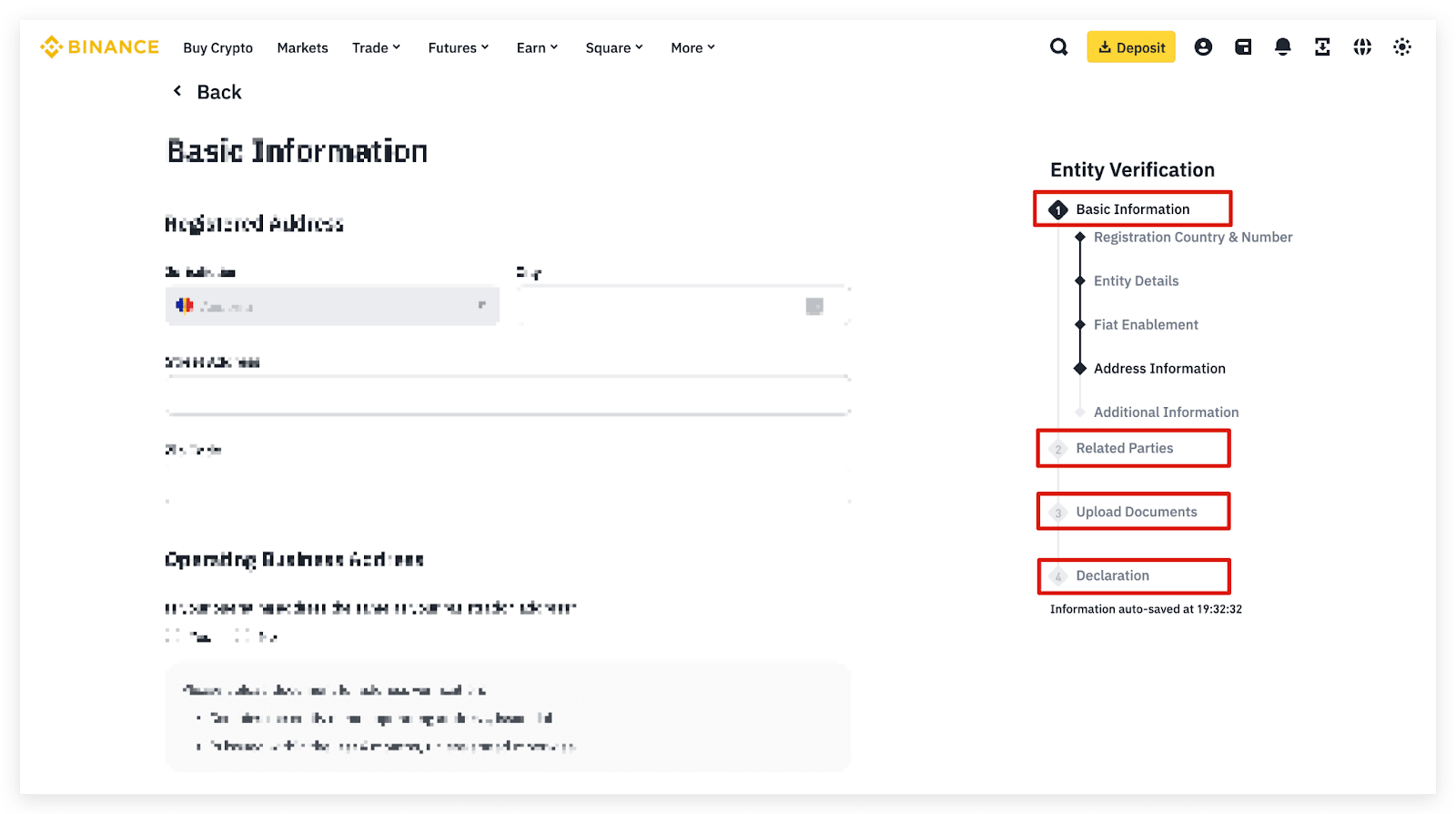
3.1.1 Fill in the Registered Address, including the jurisdiction, city, street address, and zip code. For “Operating Business Address”, please upload document(s) for address verification, and click [Continue].

3.1.2 Fill in the additional information, including the Source of Wealth, Source of Wealth Declaration, Source of Funds, Funding Method, Primary Business Activity, Total Value of Assets Under Management, Monthly Transaction Volume of the Company, Preferred Contact Language, Contact Number, Company Website (if any), Purpose of Application, etc.


3.1.3 After completing the Basic Information section, click [Continue] to proceed.
Next, complete the Related Parties section.

3.2.1 Add details of Director(s) or Equivalent Person, including their basic information, residential address, and upload identification documents.

3.2.2 Add details of any Ultimate Beneficial Owner(s) and upload identification documents and proof of address.

3.2.3 Add details of any Significant Controller(s), including their basic information, residential address, and upload identification documents.

3.2.4 Add details of any Authorised Account Trader(s), including their basic information and residential address, and upload their identification documents. Please set one authorised account trader as the main dealer/trader.

3.2.5 The main trader needs to perform a liveness check. Click [Verify Now] to complete it on the current device or mobile app.
Please do not wear hats or glasses, and do not use filters. All photos must be taken under sufficient lighting.

Verify via current device:


Verify via mobile app:
Login to the Entity Account on the app and scan the QR code to complete the liveness check.

3.2.6 Click [Continue] to proceed to the next section.


3.3.1 Upload the required documents according to the list shown on the page.
Note: The required documents will be different based on your country, the legal form, the nature of business and shareholding structure you choose. The following images are examples only. Please refer to the actual requirements specific to you on the verification page.


4. Read and agree to the declaration. Check the box next to [I/we understand and agree to the declaration.] and click [Submit].
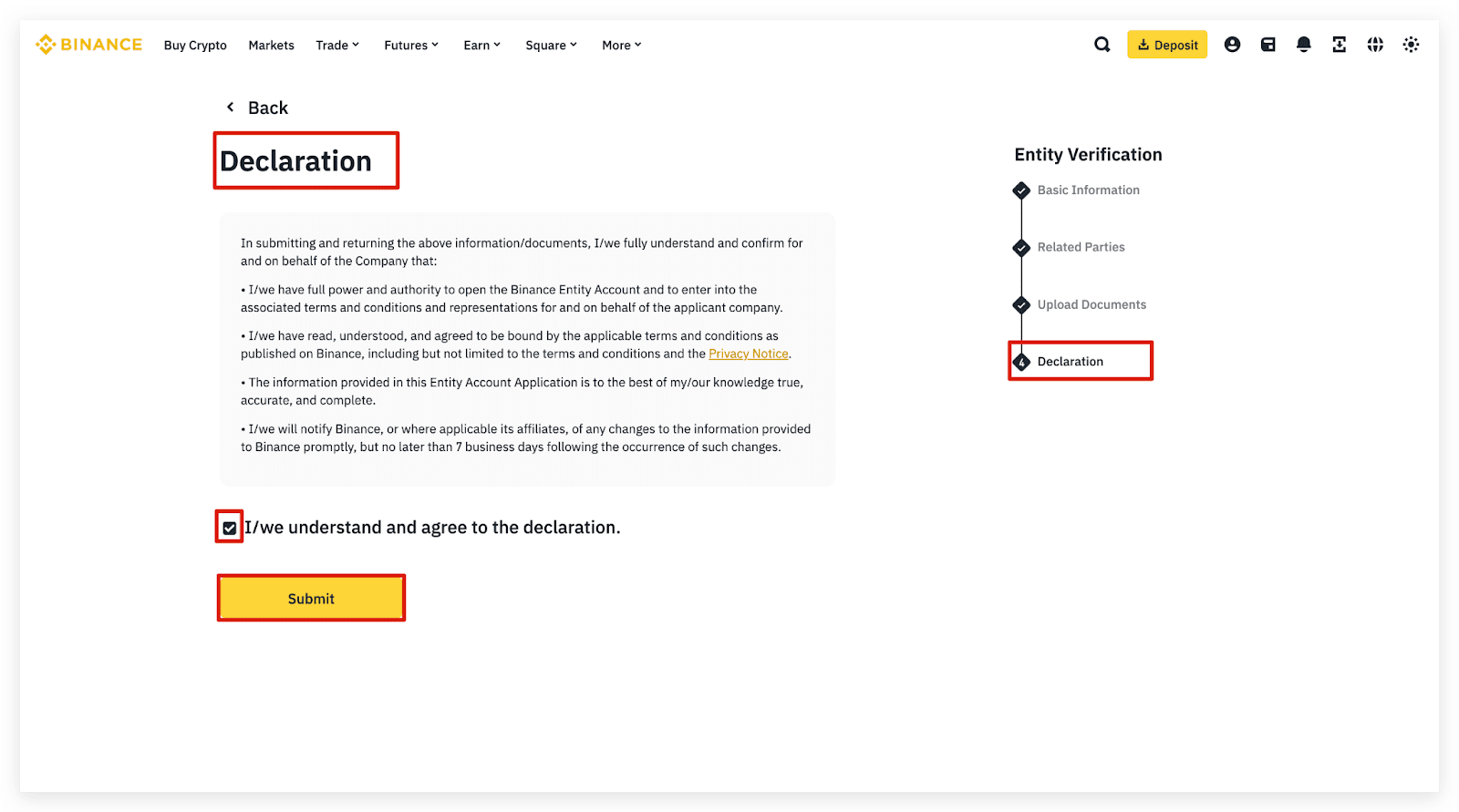
5. Your application has been successfully submitted. You’ll be notified once the review is complete.

Before the entity verification process, you will need to select the correct registered country, legal form, nature of business, etc. The system will require corporate documents based on the details you provided. Additional documents may be required depending on your business activity.
We understand that receiving a rejection can be disappointing. To better understand the reasons for the rejection, please consult the summary sent to your email. Additionally, you can find detailed information in your account by navigating to [Profile] - [Account] - [Identification].
Please upload your original company documents. For documents not in English, we highly recommend providing a notarized translation into English to ensure a swift review process.
Please check your email for the update or login to your account and check via [Profile] - [Account] - [Identification]. If you have any other concerns, please reach out to Customer Support.
Each company is permitted to apply for one entity account. However, we offer a sub-account feature for entity accounts. Once your verification is approved, you will have the ability to open sub-accounts.
If you want to get a higher daily withdrawal limit, please contact your VIP account manager or reach out to Customer Support.
To obtain fiat access for your entity account, please apply via [Profile] - [Account] - [Identification]. You will be notified once your fiat application has been approved. If you have any other concerns, please reach out to Customer Support.
We accept the following address verification documents, issued within the validity (based on the country requirements):
For more information, please refer to How to Verify My Residential Address on Binance.
The available fiat currencies and channels are determined by your case scenario. For more detailed information, please visit the fiat enablement page by navigating to [Profile] - [Account] - [Identification].
