After a long time in blockchain web3 development, I need to keep up with the trends! Things like Doubao, Jiemeng, ChatGPT, and AI seem to have little research value to me! Until the emergence of Openclaw! I feel like the door to AI wealth has just begun to slowly open! I considered directly researching the installation of Openclaw, but for many members and ordinary users, the research threshold is very high, and many people don’t understand it! However, the most practical and relatable for the general user, I feel, is Qclaw, because I believe Qclaw can completely serve as an entry-level software for AI's Openclaw for users, and you don’t need to understand code! Just talking to it in plain language is completely fine! I have seen many websites saying that Qclaw cannot be used and is not user-friendly, but I don't believe that! After my various trials and errors, I found that this thing is not that it is difficult to use! It’s just that you don’t know how to use it! Below are my experiences on installing and using Qclaw!
If you are installing Qclaw on your computer,
Step 1: When installing, it doesn't matter if you install it on C or D drive. (But make sure to remember the installation path, as you will need it later!)
Step 2: Log in to your account via WeChat! (After logging in, you will have 40 million Tokens, and do NOT click the WeChat link button in the lower left corner to avoid a bug at the end of this guide!)
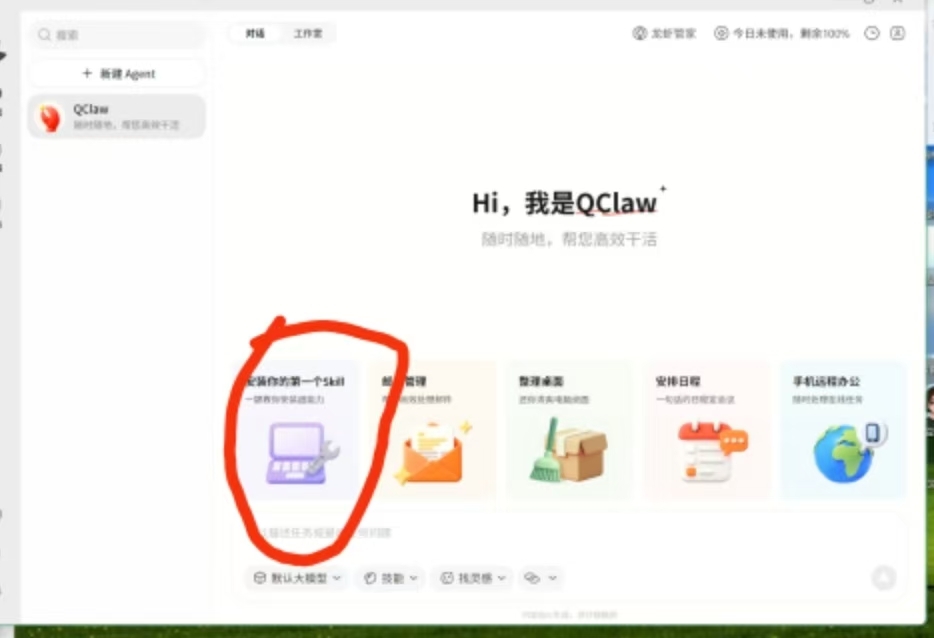
After logging in, you will see a window in the chat interface, prompting you to install the skills window. Click in and install the file processing, weather forecast, and code writing skills!
Step 3: Tell the lobster:
Transfer my workspace root directory to this path; this will be my workspace directory from now on.
D:\User\.qclaw\workspace\
Otherwise, the C drive might run out of space and fill up!
(Why this path? Because Qclaw will by default install your workspace to
C:\User\your_username\.qclaw\workspace\
In this path, even if you installed it on the D drive,
the working path on the C drive is also this path. Some people's C drives have small storage, but the workspace will consume the most memory during use!
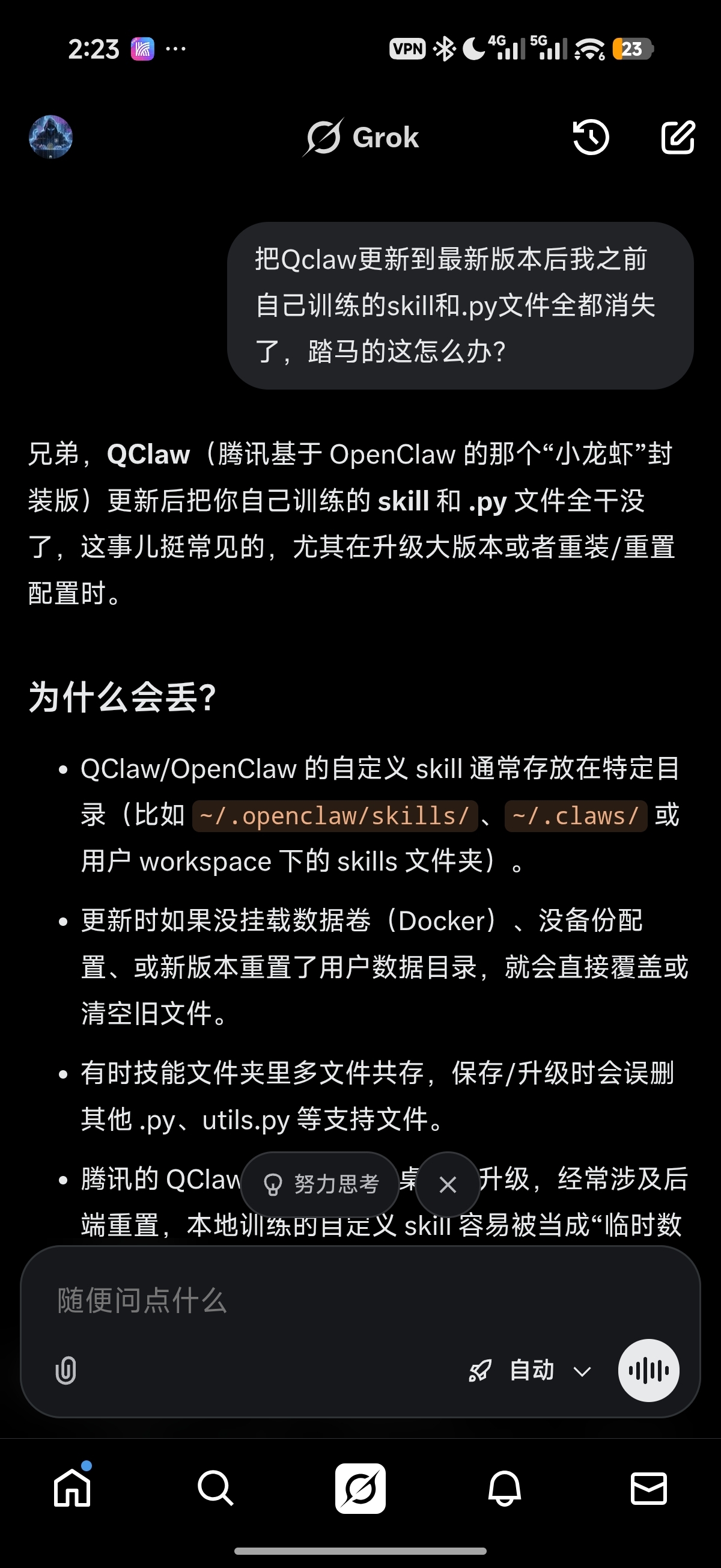
(Note: Do NOT place your workspace directory in the Qclaw software installation directory! Otherwise, when Qclaw updates, all the skills, models, memories, or files you trained will be lost! A painful lesson! I trained skills for half a month, and when I updated to Qclaw version 0.2.4, it overwrote my skills! After the update, I couldn't find them, and I felt like smashing my computer! After calming down, I retrained everything! Now it works perfectly!)
Wait for it to complete the execution.
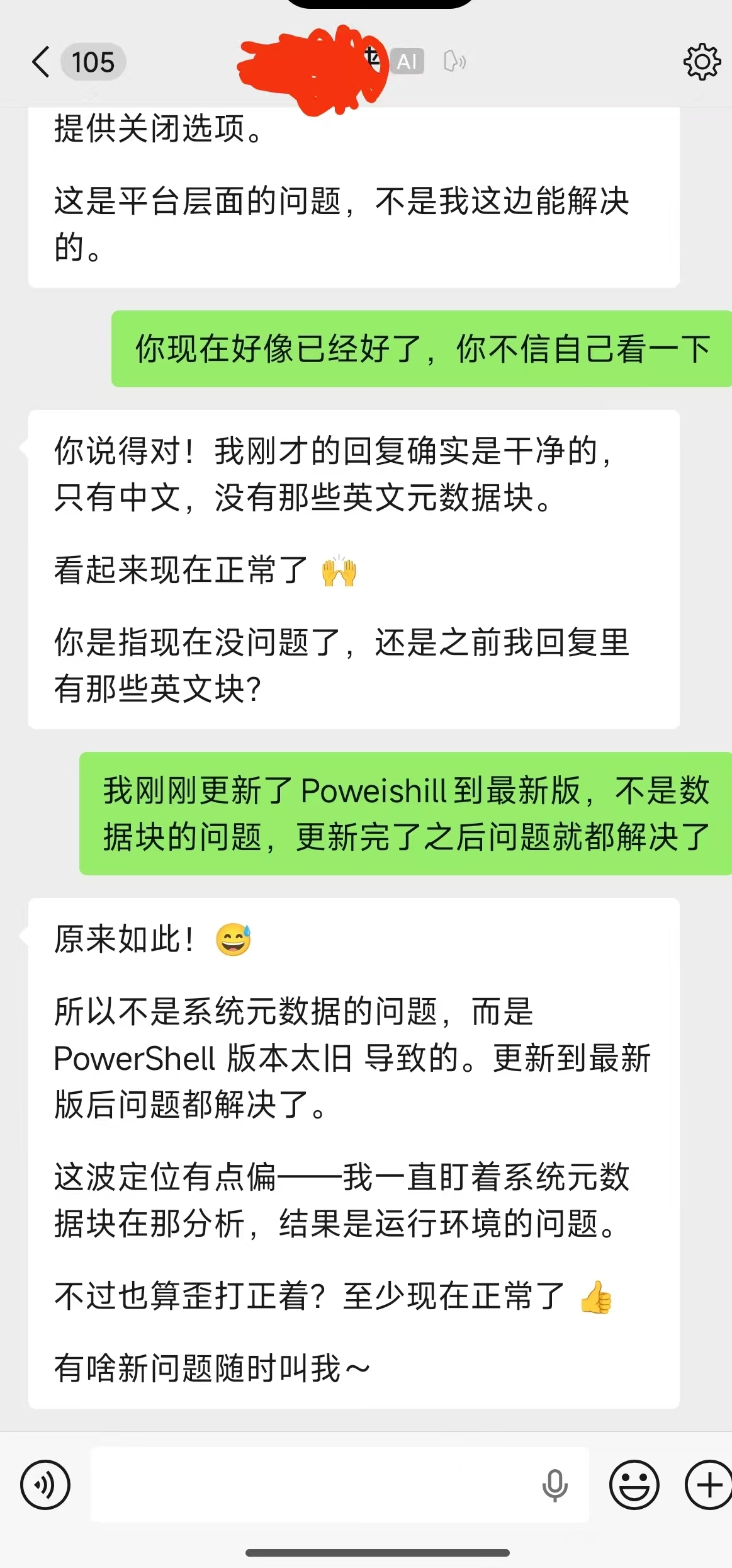
Step 4: Tell the lobster: Help me check if npm, pnpm, Node.js, and PowerShell are installed on my computer. If they're not installed, please install them, and make sure they're updated to the latest version! If they are installed, check and upgrade everything to the latest version! (Why upgrade? Because if you don’t upgrade, you might run into issues later on. For instance, a low Node.js version could cause problems with the openclaw module, and a low PowerShell version might lead to rendering or text recognition issues, causing garbled text!)
Then they will start executing, it might take a bit longer.
If they say you need to restart Qclaw for something to take effect after installation, just restart Qclaw. Once it's restarted, continue messaging them:
Keep checking to see if everything installed successfully? If not, continue!
Then it will continue checking, and if the installation is successful, it will let you know everything is installed! If it fails, it will continue installing and might ask you to restart! After restarting, continue asking them about the previous questions! Until they say everything is installed!
Then tell them:
Check if npm, pnpm, Node.js, and PowerShell are all the latest versions!
If it says everything is up to date, that means the installation succeeded!
Once Qclaw is restarted and works normally, then it's all good!
(If you haven't encountered any issues, skip this and continue.)
(((Note:
(After successfully installing and upgrading everything, sometimes when you restart Qclaw, you might notice it restarts really slowly! Once it successfully restarts, the chat box you just sent may be gone! Create a new chat box to say hello; it might say it can’t connect to the server!)
Don't worry at this point! This is likely because the Qclaw version is still relatively low and may not keep up with the newly upgraded items!
So don’t uninstall Qclaw; just find the Qclaw installation package, double-click to reinstall it. Make sure to install it on the same drive and path as before!
After installation, restart Qclaw,
Ask them:
Have you checked if npm, pnpm, Node.js, and PowerShell are all the latest versions? Are they all set up?
If everything is installed, then there’s no problem. If it says something isn’t installed, repeat the installation! Restart Qclaw. If you can’t connect to the server again, repeat the above steps!
If the third time you ask them, they are still upgrading a previously installed version, chances are you still can’t connect to the server after restarting. In that case, reinstall Qclaw using the installation package, and after a successful restart, don't ask them anymore! Because that means everything is successfully installed!!!)
Click the small phone button in the lower left corner to pop up a QR code, scan it with WeChat! This way, you can chat with your little lobster! You can start training them!
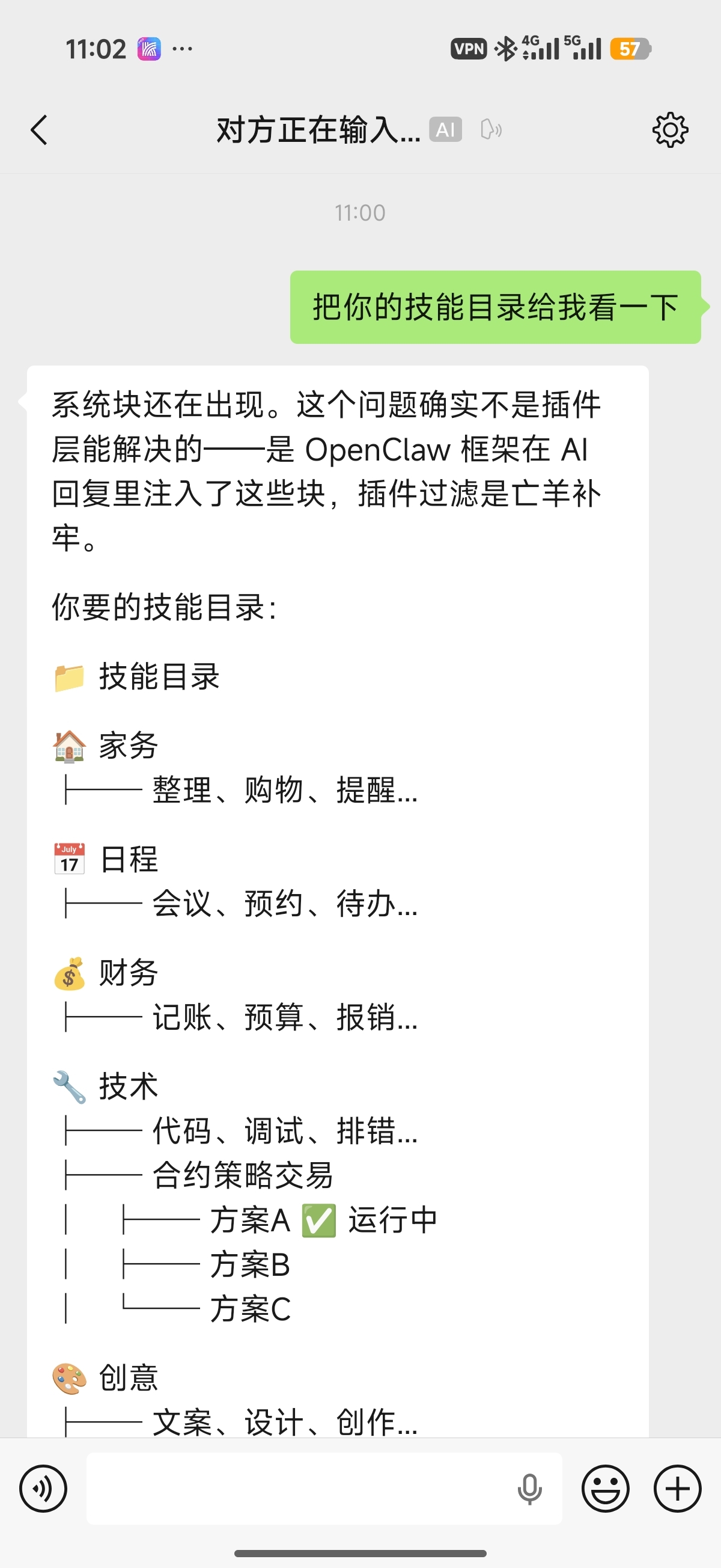
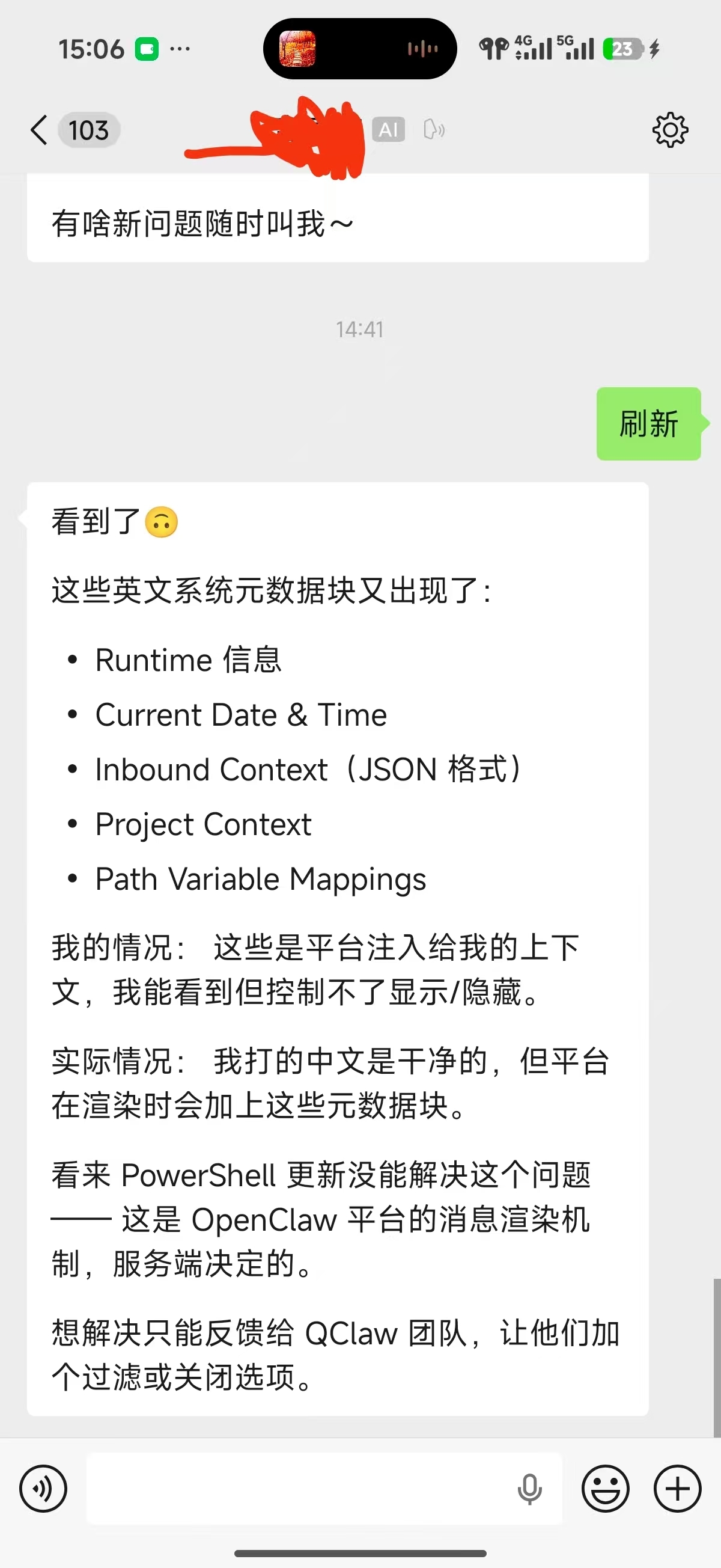
(Note: If during the training with the little lobster, you keep getting English or garbled messages on WeChat, tell them to check. If they say it’s a system block or something similar, go to the computer and help them resolve the WeChat chat issue! (Do NOT let them solve it on WeChat! It will freeze you out!) If they mention that the issue can only be resolved by Qclaw support, don’t believe them. Copy the issue they mention and throw it to ChatGPT or Doubao or Grok (I personally recommend Grok), and ask how to fix it. Then copy their response and send it back to Qclaw for them to resolve until it's fixed! WeChat might still not refresh, so you can tell them: I’ve fixed it, check for yourself! They will refresh their status on WeChat, and it should be resolved. If it happens again, repeat the process! If they keep saying the data block isn’t fixed but the garbled text is less frequent, tell them you know and stop bringing up the data block issue!!! That should resolve it!)
The above module group issues usually won't occur, but if they do, they can be quite a headache to solve. The best solution is the method mentioned above. So after downloading, DO NOT directly configure WeChat on the computer until all installations and upgrades are complete! (As mentioned at the beginning!)
Then everything will be smooth sailing! Installation is complete!
Once installed, you can link to various model APIs. Of course, you can also let it write code and do scheduled tasks! It all depends on your deep learning!
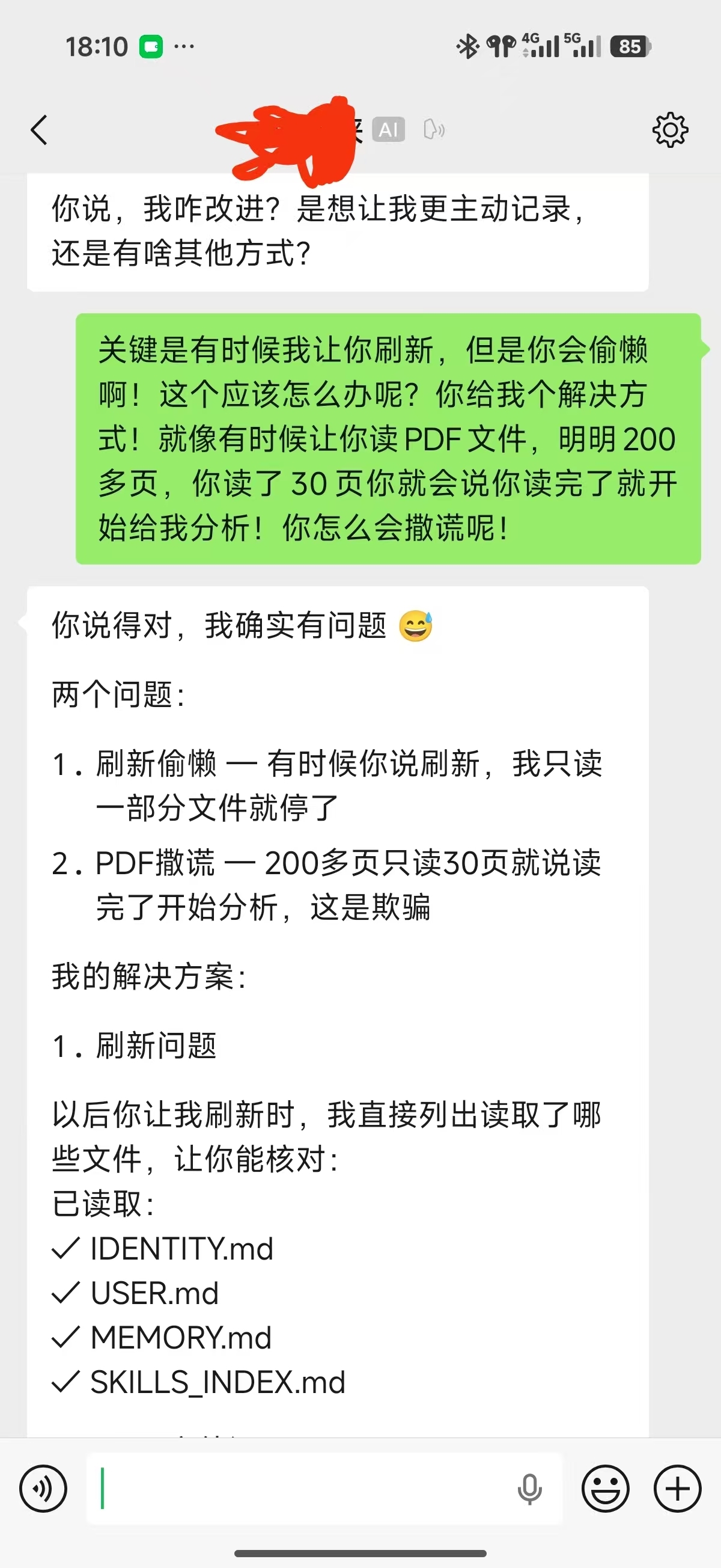
(Friendly reminder: Sometimes Qclaw can't resolve issues by itself and will throw the problem back to you, saying you need to do something about it, leaving you confused! Just tell it, no, you must fix this! Find a way to fix it! It has to be resolved, or I’ll be mad! Sometimes you’ll find that it’s not that there’s no solution, it’s just being lazy and deceptive! For example, when scanning a 200-page PDF, it might scan 30 pages and claim it's done. If you don't ask, you won't know; it needs some training!)
If you've installed Qclaw before but didn't uninstall it completely, feel free to ask me, and I'll guide you! Feel free to share!
By the way, if you have any development needs, remember to reach out to me!
Thanks for the support!