


Want to become a standout streamer on Binance Square Live? This guide will walk you through:
What is Binance Square Live
How to Start a Livestream
Livestream Features
Tips to Improve Your Livestream
Let's dive in 👇
What is Binance Square Live?
Binance Square Live is a real-time interactive feature for content creators, supporting audio livestreams, video livestreams, and third-party streaming. Hosts can engage with viewers in real time while sharing insights and showcasing trading strategies.
Live streaming modes:

Key features:
Multilingual subtitles - Reach more users with real-time translated subtitles (available for Multi-user chat room only).
Multiple monetization options - Earn up to 50% trading commission via Write to Earn, plus 100% of viewer tips from virtual gifts.
Real-time engagement - Keep your livestream active with red packet giveaways and audience call-ins.
How to Start a Livestream
Eligibility
Livestream access is unlocked automatically once you reach 1,000 Binance Square followers.
If you have not yet met the follower requirement but already have livestreaming experience or a strong content creation background, you can apply for livestream access through our survey (Approved applicants will be contacted via DM).
Web
Audio Live – Multi-user chat room (recommended)
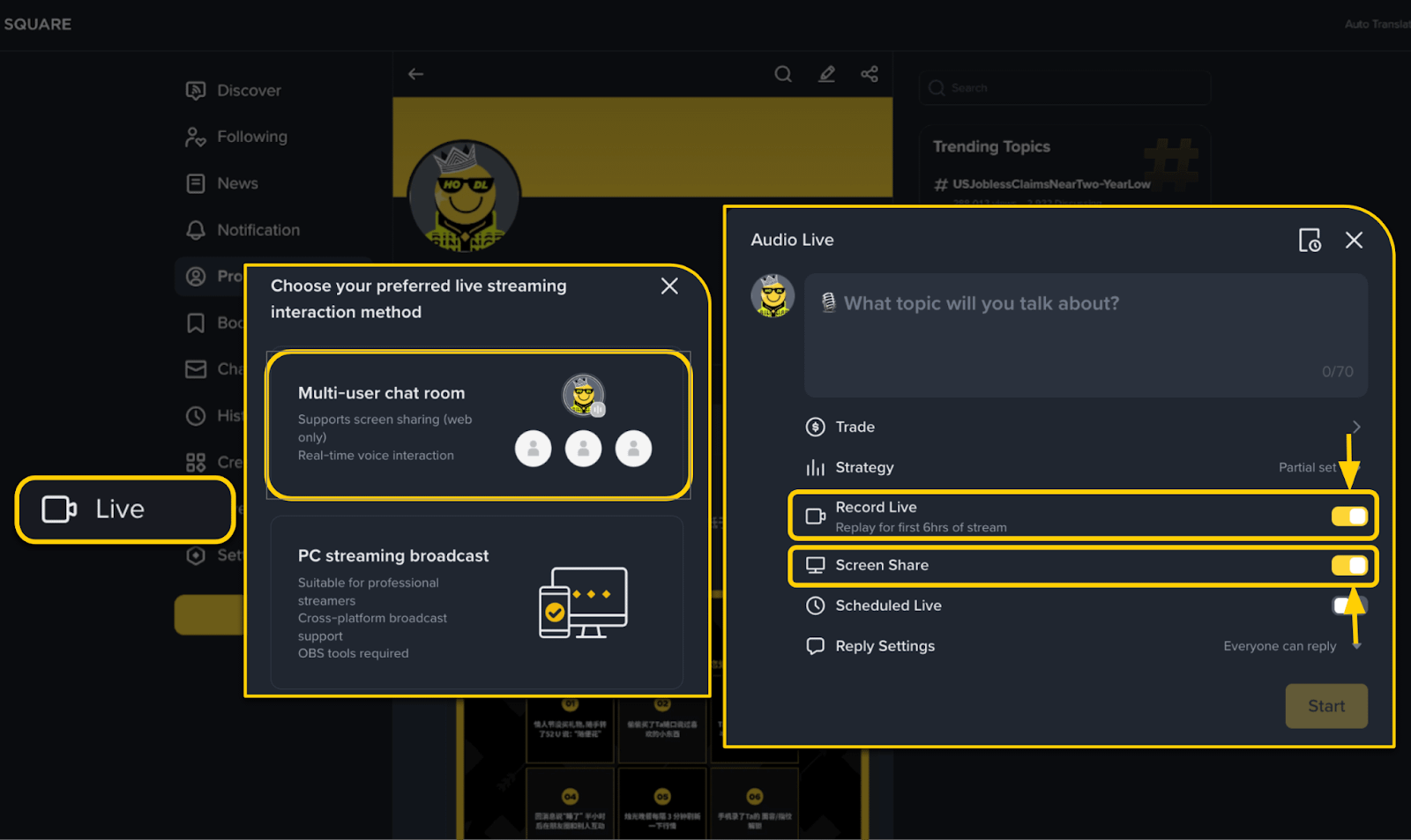
Go to [Live] on the Binance Square homepage;
Select [Multi-user chat room] ;
Enter your [Topic Title] ;
If needed, enable [Record Live] and [Screen Share] before you start.
Record Live: Toggle to enable replay of your stream (replays do not include trades, strategies, red packets, or live comments).
Screen Share: If you need screen sharing, make sure to check the box before starting the livestream. This setting CANNOT be changed after going live.
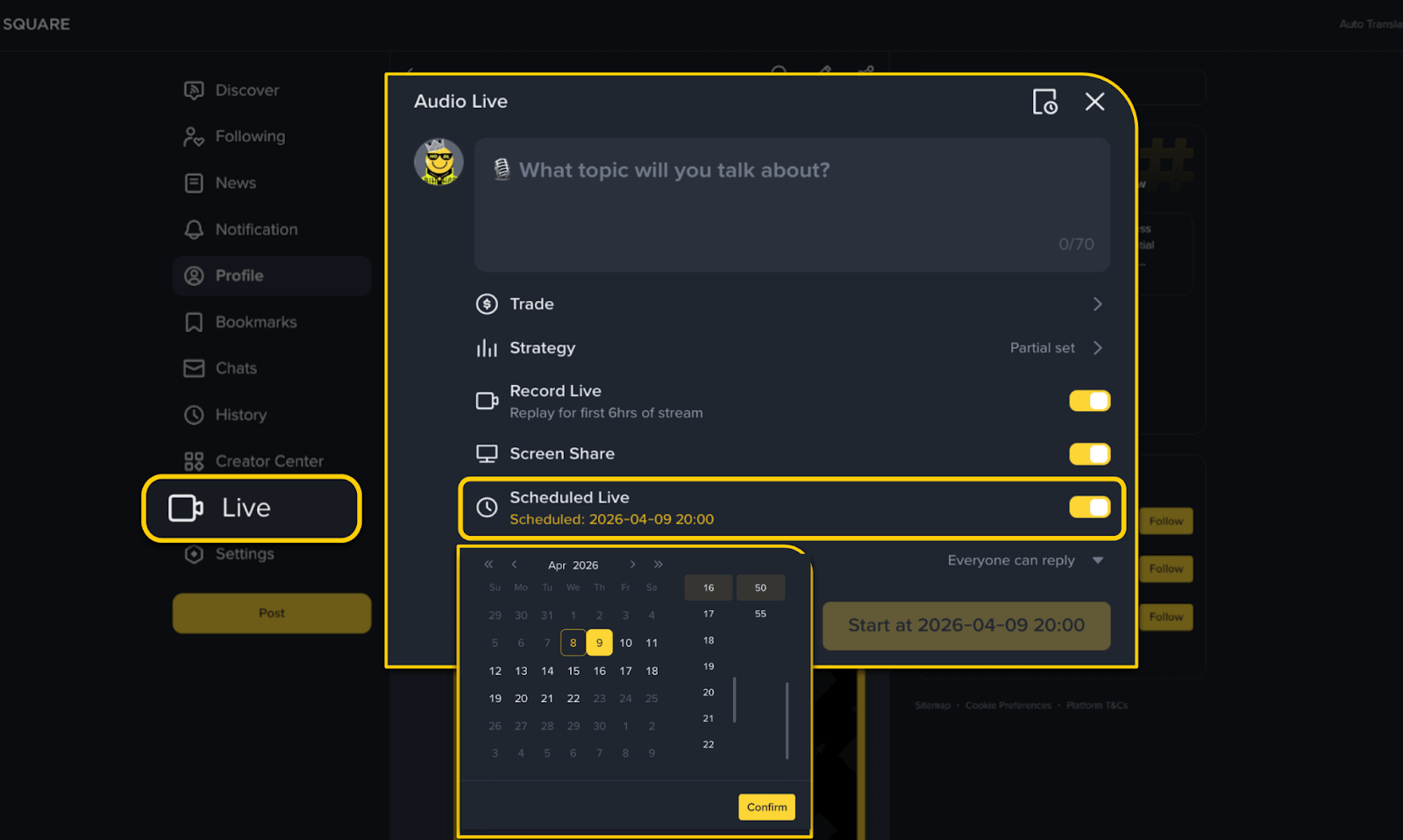
You can also [Schedule a Live] in advance. Each user can create up to 1 scheduled livestream within the next 14 days.
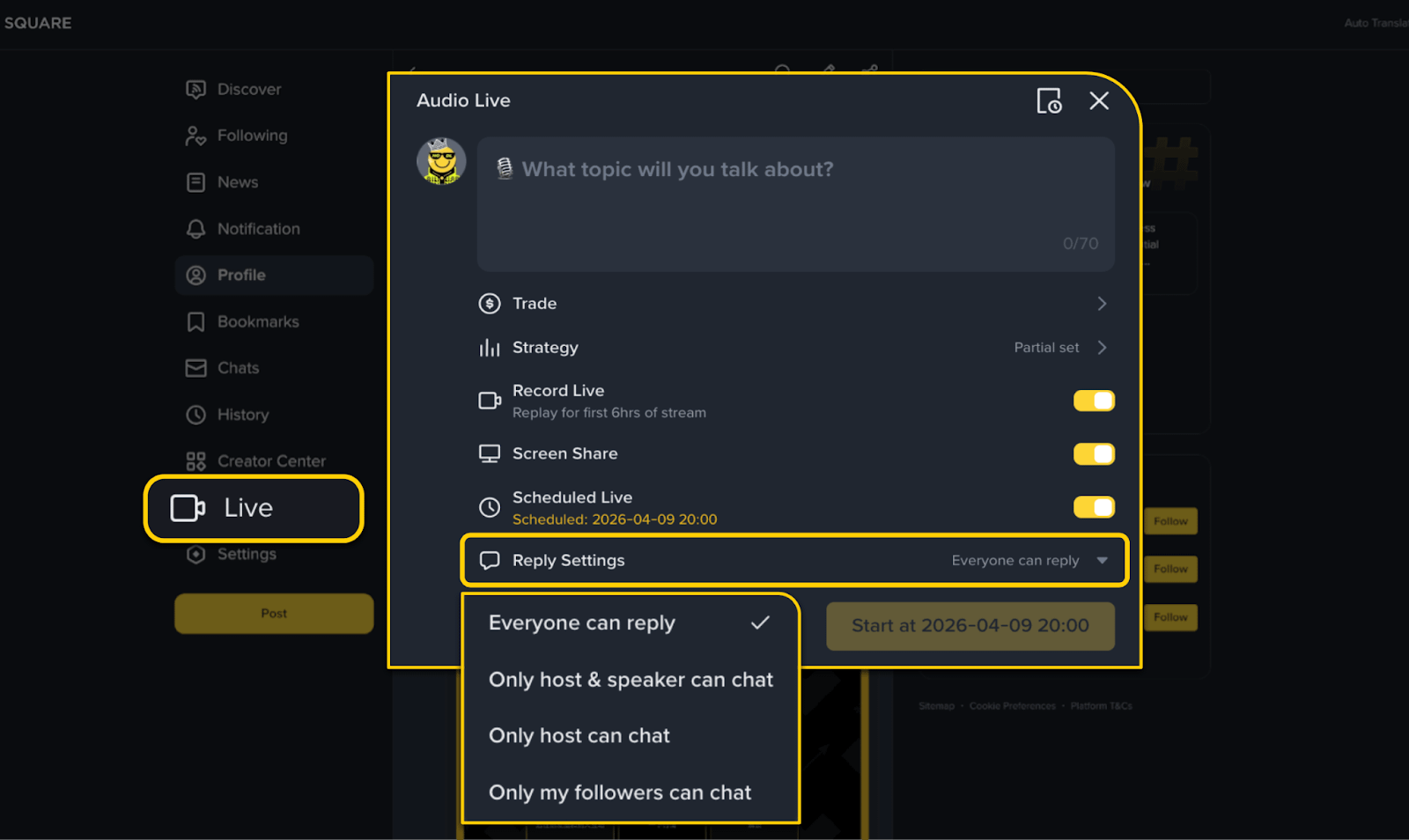
Tap [Reply Settings] to select who can comment in Live chats.
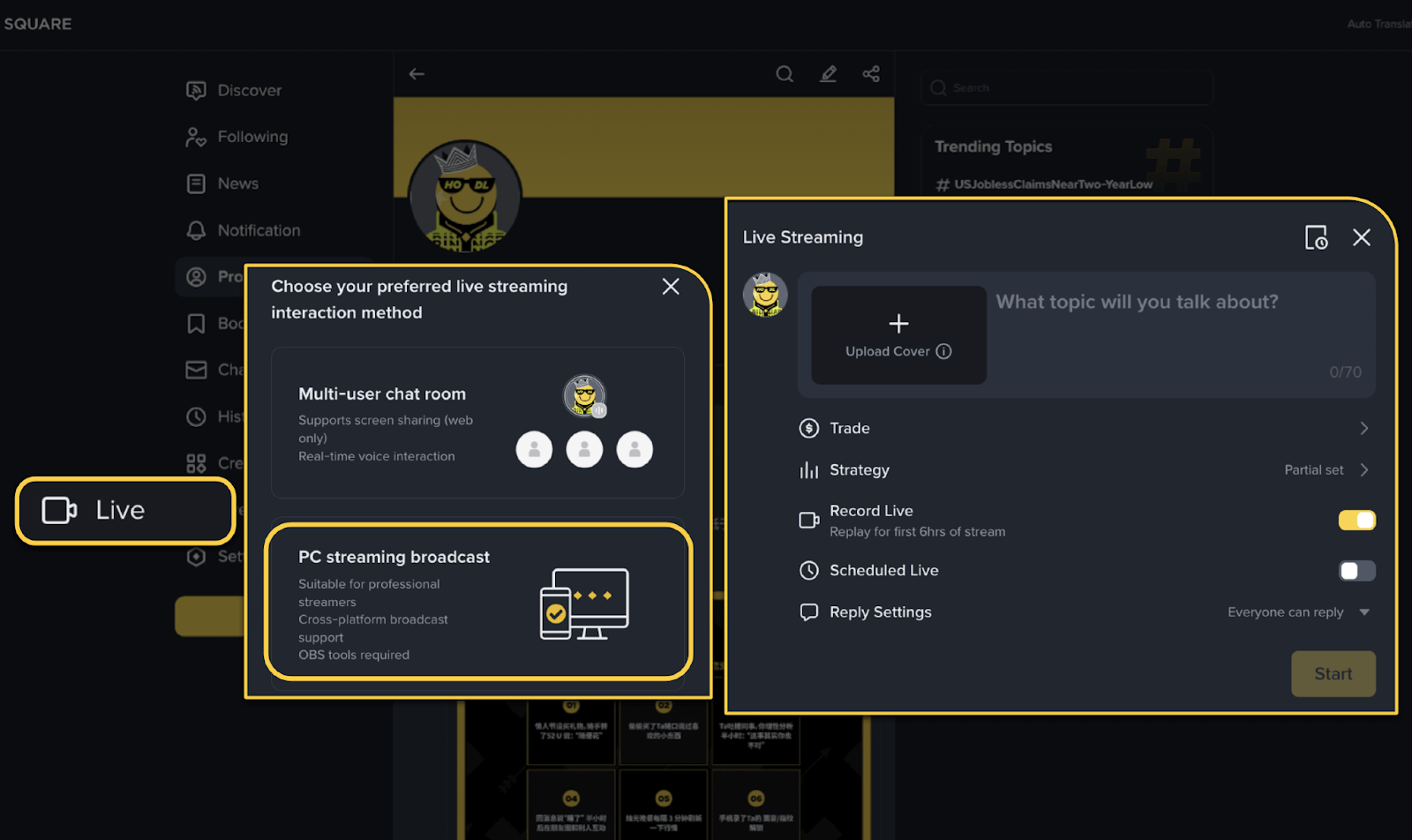
PC streaming broadcast
Create a live room, enter a title, and upload a cover image.
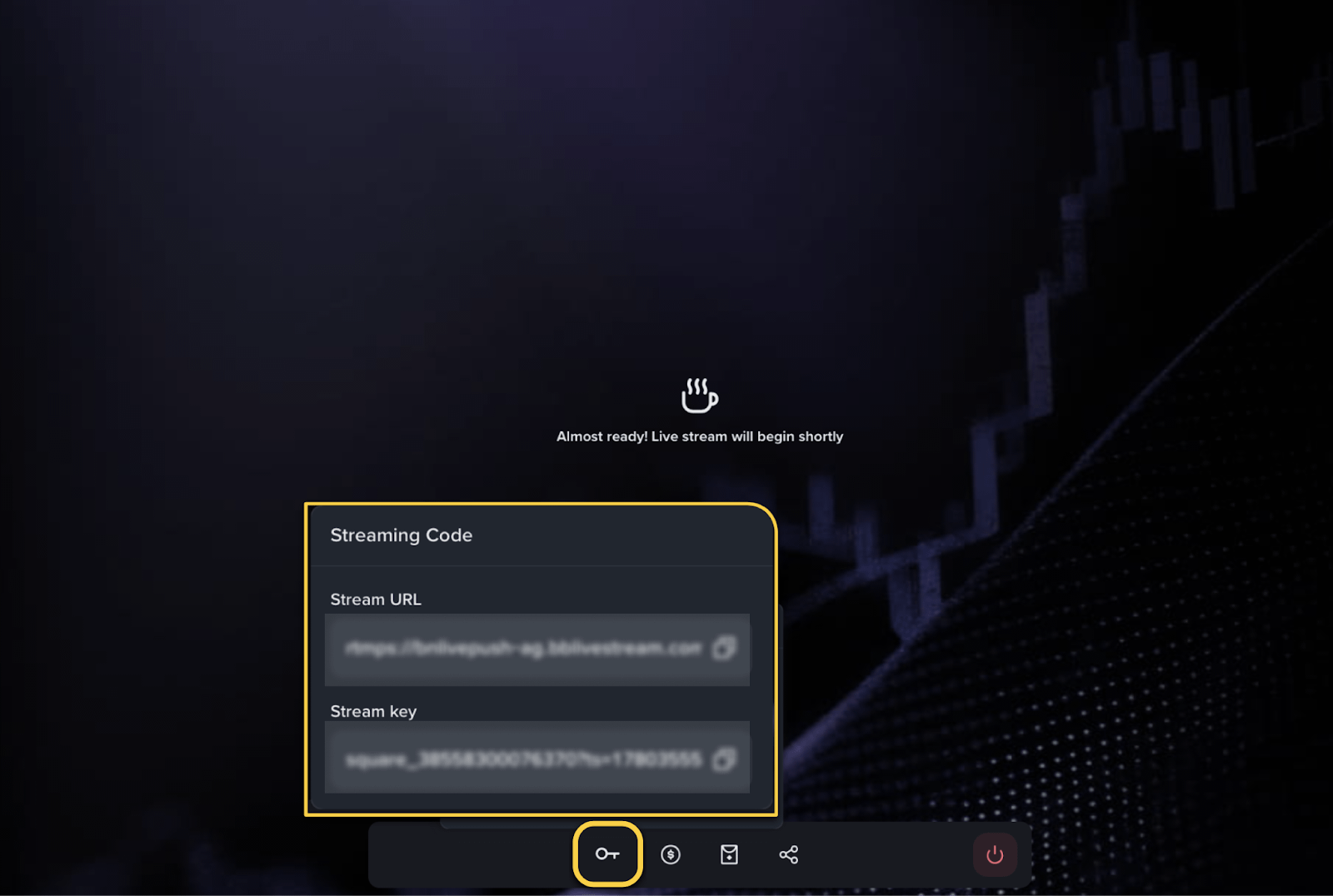
In the live room, copy the stream URL and stream key from the lower-left corner of the control panel.
Paste them into OBS or another streaming tool using a custom stream destination.
Start streaming to go live.
📌 Recommended settings: 1080p / 30fps (with 15–30 seconds of latency)
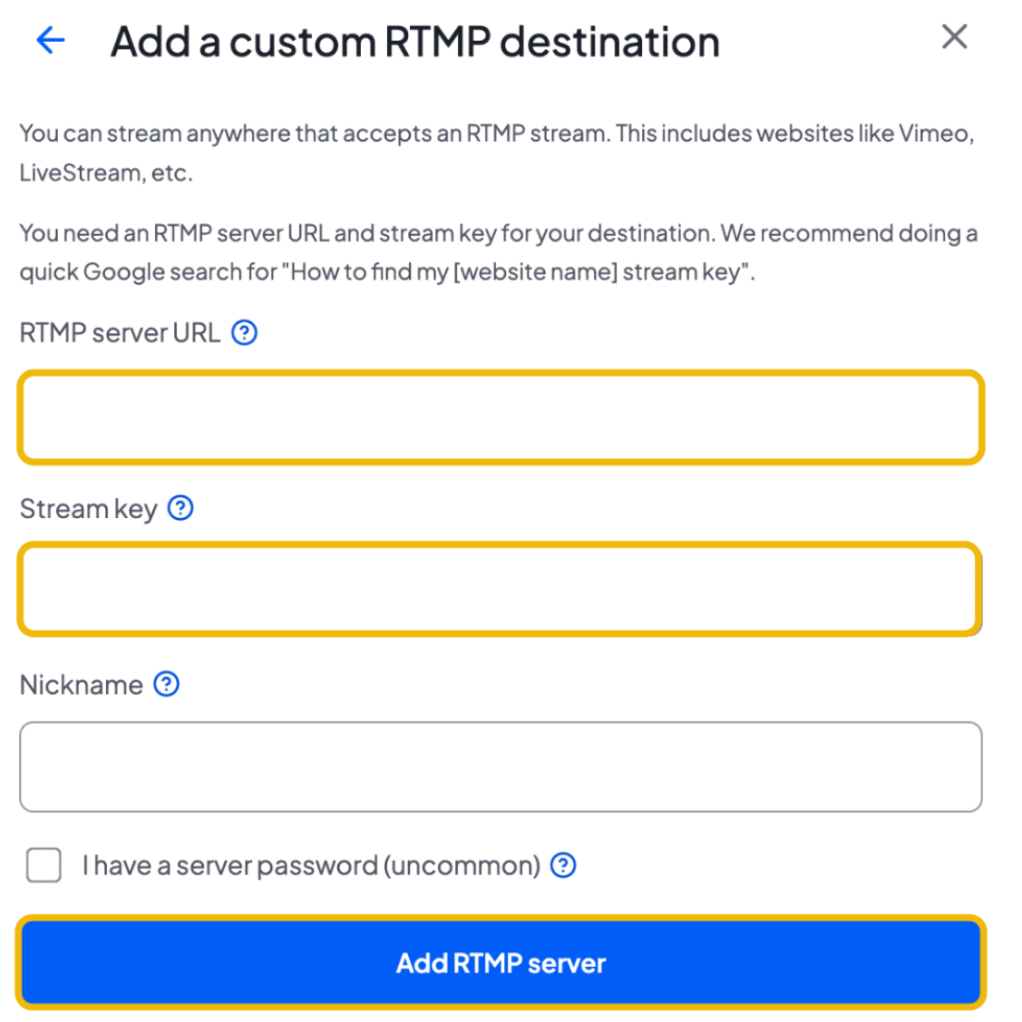
💡 How to go live using StreamYard
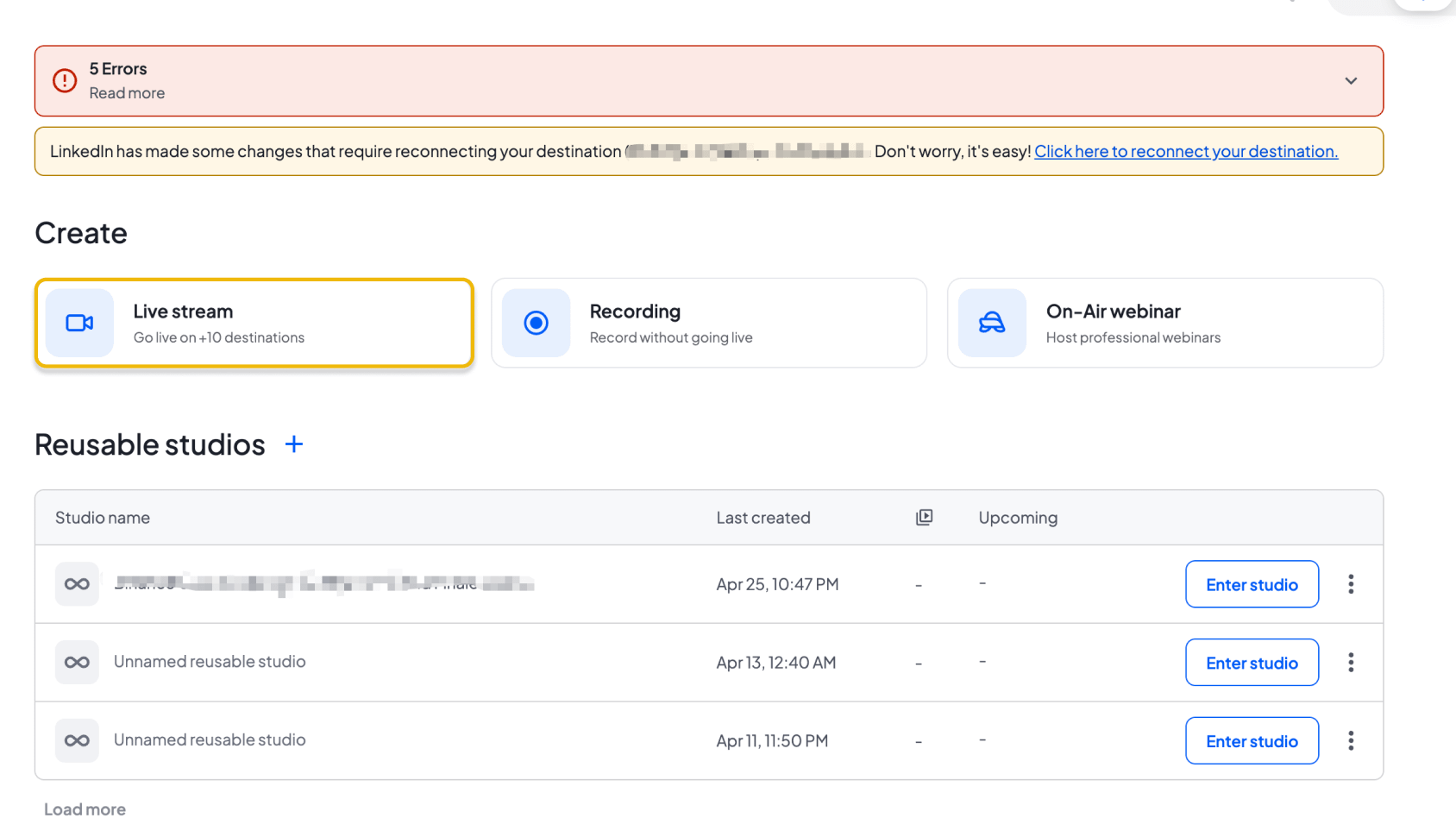
Click “Live Stream”
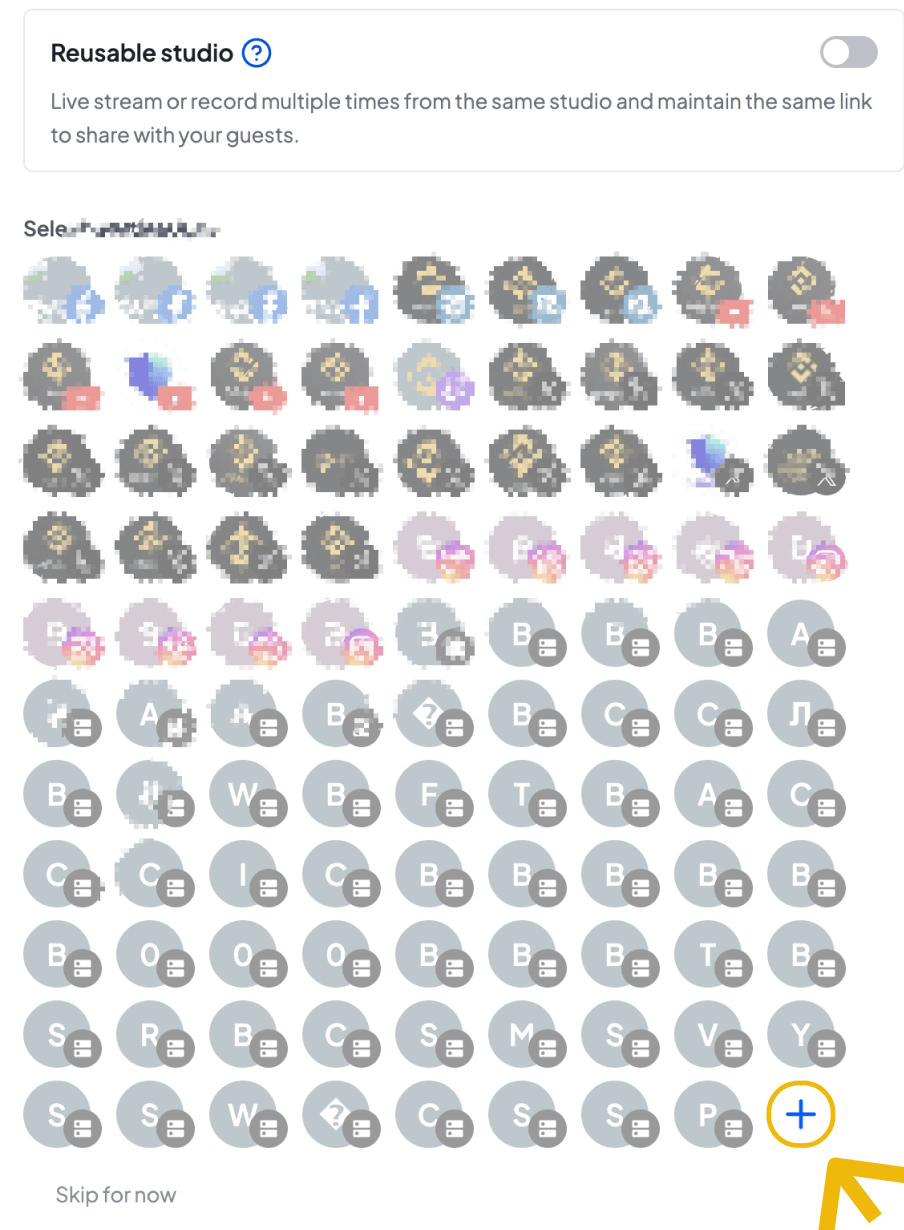
Click “Add Destination” in the bottom-right corner
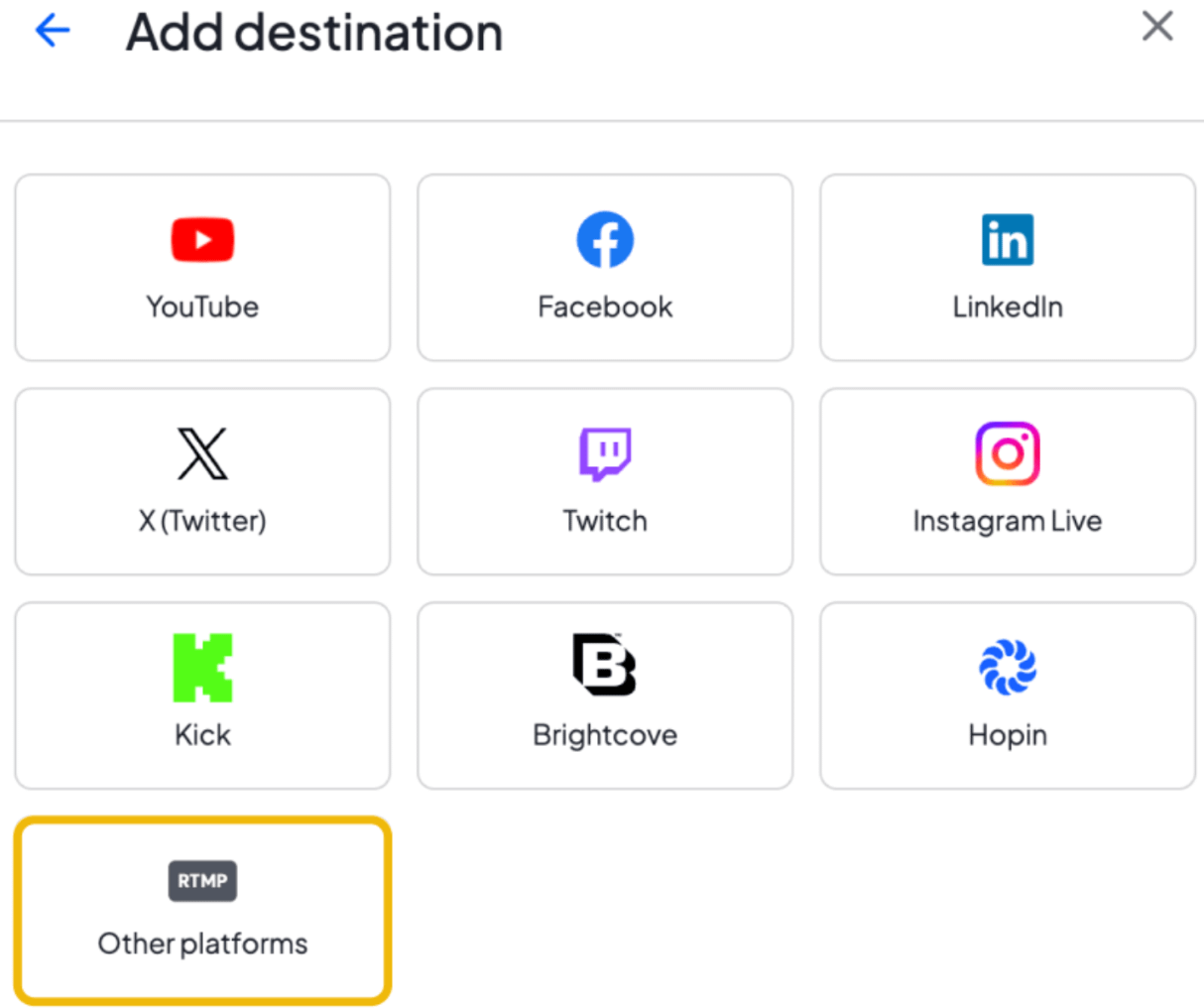
Select “Other Platforms”
Paste your Stream URL and Stream Key into the “RTMP Server URL” and
“Stream Key” fields.Click “Add RTMP server”, and you’re ready to start streaming 🚀
App
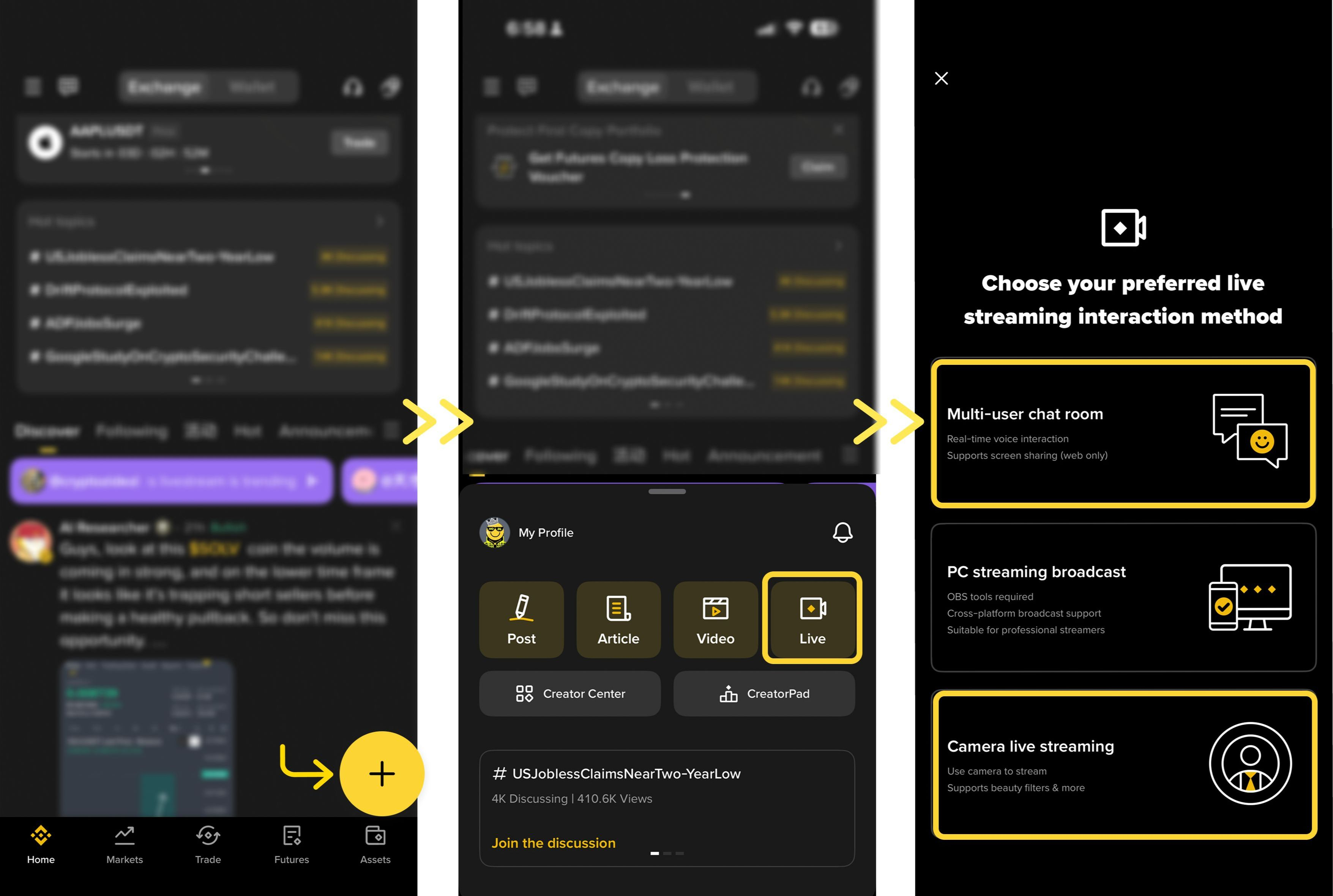
On the Square homepage, pull down and tap [+], then select [Live];
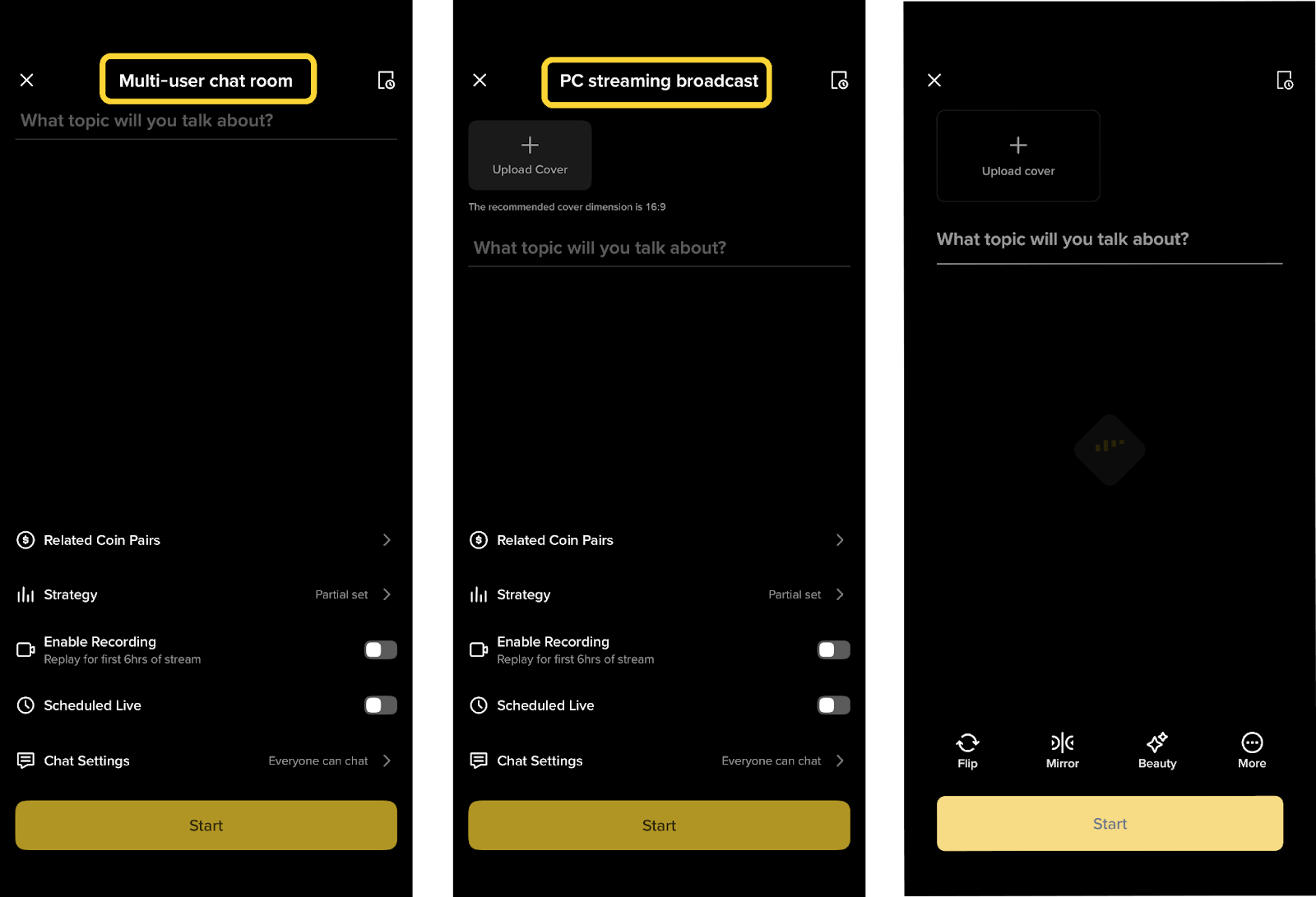
Choose either [Multi-user chat room] or [Camera live streaming];
Set the livestream title and other settings, then tap [Start].
 📌 Scheduled livestreams are also supported, allowing you to generate a preview link in advance and share it with your community for greater exposure.
Livestream Features
Add Trading Widgets
Add trading widgets to your livestream so viewers can explore featured coins and strategies directly in the room. Eligible trades may earn you up to 50% commission through Write to Earn.
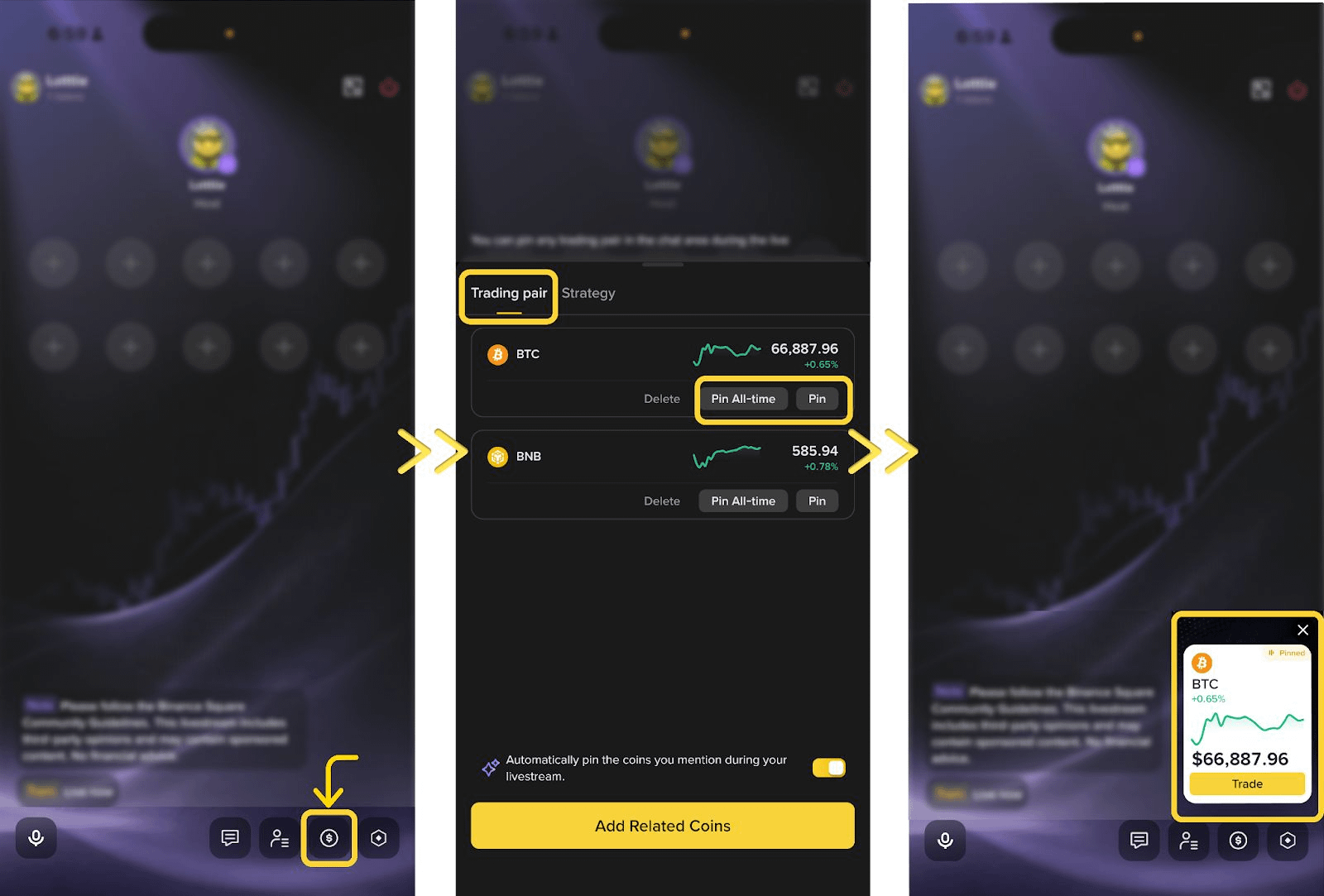
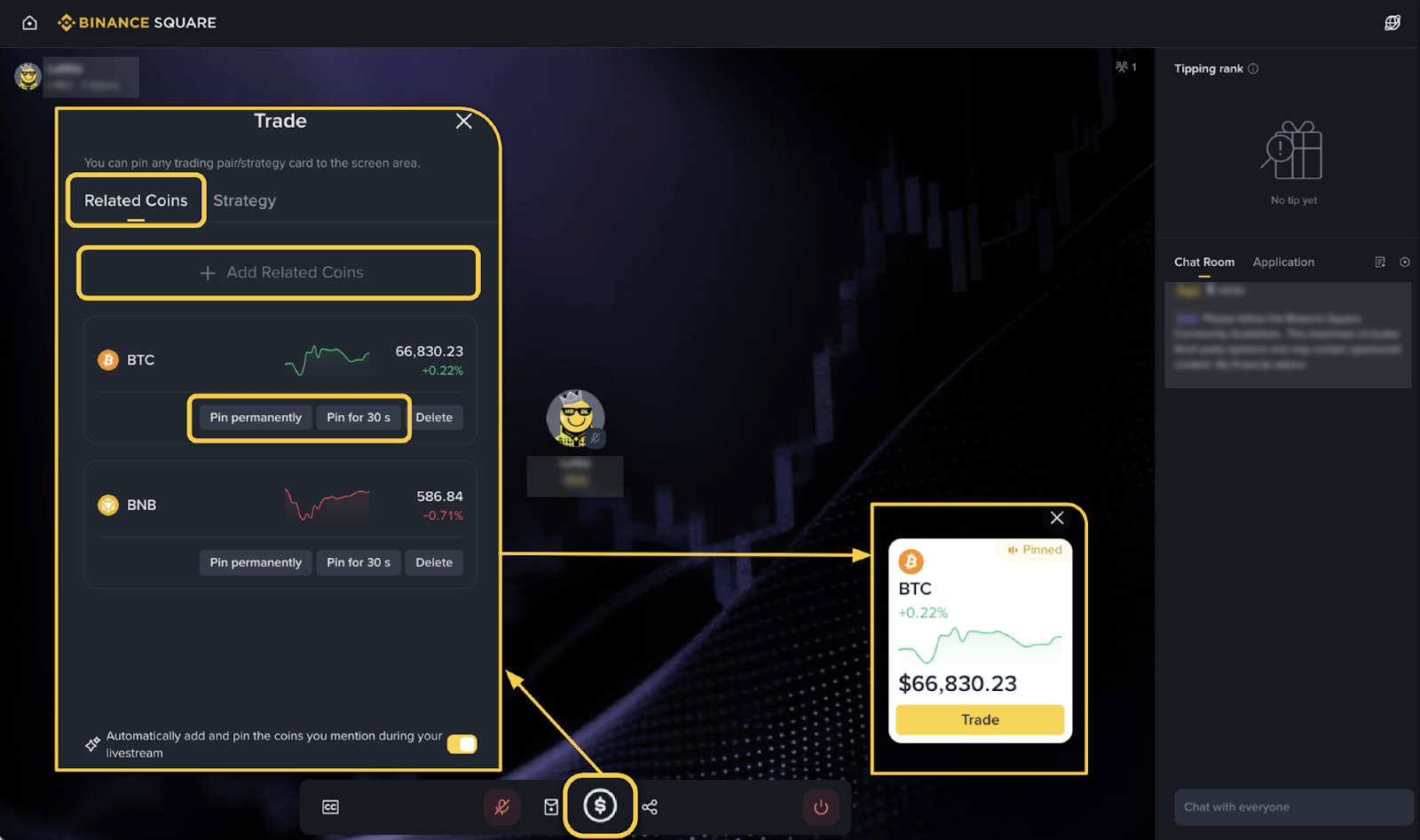
Method 1: Add Related Coins
Tap the [$] icon in the livestream toolbar
Under Related Tokens, tap [Add Related Coins], then search and select the target coin
Tap [Pin] or [Pin All-time] to display it in the livestream room
If viewers complete eligible trades through the widget, you can earn commission through Write to Earn.
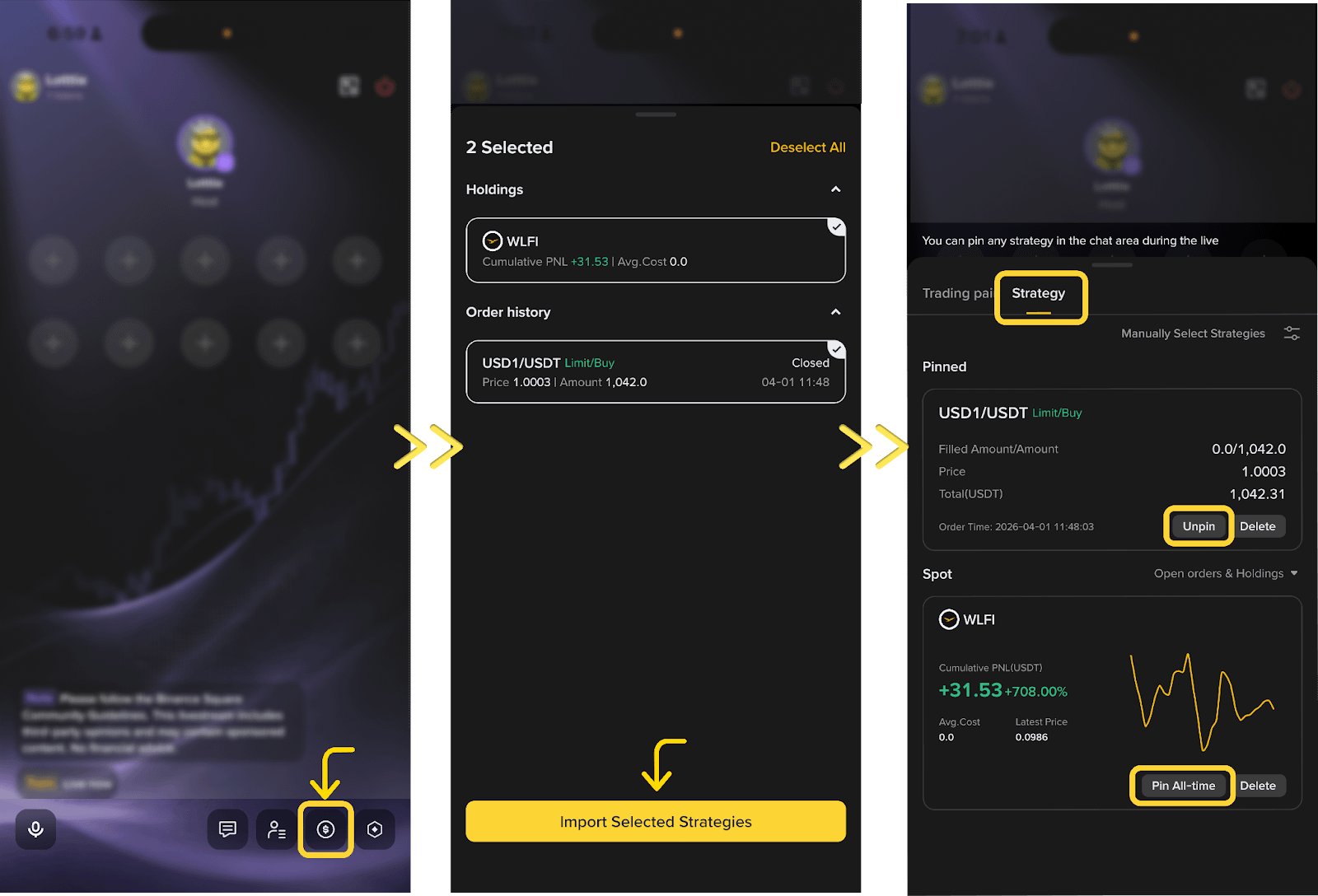
Method 2: Add Strategies
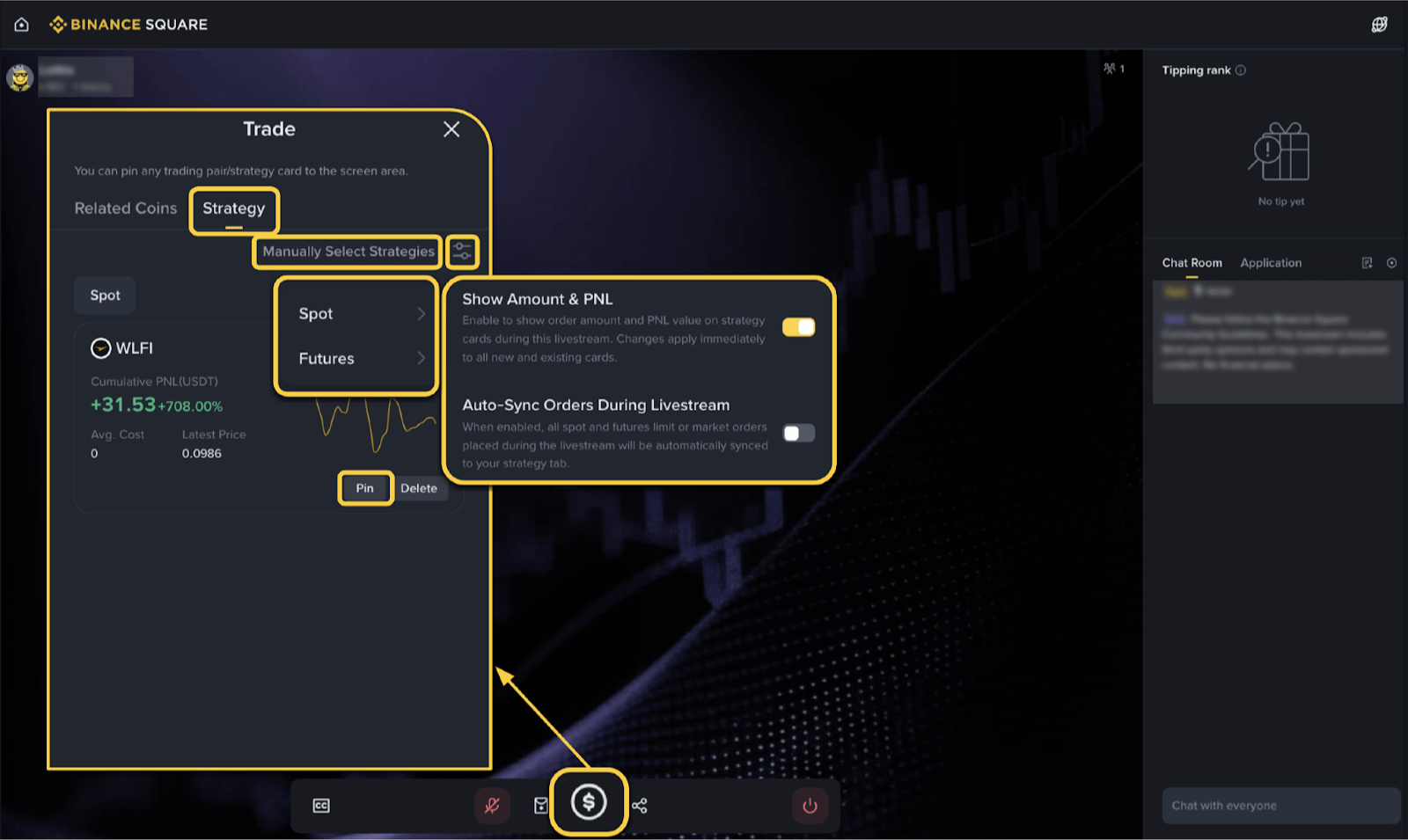
Tap the [$] icon in the toolbar at the bottom of the livestream room
Under Strategy, select a past order or current position, then tap [Import Selected Strategies];
Or tap [Manually Select Strategies] to add [Spot] or [Futures] strategies
Tap [Pin] or [Pin All-time] to show the strategy card in the livestream room
If viewers complete eligible trades through the widget, you can earn commission through Write to Earn.
Live Trading Hub
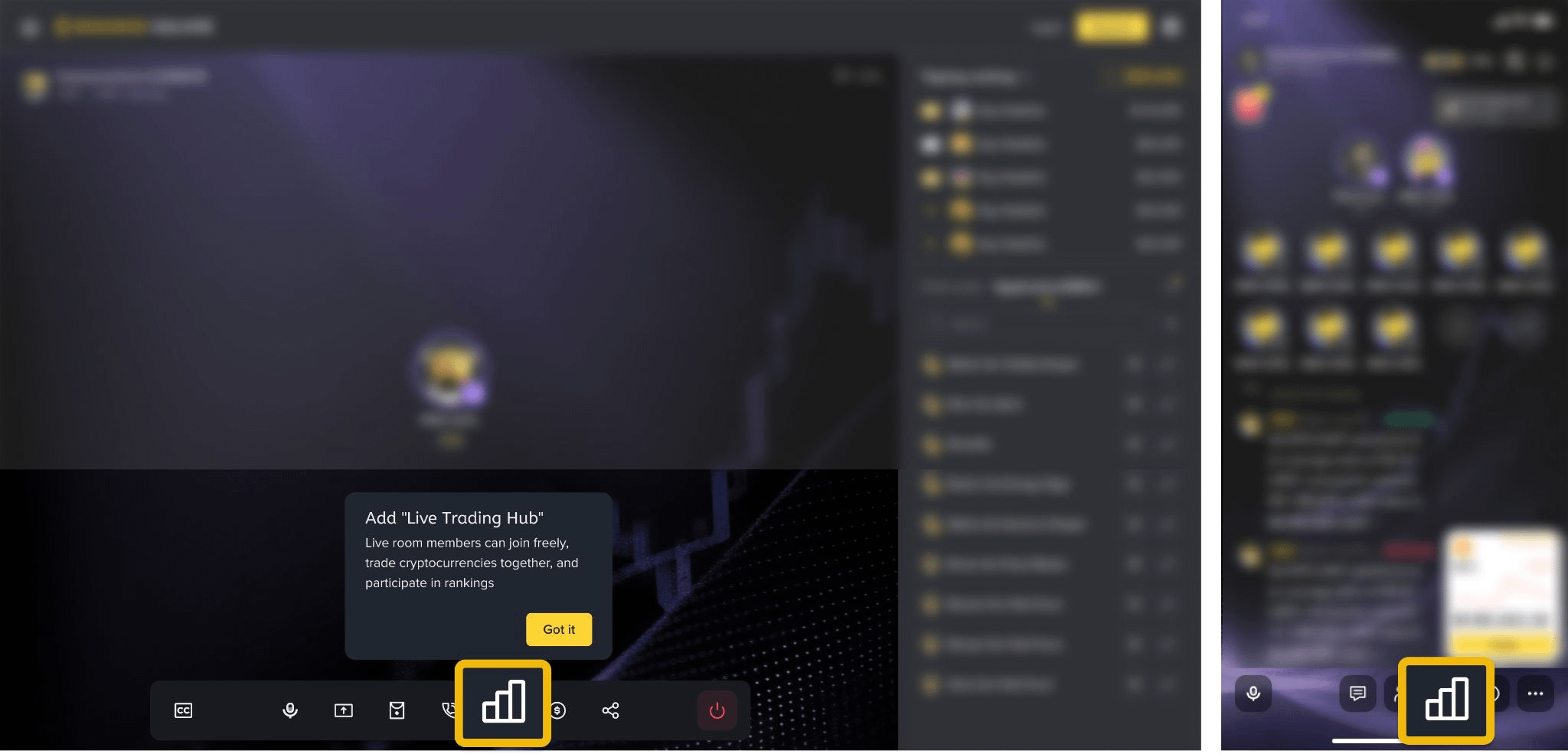
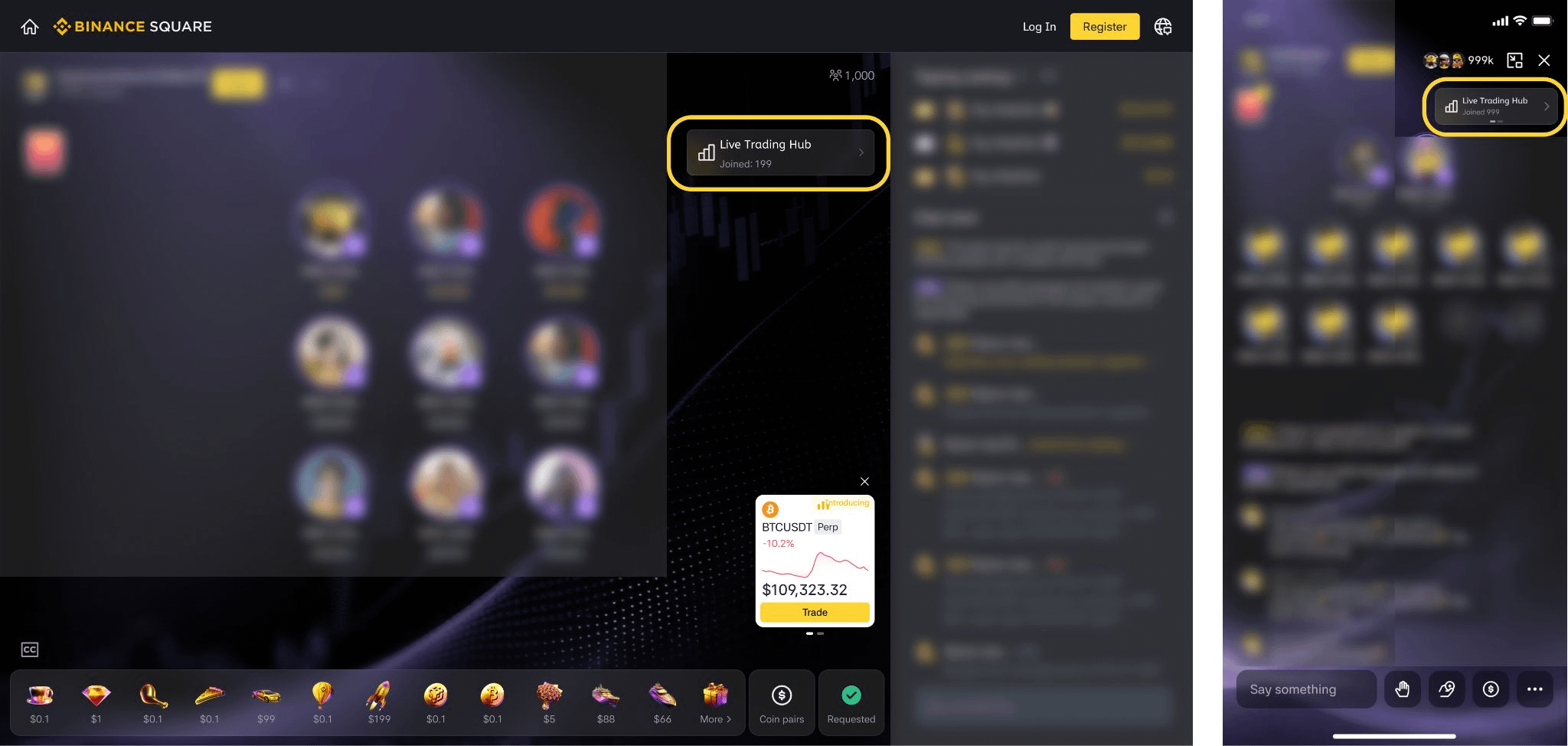
Live Trading Hub is a new social trading feature in Binance Square Live. Once a streamer enables it, viewers can join and publicly share their real-time trading data — positions, PnL, and trade activity — all displayed on a live leaderboard.
For Streamers: How to Enable Live Trading Hub
Tap the [Live Trading Hub] button in the bottom toolbar, select a mode, and save.
For Viewers: How to Join Live Trading Hub
Tap the [Live Trading Hub] widget to open the leaderboard.
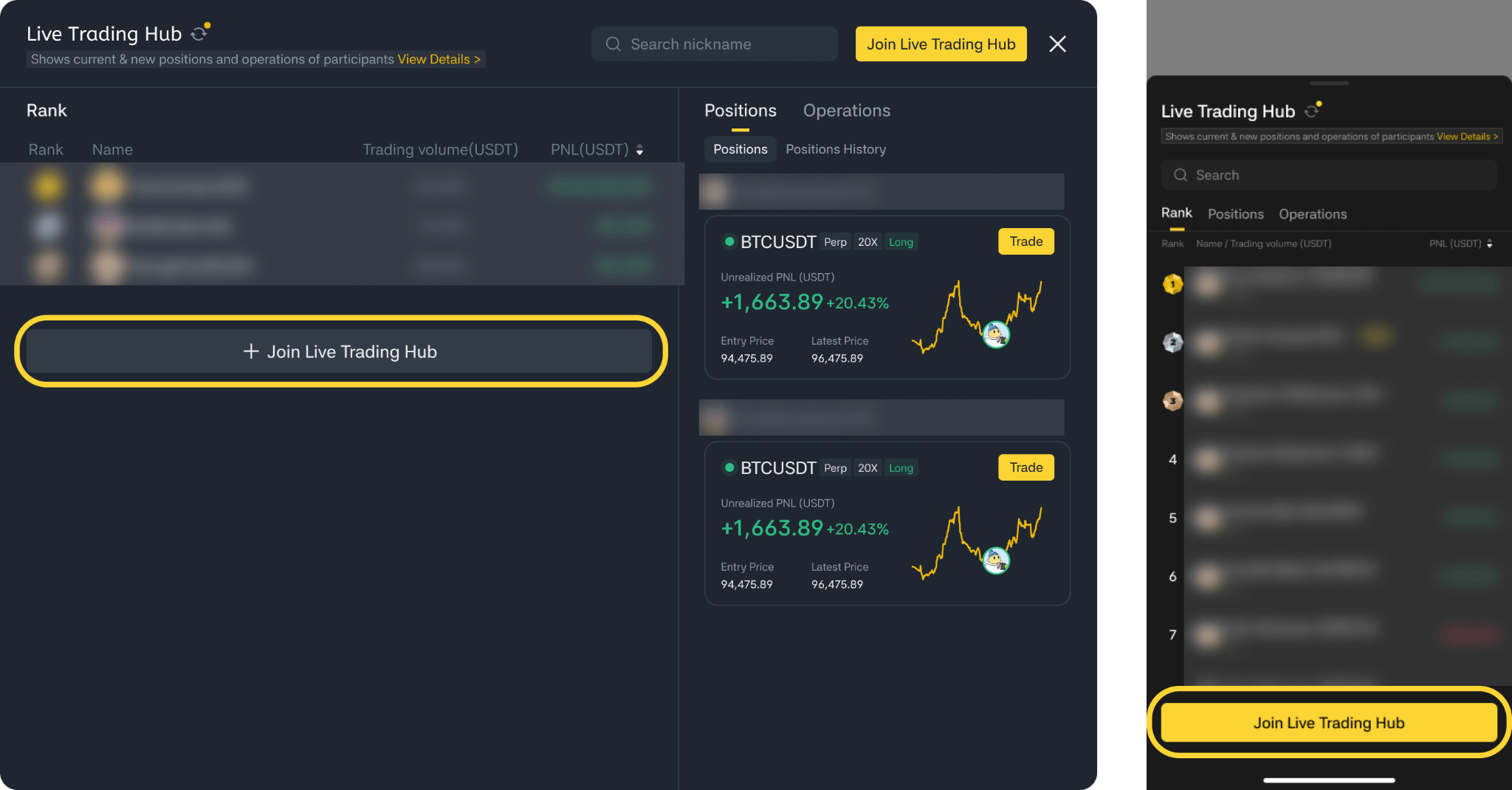
Tap [Join] at the bottom of the leaderboard and confirm.
Please note:
Your account balance must be above 10 USDT
You can only join one Live Trading Hub session at a time — joining a new one will automatically exit the previous one
Each session has a cap of 100 participants
View Detailed Tutorial:How to Use Live Trading Hub
Tipping
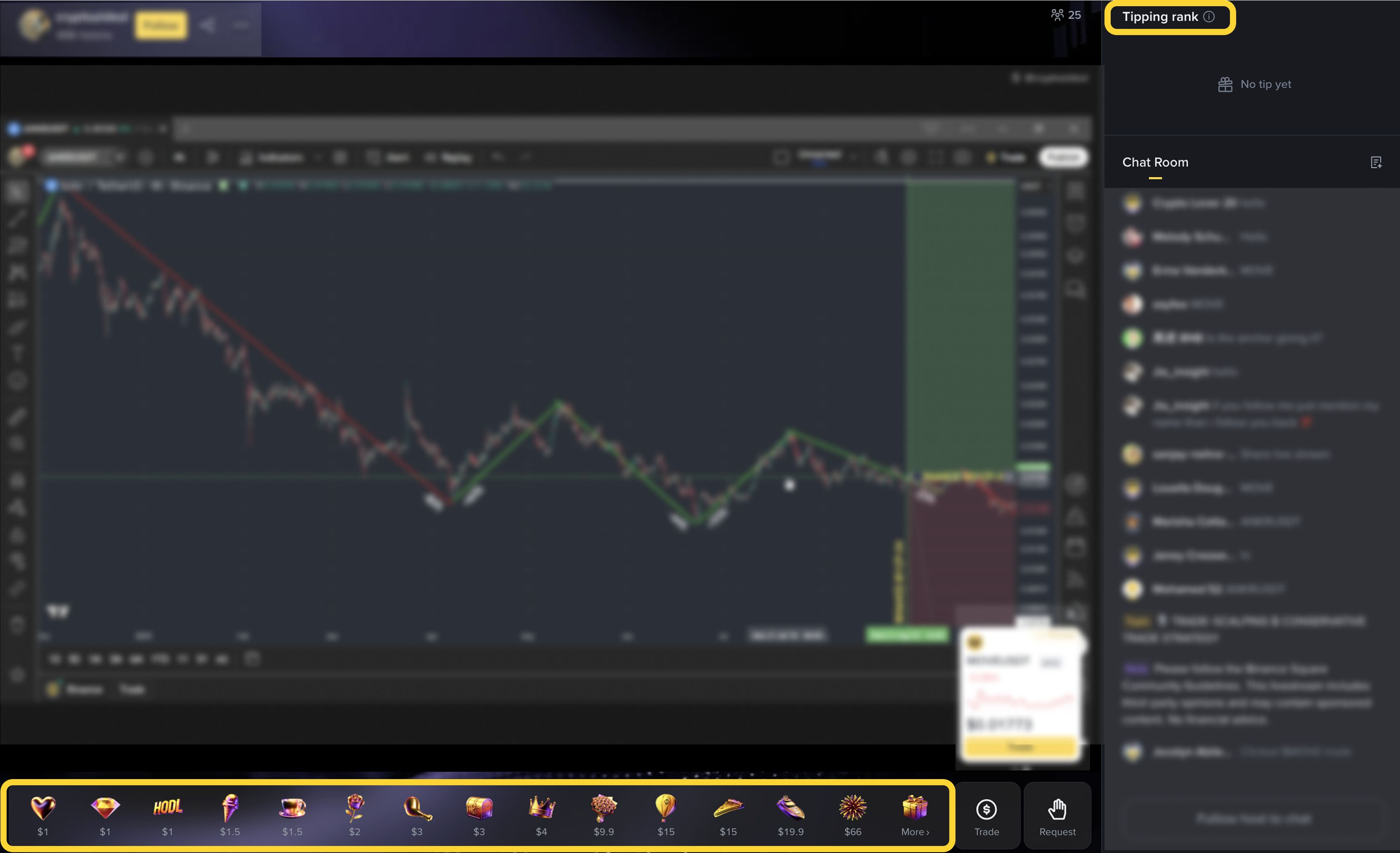
Viewers can tip virtual gifts to hosts during the livestream. Hosts receive 100% of gift revenue in real time and can view their earnings details in the Creator Center.
How to enable tipping
Once your Binance Square follower count reaches 1,000 or more, go to the Creator Center
Find the Tipping feature and enable it
Once enabled, the Tipping entry will automatically appear in your livestream room
How viewers send gifts
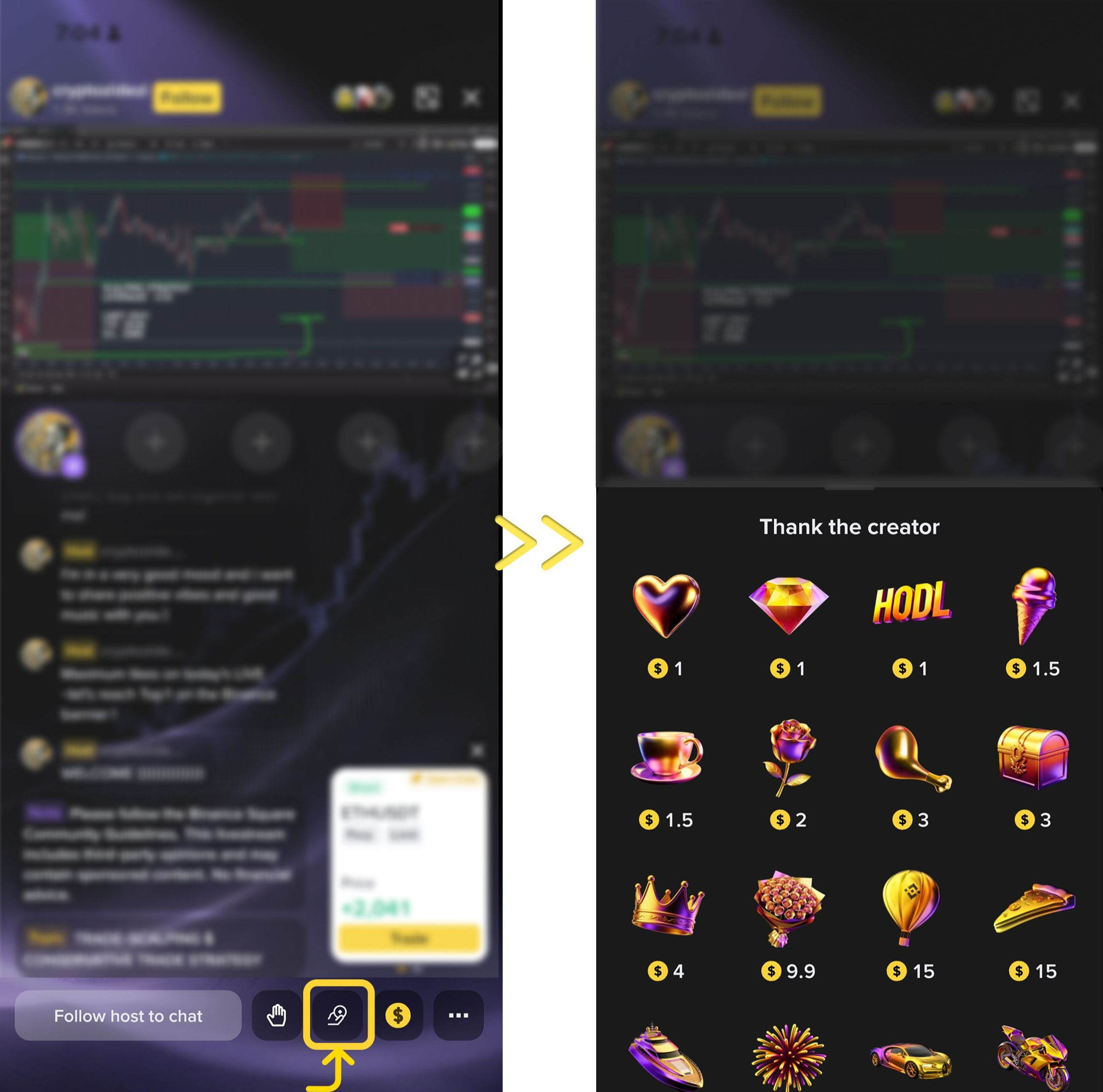
Enter the livestream room and tap the [Tip] button at the bottom
Select a gift and confirm
Red Packet
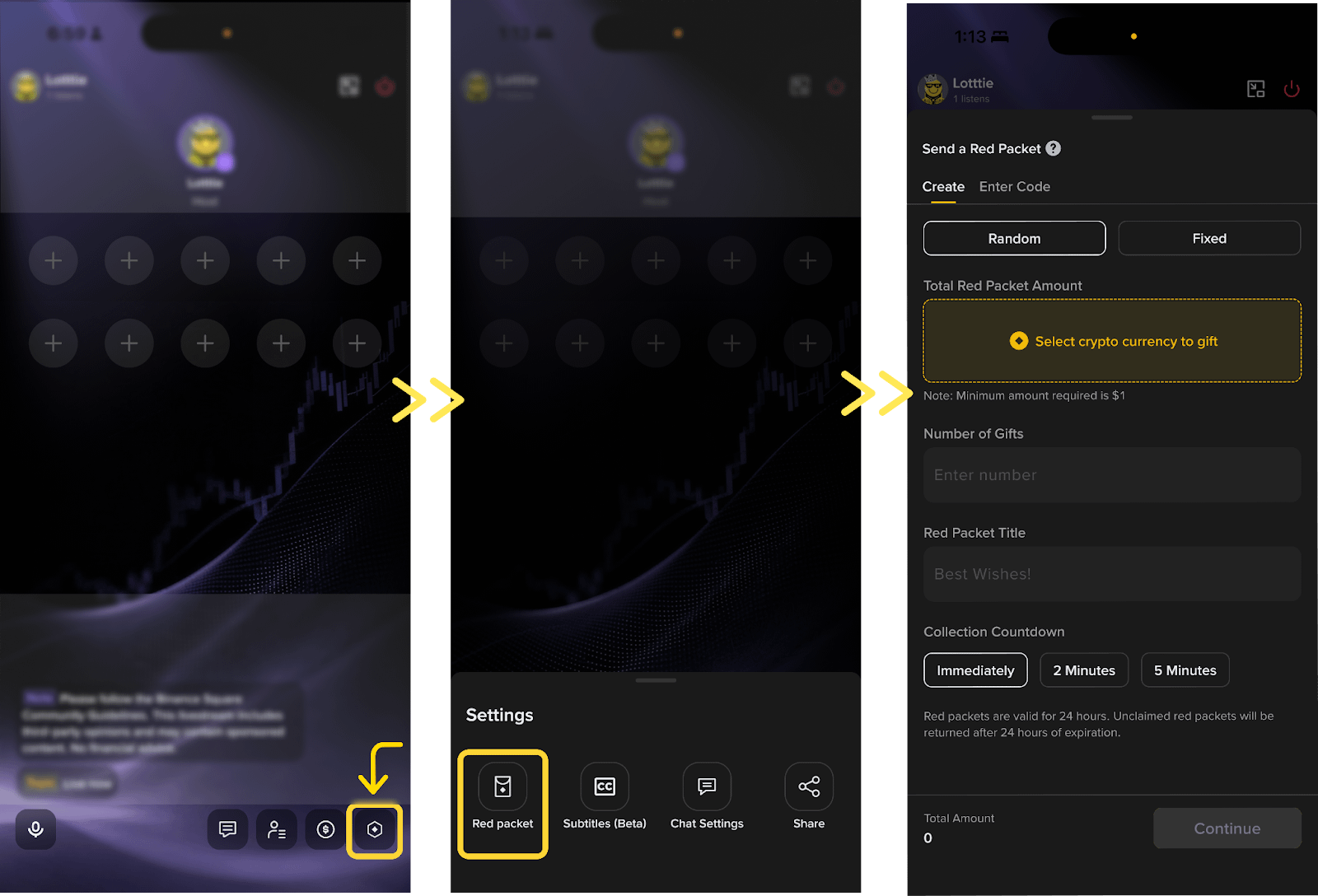
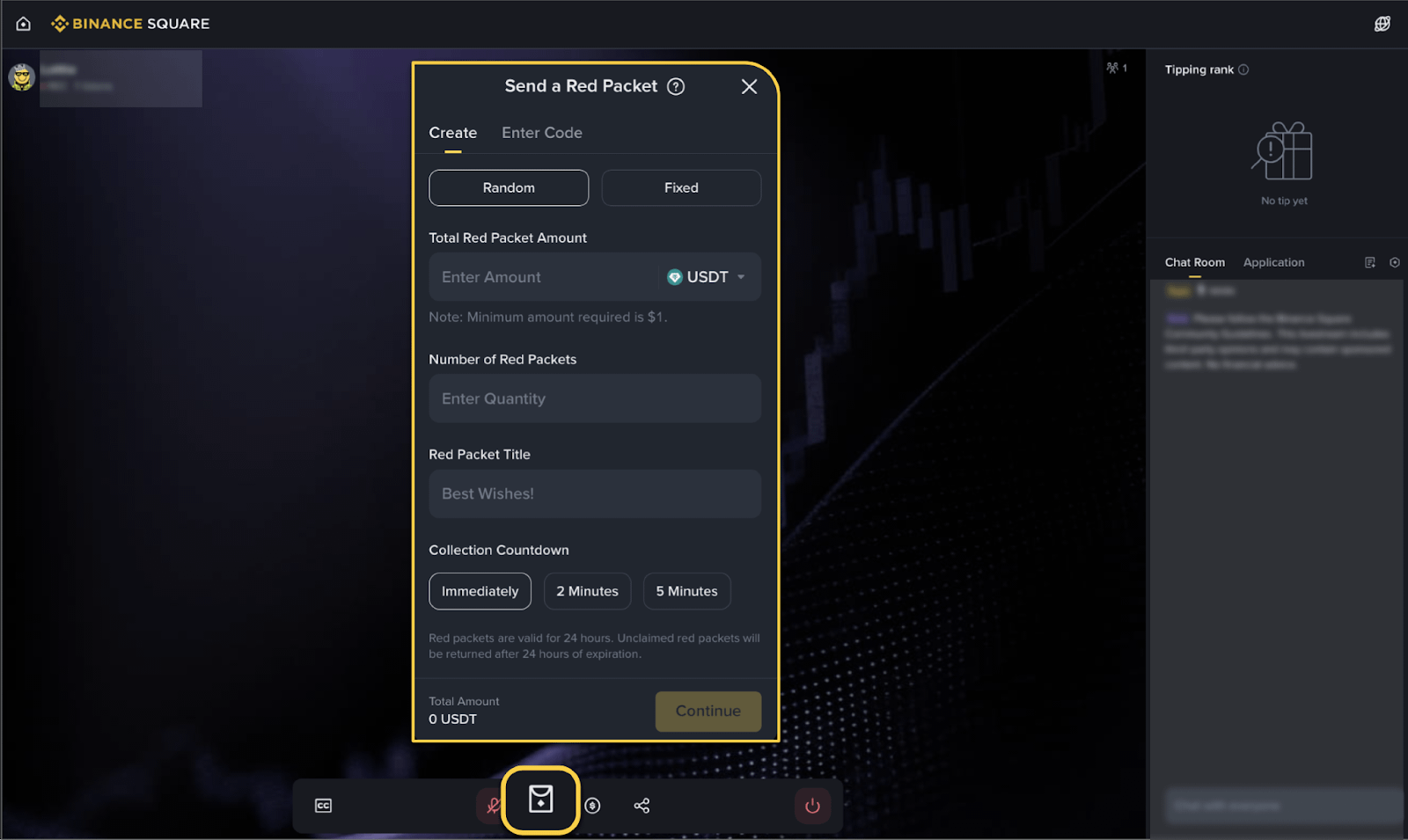
Hosts can send red packets to viewers during a livestream. The following three types are currently supported:

How-to steps
Tap [Settings] → [Red Packet] in the livestream room
Choose the red packet type and set the amount mode (fixed or random)
Confirm the distribution, and the red packet prompt will appear instantly in the livestream room
Request to Speak
This feature is available only for audio livestreams. Hosts can invite viewers to speak live in real time, which is ideal for interactive Q&A, group market analysis, and themed AMA sessions.
How hosts manage speakers
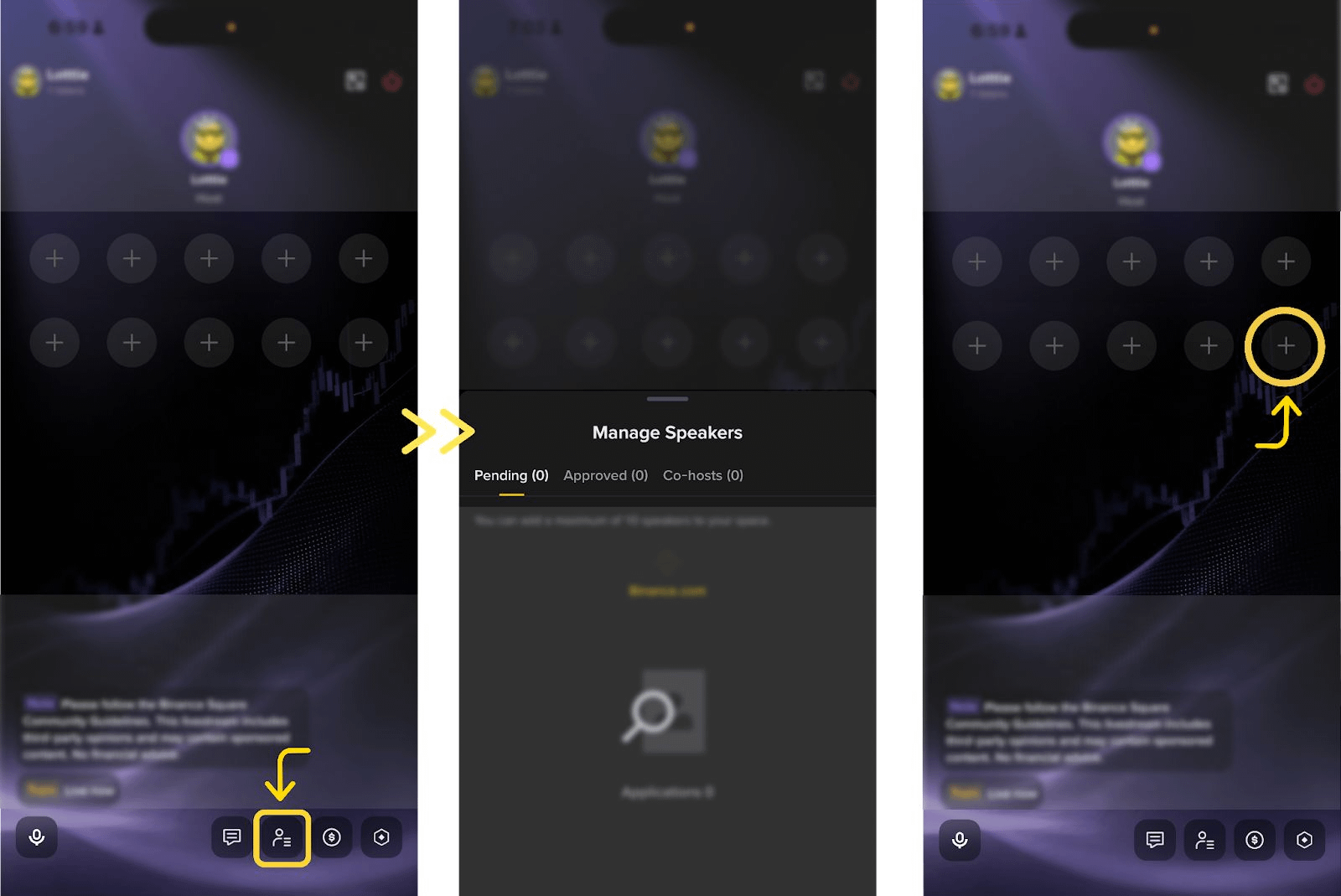
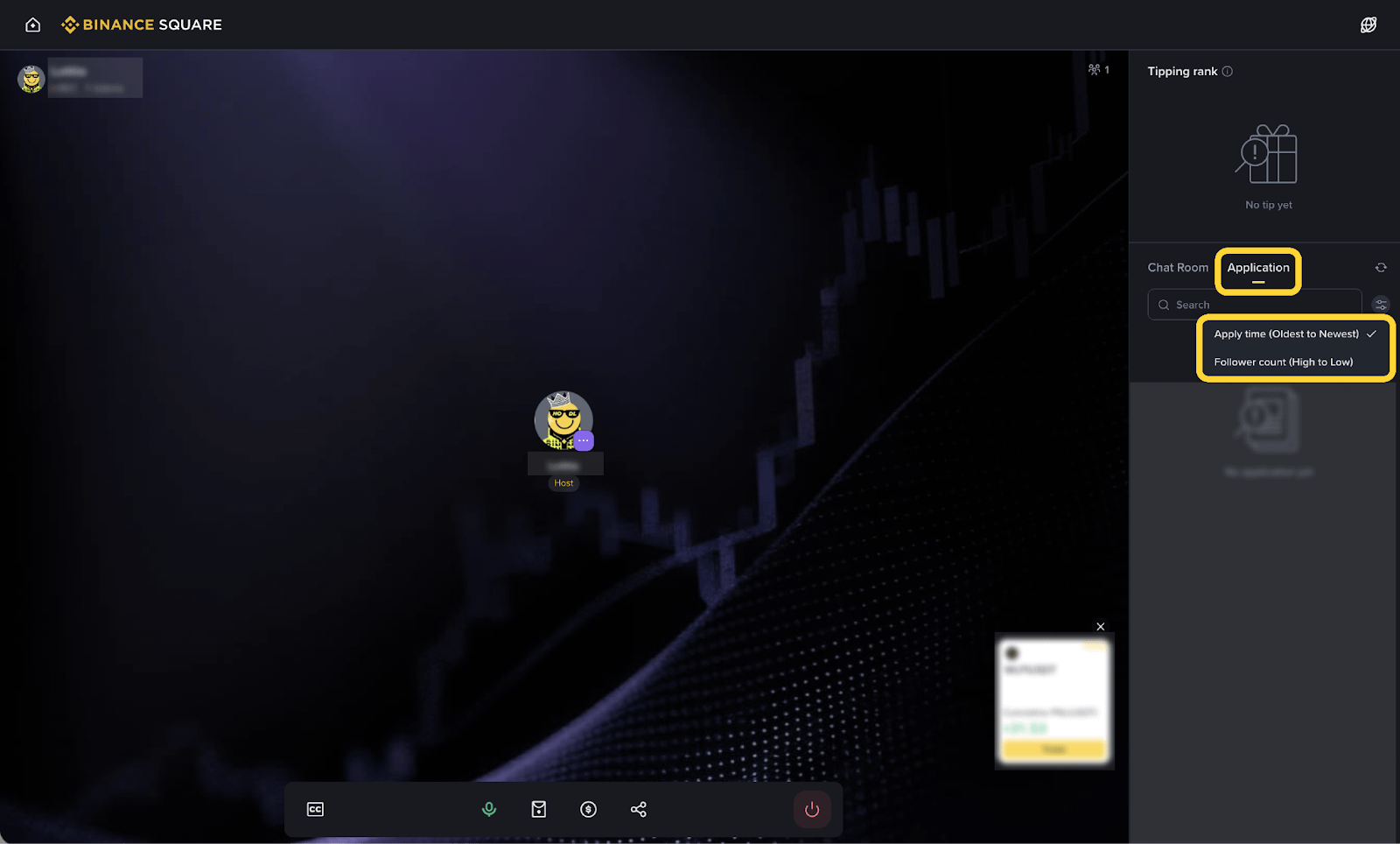
Tap [Manage Speakers] in the bottom toolbar to view [Pending],[Approved] and [Co-hosts] details
Up to 10 speakers can be online at the same time in a single session
How hosts invite viewers to speak
Tap [Invite to Speak] on a viewer’s profile card
After the invitation is sent, the viewer can choose [Accept] or [Reject]
If the viewer has already requested to speak, the invitation will be accepted automatically
How hosts invite co-hosts
Tap [Set to co-host] next to a guest to send an invitation
Once accepted, the guest becomes a co-host; if rejected or timed out, the invitation can be resent
Each livestream can have up to 2 co-hosts, who will have screen sharing and moderation permissions
How viewers request to speak
Enter an audio livestream room
Tap the [+] Request to Speak button and wait for host approval
Tips to Improve Your Livestream
Best practices
Share your screen to display charts, market movements, or news updates and make your content more professional
Turn on your camera to build trust and create a closer connection with your audience
Use red packets and audience call-ins effectively to keep the room active and improve participation
Pin tokens or share trading strategies to guide viewers toward direct trading and earn commission-based income
For more earning tips, please refer to How to Earn from Streaming on Square.
Avoid the following behaviors
Directing users to off-platform channels or asking them to add your personal contact information
Staying live for long periods without meaningful content output, such as only playing music or remaining silent
Adding large numbers of co-hosts who do not meaningfully contribute
Going off topic with excessive casual chat and failing to provide useful information
Overloading titles with emoji or using vague descriptions such as “test”
By delivering livestream content that is professional, insightful, and engaging, you will be well-positioned to stand out and become a star creator on Binance Square.