

This tutorial is designed for users with no foundation. Each step is marked with the purpose of the operation and key points to avoid pitfalls, ensuring beginners can understand, operate, and succeed.
I. Preparations (build the basic operating environment)
1. Check system environment (Purpose: confirm compatibility, avoid wasted effort)
System requirements: Windows 10/11 64-bit (32-bit systems do not support OpenClaw core dependencies)
Temporary operations: Disable antivirus software / firewall (to avoid interception of installation packages, network requests, or script execution)
2. Install Python (core engine, essential)
Why install: OpenClaw is a tool developed in Python, and the code for the Binance square-post skill is also based on Python. Without Python, no commands can be executed.
Installation steps:
Download Python (choose version 3.10~3.12 for best compatibility).
Installation instructions:
a. Check the box to add Python to PATH (Crucial! Otherwise, the command line won't find Python).
b. Click "Customize installation" → Select all default options → Recommended installation path: C:\Python311 (avoid Chinese characters/spaces)
c. Verify success: Open the "Windows Start Menu" → search for "PowerShell" → open and enter:
python --version
If it displays Python 3.11.x, then it is successful (x is the specific version number).
3. Install Git (Purpose: to clone Binance's official skill code)
Why install it? Git is a code version control tool that can quickly download the complete code of the Binance square-post skill from GitHub, which is more convenient and less prone to errors than manually downloading compressed packages.
Installation steps:
Download link: https://git-scm.com/download/win
Installation: Click "Next" through the installation process and follow the default steps. Recommended path: C:\Git
To verify success: Enter the following in PowerShell:
git --version
If the output shows "git version x.x.x.windows.x", then it was successful.
4. Prepare key keys in advance (Purpose: to enable the robot to "speak" and "call the model")
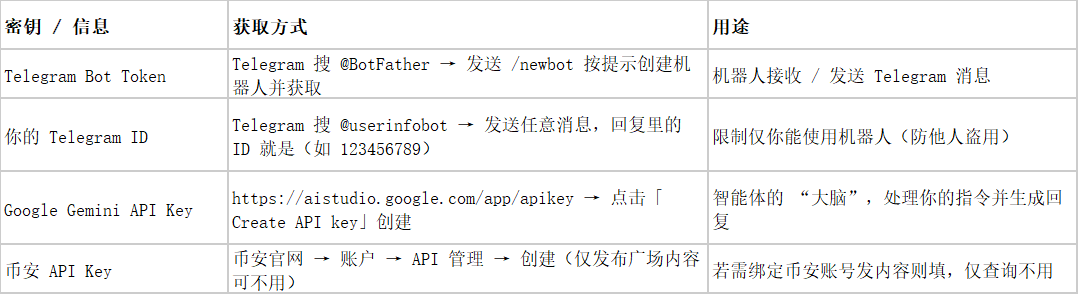
✅ Avoid pitfalls: Copy all keys to Notepad for backup and do not disclose them; Gemini API Key is free and the free quota is sufficient for testing.
II. Install the OpenClaw core program (build the robot body)
1. Install OpenClaw (Purpose: to obtain the robot's core functions)
Enter the following command in PowerShell (as an administrator):
# Install OpenClaw core package
pip install openclaw
# Upgrade pip (to avoid version compatibility issues during installation)
python -m pip install --upgrade pip
Verification successful:
openclaw --version
If the version number is displayed (e.g., 0.x.x), it is successful; if you get the message "not an internal command", restart PowerShell and try again (a restart is required for Python PATH to take effect).
2. Initial Configuration (Purpose: To configure the robot's "brain" and "message channels")
Run the configuration wizard and follow the prompts throughout the process. Each step has highlighted the key selection points:
Enter the following command in PowerShell (as an administrator):
openclaw onboard
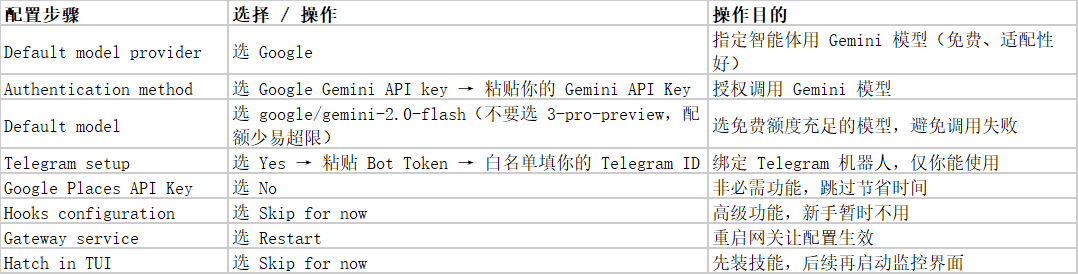
3. Start the gateway (Purpose: to enable the robot to "run online")
Enter the following command in PowerShell (as an administrator):
openclaw gateway
If the log shows the following, it indicates success:
Gateway listening on ws://127.0.0.1:18789 (Gateway starts, robot core runs)
Telegram [default] starting provider (Telegram bot launched)
Agent model: google/gemini-2.0-flash (Model loaded successfully)
✅ Note: This gateway window must be kept open; closing it will take the robot offline.
3. Install the Binance square-post skill (add "Binance Square" functionality to the bot)
1. Clone skill code (Purpose: To obtain the code file for Binance Square functionality)
Open a new PowerShell window (do not close the gateway window), and enter:
# Create a directory to store skills (ensure the path does not contain Chinese characters or spaces)
mkdir -Force C:\Users\$env:USERNAME\.openclaw\skills\square-post
# Clone Binance Skills Repository from GitHub to a Temporary Directory
git clone https://github.com/binance/binance-skills-hub.git C:\Users\$env:USERNAME\.openclaw\skills\temp
# Move the square-post skill to the correct directory
Copy-Item -Recurse C:\Users\$env:USERNAME\.openclaw\skills\temp\skills\binance\square-post\* C:\Users\$env:USERNAME\.openclaw\skills\square-post\
# Delete temporary files (clean up redundancy)
Remove-Item -Recurse C:\Users\$env:USERNAME\.openclaw\skills\temp
2. Install skill dependencies (Purpose: to enable the skill to function correctly)
Enter the following command in PowerShell (as an administrator):
# Enter Skills Directory
cd C:\Users\$env:USERNAME\.openclaw\skills\square-post
# Basic dependencies required for installing the skills (for querying market data and calling APIs)
pip install python-binance requests
3. Configure skills (Purpose: To adapt to the requirement of "only querying/posting content on the forum")
Enter the following command in PowerShell (as an administrator):
# Open configuration file (automatically create new file)
notepad C:\Users\$env:USERNAME\.openclaw\skills\square-post\config.json
Paste the following content (no need to fill in Binance API Key if only checking market data):
{
"testnet": true, // Test environment to avoid accidental operations
"timeout": 10, // Network timeout period to prevent freezing
"use_public_api": true // Force the use of the public API, no Binance key required
}
Simply save and close Notepad.
4. Load and verify the skill (Purpose: To confirm successful skill installation)
Return to the gateway window and press Ctrl+C to stop the gateway;
Restart the gateway to load new skills:
Enter the following command in PowerShell (as an administrator):
openclaw gateway
Verify skill status:
Enter the following command in PowerShell (as an administrator):
openclaw skills list
If you see "square-post → Eligible" in the output, it means the job was successful ("Eligible" means "available"); if it shows "Missing requirements", simply run `pip install python-binance` again.
IV. Testing and Usage (Verifying that all functions are working properly)
1. Start the monitoring interface (optional, purpose: to observe the robot's processing of instructions).
Run a new PowerShell window:
openclaw tui
The interface displays "gateway connected | idle", indicating a successful connection.
2. Telegram testing skills (core verification)
Open Telegram and send the following command to your bot:
Use square-post to check the price of BTC/USDT
or
square-post: Could you please check the latest ETH/USDT exchange rate for me?
The robot replied with pricing information → All configurations were successful;
No response: Check the gateway logs. If it prompts "model timeout", wait 5 minutes and try again (Gemini cold start is slow).
Summarize
Review of core steps
Environment preparation: Install Python (running engine), Git (for downloading code), and prepare Telegram/Gemini keys;
Install OpenClaw: Install the core package using pip, and configure the model and Telegram via onboard;
Installing square-post skills: Clone code → Install dependencies → Configure public API → Restart gateway;
Test: Send a query command on Telegram and receive a verification reply.
Key points to avoid pitfalls
Python requires "Add to PATH" to be checked; otherwise, the command line will not find it.
Select Gemini 2.0-flash to avoid exceeding quota limits;
The square-post configuration file does not require a Binance key; it is sufficient for simply querying market data.