


Wanna become a top-tier streamer on Binance Square Live?
This guide will lead you to the following:
What's Binance Square Live?
How to kick off a live stream
Benefits of live streaming
Tips to enhance your live stream
What is Binance Square Live?
Binance Square Live is an interactive, real-time feature tailored for content creators, supporting live audio streaming, live video broadcasting, and streaming through external platforms. Hosts can engage with viewers in real-time while sharing insights and showcasing trading strategies.
Live streaming styles:
Multi-user chat room
Instant audio interaction, with screen sharing support (web only)
Live streaming via phone camera
Using the phone camera allows for streaming, with support for beauty filters and other features.
Live streaming via computer
Requires OBS tools, supports streaming across multiple platforms, and is suitable for professional streamers.
Key features:
Multi-language instant translation
You can reach a larger number of users through instant translation of texts accompanying the stream (available only in the multi-user chat room).
Multiple monetization options
You can earn up to 50% of trading commissions through Write to Earn, plus 100% of viewer support through virtual gifts.
Live and instant interaction
Keep the live stream active by distributing red packets and allowing live audience interactions.
How to start a live stream
Eligibility:
The live streaming feature is automatically enabled once you reach 1,000 followers on Binance Square.
If you haven't met the follower requirement yet, but you have previous live streaming experience or a strong background in content creation, you can apply for live streaming access through a dedicated survey. Approved applicants will be contacted via private messages.
Via the web:
Audio streaming — Multi-user chat room (recommended)
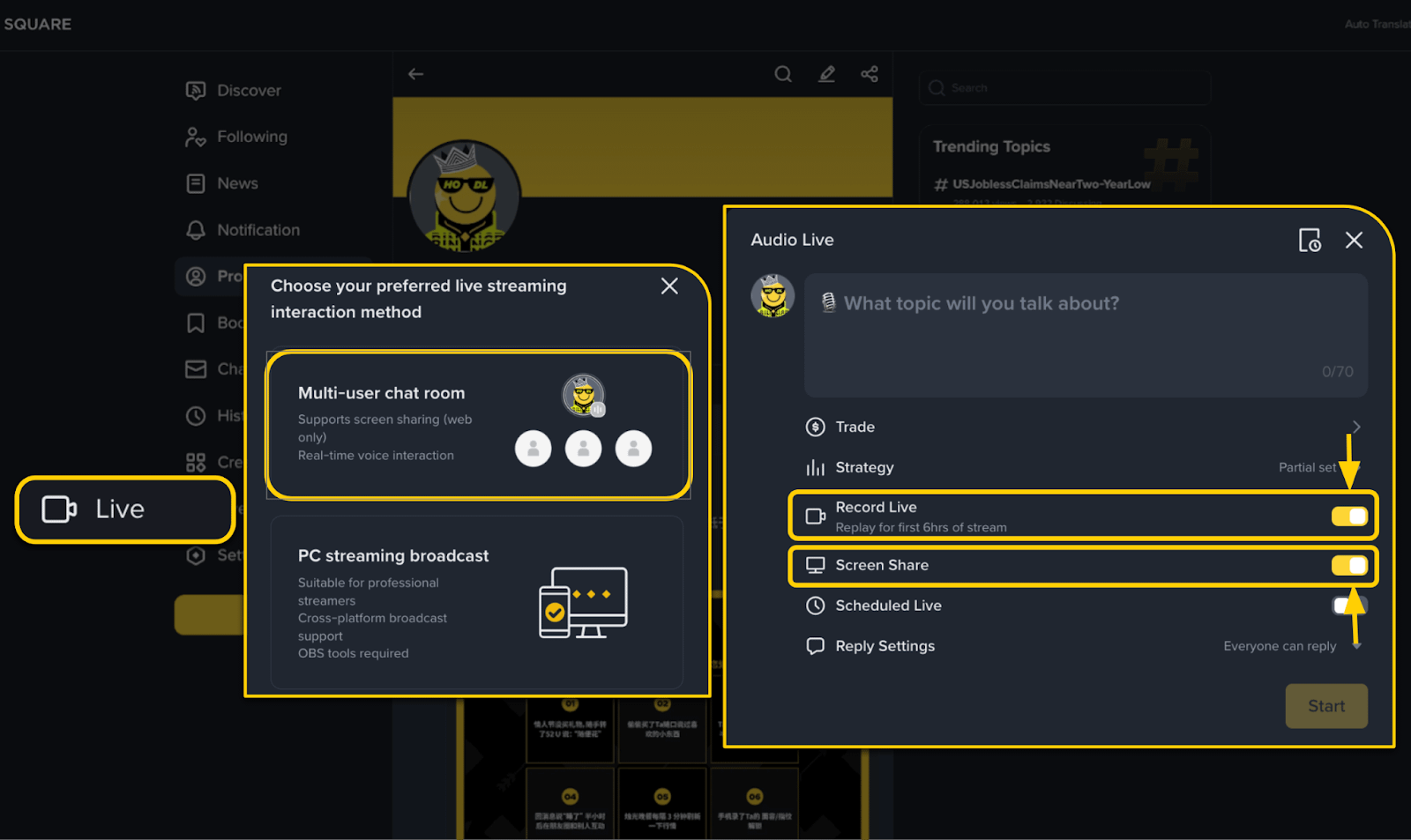
Go to the live stream [Live] from the main page of Binance Square;
Select [Multi-user chat room];
Enter [Stream title];
When needed, enable [Stream recording] and [Screen sharing] before starting the stream.
Stream recording:Enable this option to allow viewers to watch the stream later.
Note: Replays do not include trades or strategies or red envelopes or live comments.Screen sharing: If you need to share your screen, please make sure to select this option before starting the live stream.
This setting cannot be modified after the live stream has started.
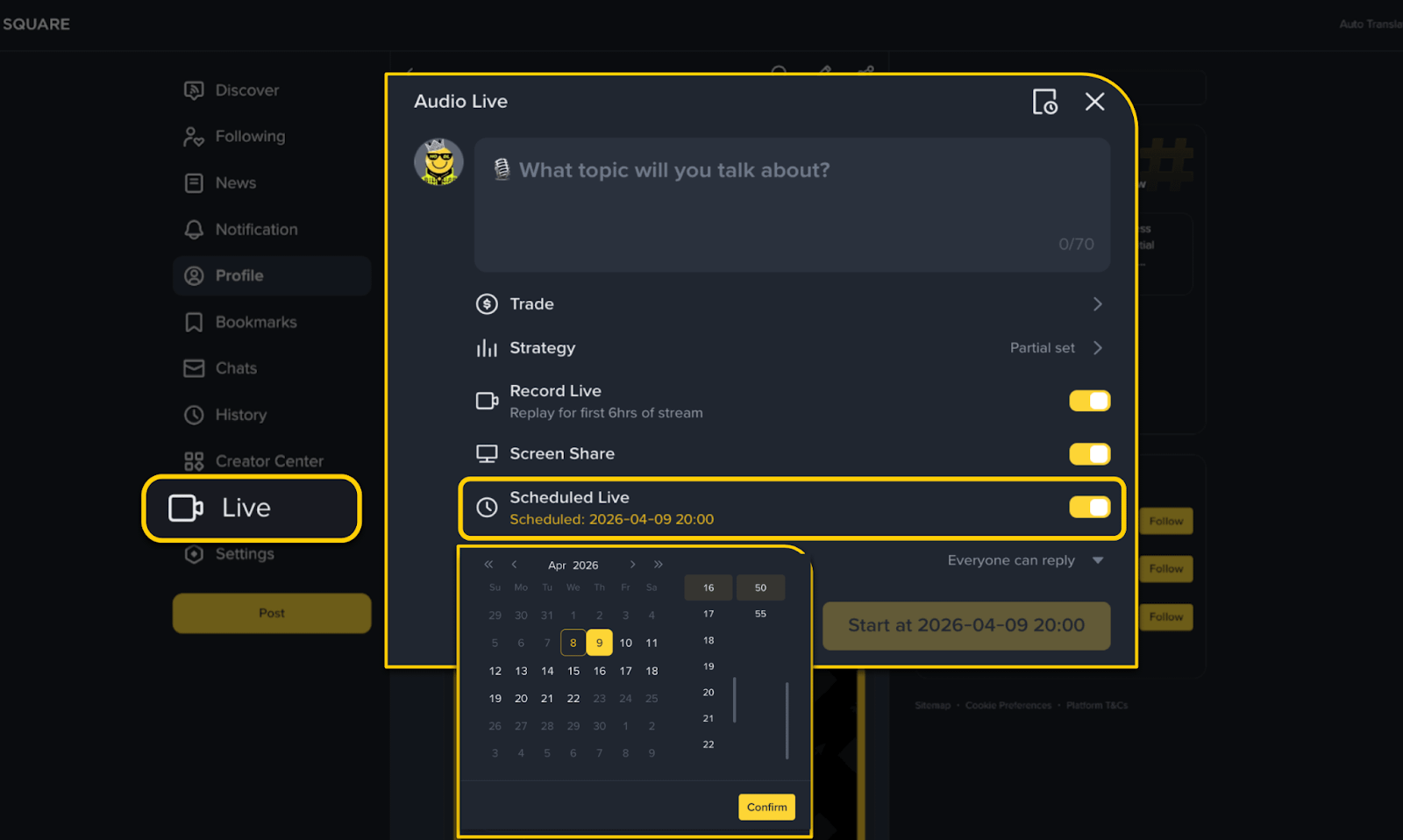
You can also [schedule a live stream] in advance. Each user can create only one scheduled live stream within the next 14 days.
Click on [Comment settings] to determine who can comment in live stream chats.
Live streaming via computer:
Create a live streaming room, then enter a title and upload a stream image.
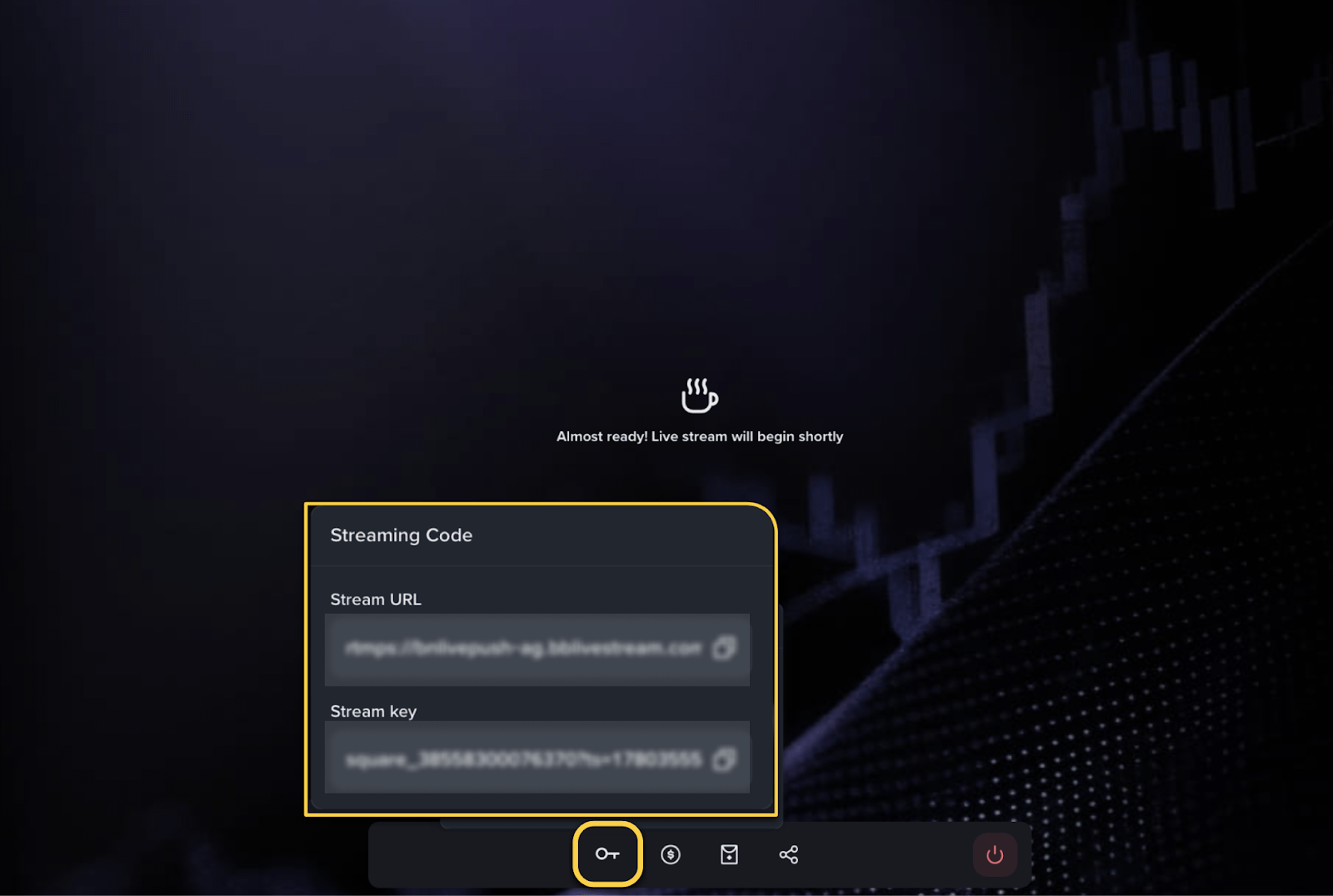
Inside the streaming room, copy the stream link and stream key from the bottom left corner of the control panel.
Paste them into OBS or Streamyard or any other streaming tool using a custom streaming destination.
Start the stream to go live.
Recommended settings: 1080p / 30fps (with a delay of 15 to 30 seconds)
💡 How to live stream using StreamYard
Click on "Live stream."
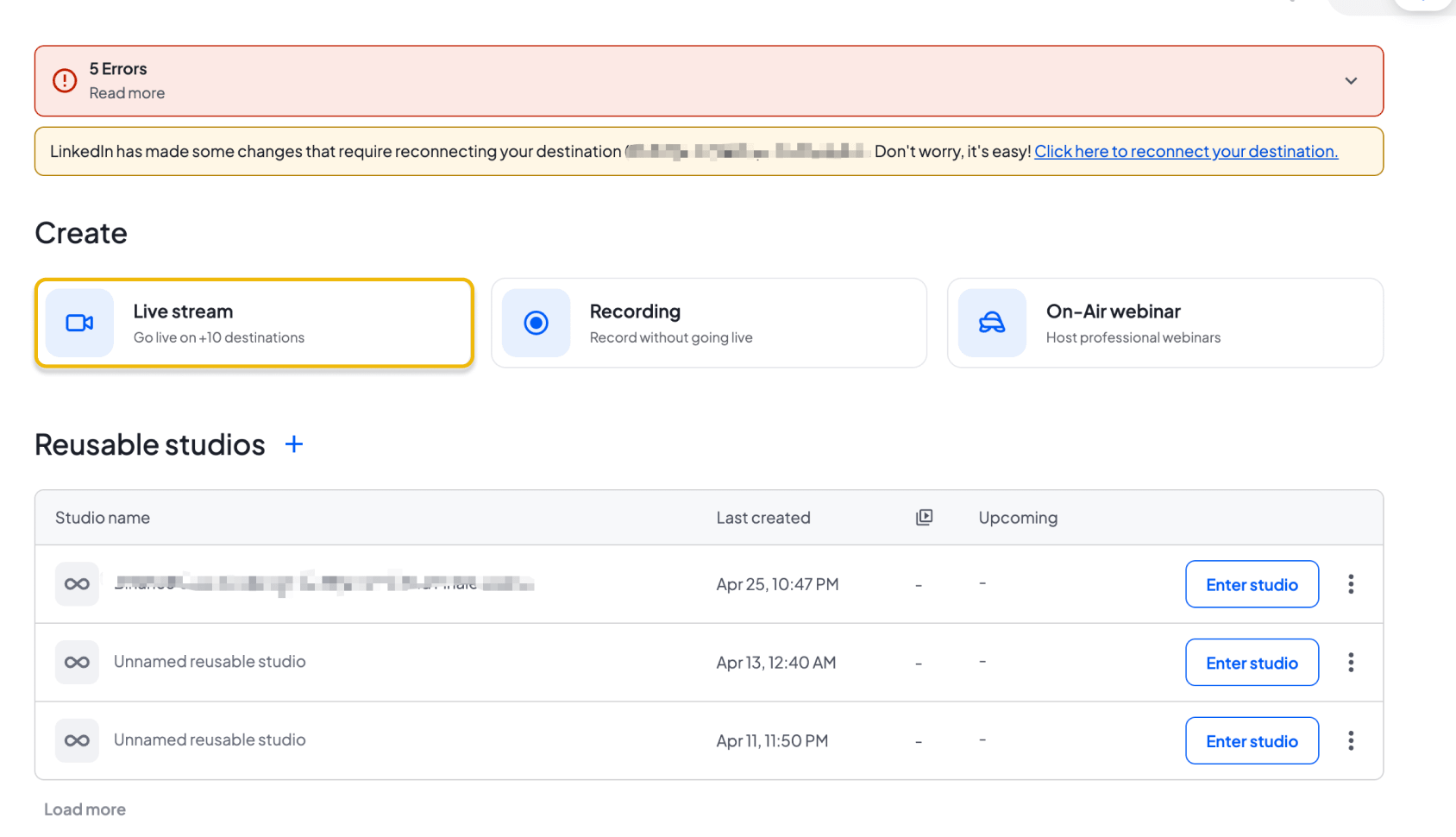
Click on "Add destination" in the bottom right corner.
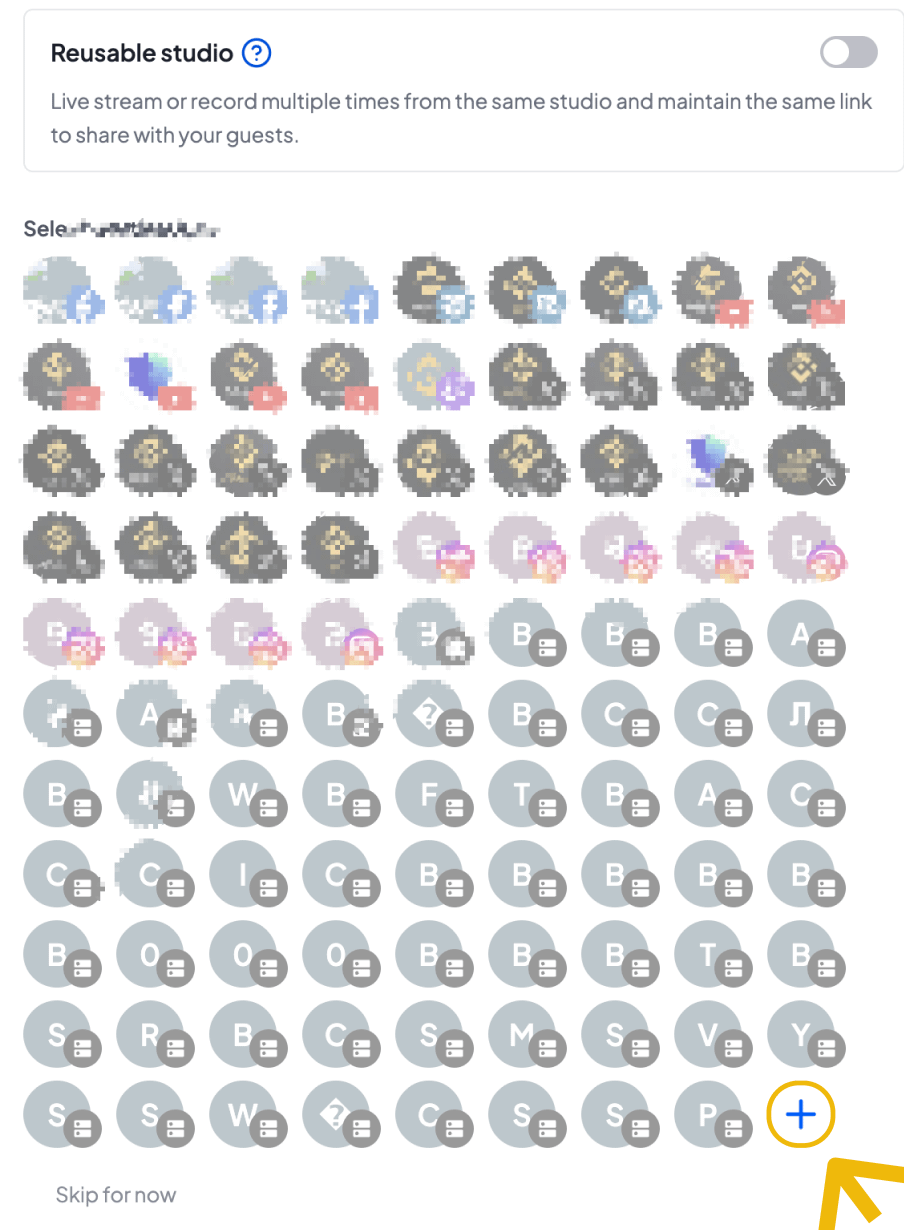
Select "Other platforms."
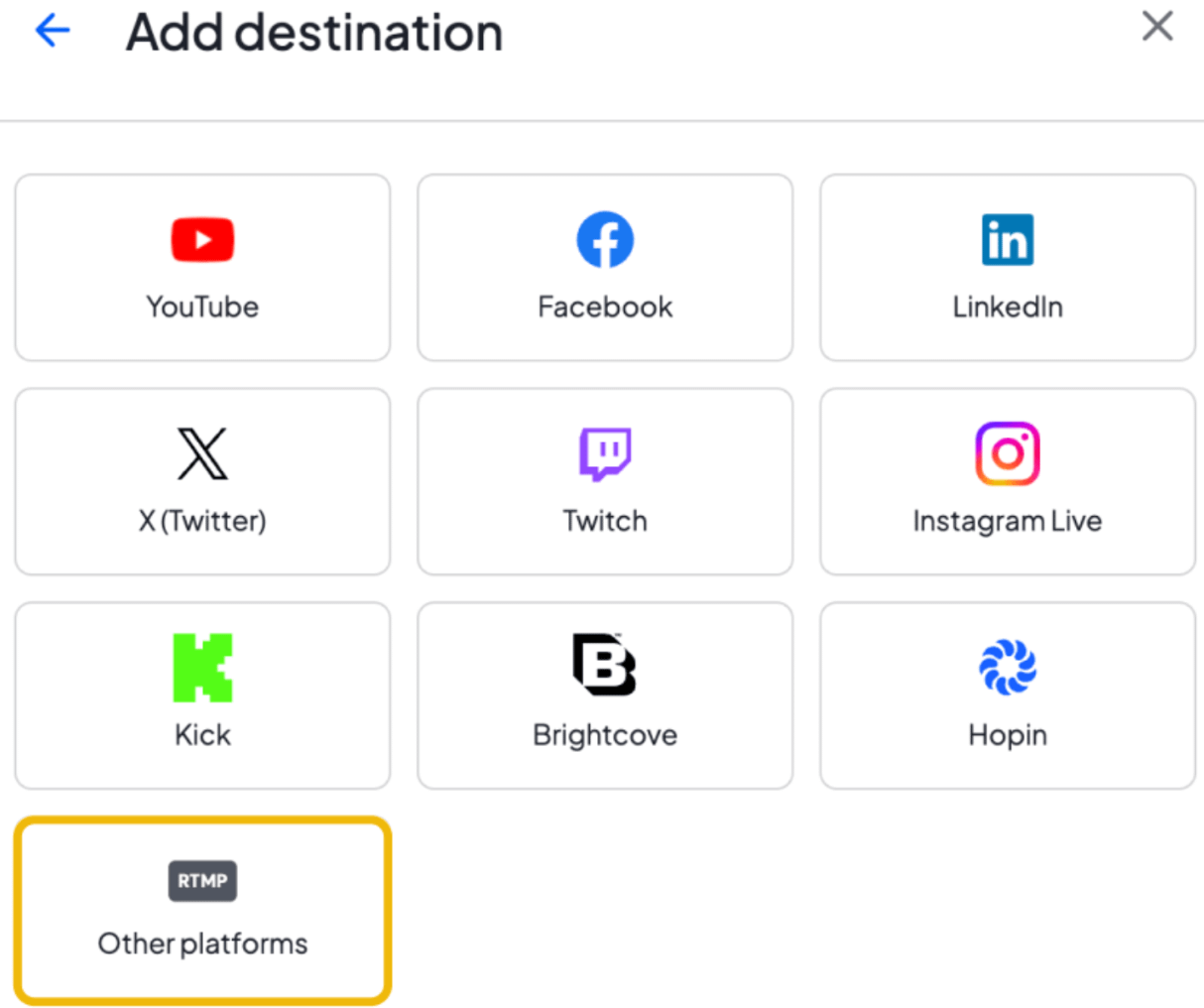
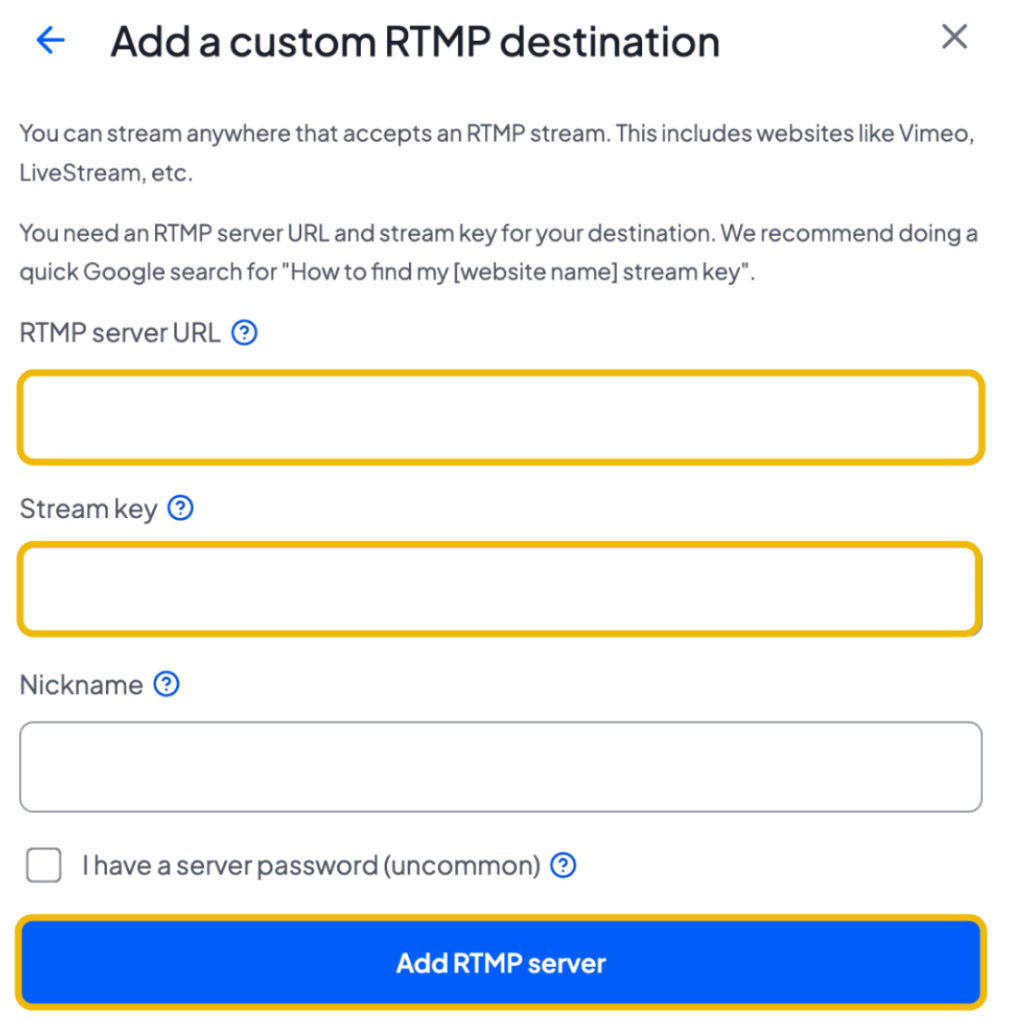
Paste the stream link and stream key in the "RTMP server link" and **"Stream key"** fields. Then click on "Add RTMP server," and you'll be ready to start streaming 🚀
Live streaming via the app:
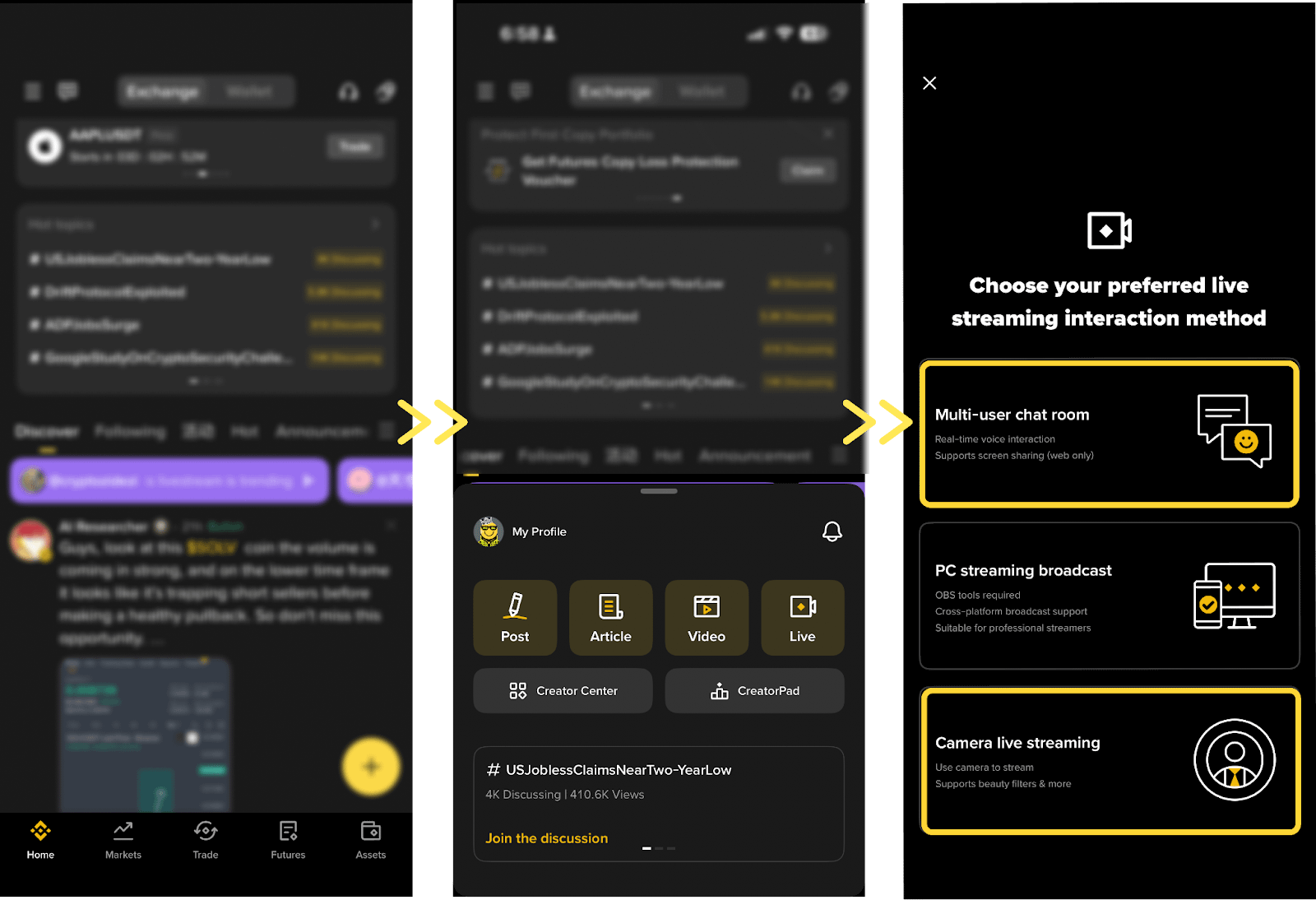
From the main page of Square, scroll down and click on [+], then choose live streaming [Live];
Choose either [Multi-user chat room] or [live streaming via camera];
Specify the live stream title and other settings, then click on [Start].
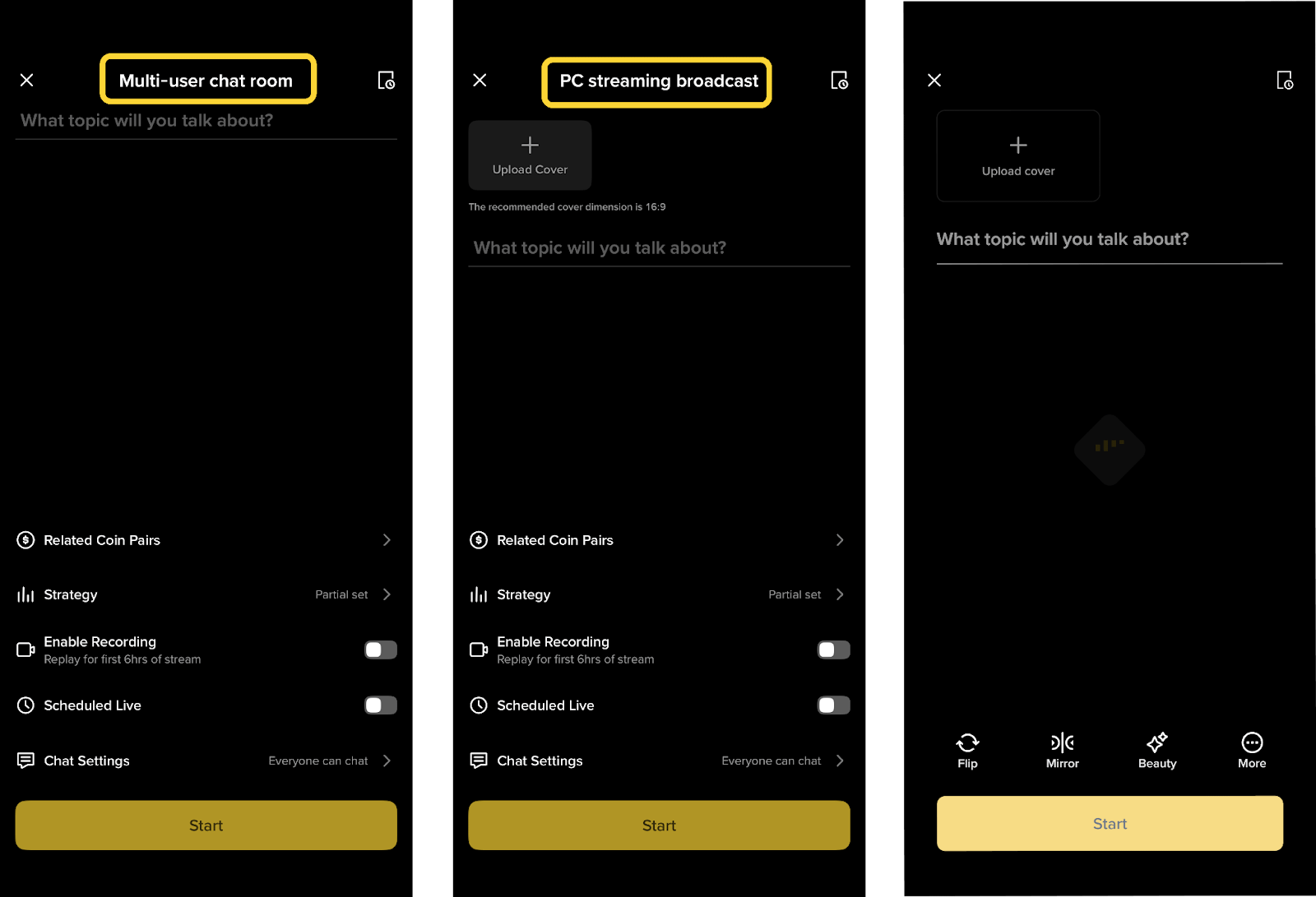
📌 The live stream scheduling feature is also available, allowing you to create a link in advance and share it with your community for greater reach.
Features in live streaming
Add trading tools:
Add trading tools to the live stream so viewers can explore currencies and featured strategies directly within the room. Eligible trades may qualify you to earn up to 50% of the commission through Write to Earn.
Method 1: Add related currencies
Click the [$] icon in the live stream toolbar.
Within the related symbols, click on [Add related currencies], then search for the target currency and select it.
Click on [Pin] or [Pin permanently] to display it inside the live streaming room.
If viewers complete eligible trades through the tool, you can earn commission through Write to Earn.
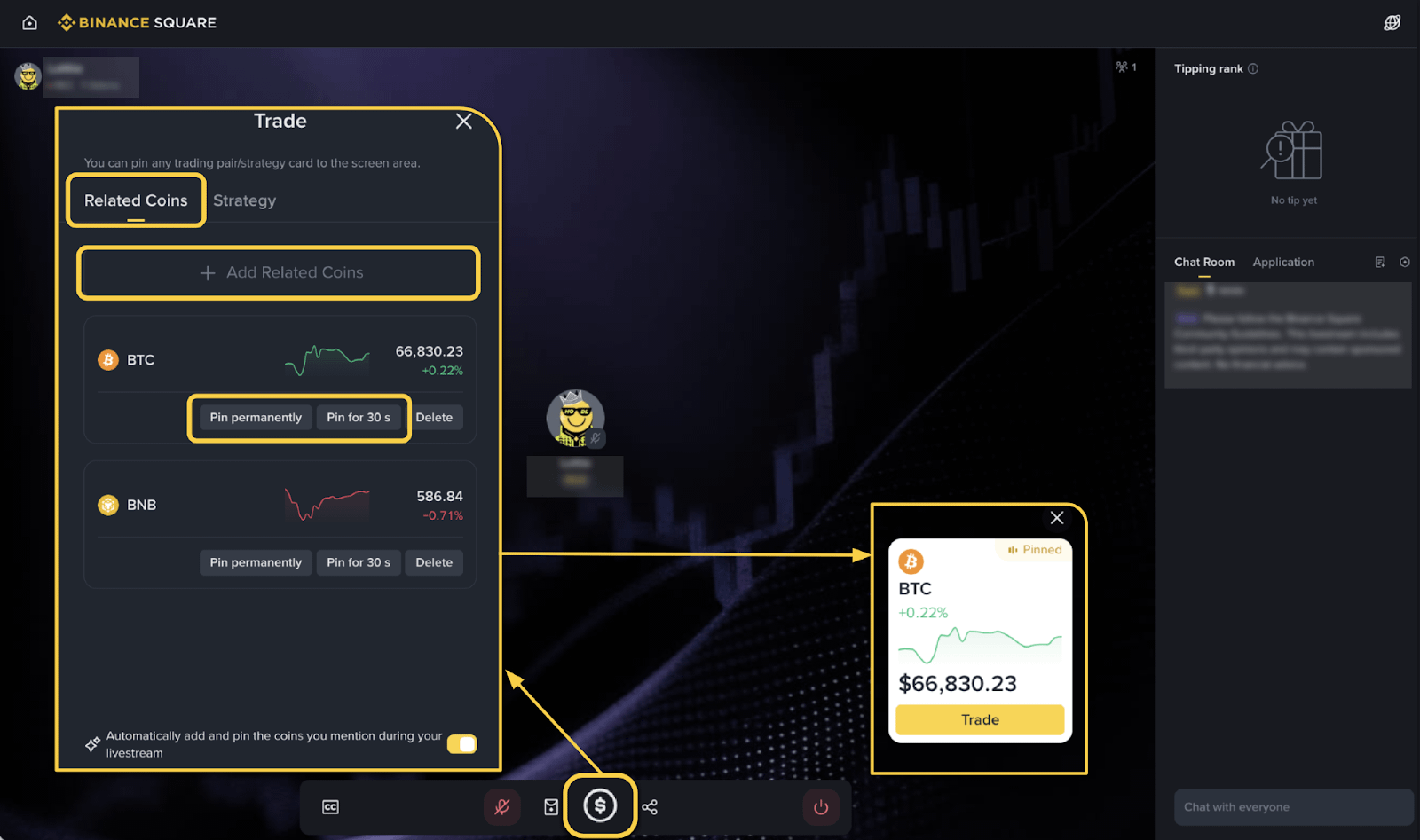
Method 2: Add strategies
Click the [$] icon in the toolbar at the bottom of the live streaming room.
Within the strategy, choose a previous order or current position, then click on [Import specified strategies].
Or click on [Manually select strategies] to add [spot trading] or [futures contracts].
Click on [Pin] or [Pin permanently] to display the strategy card inside the live streaming room.
If viewers complete eligible trades through the tool, you can earn commission through Write to Earn.
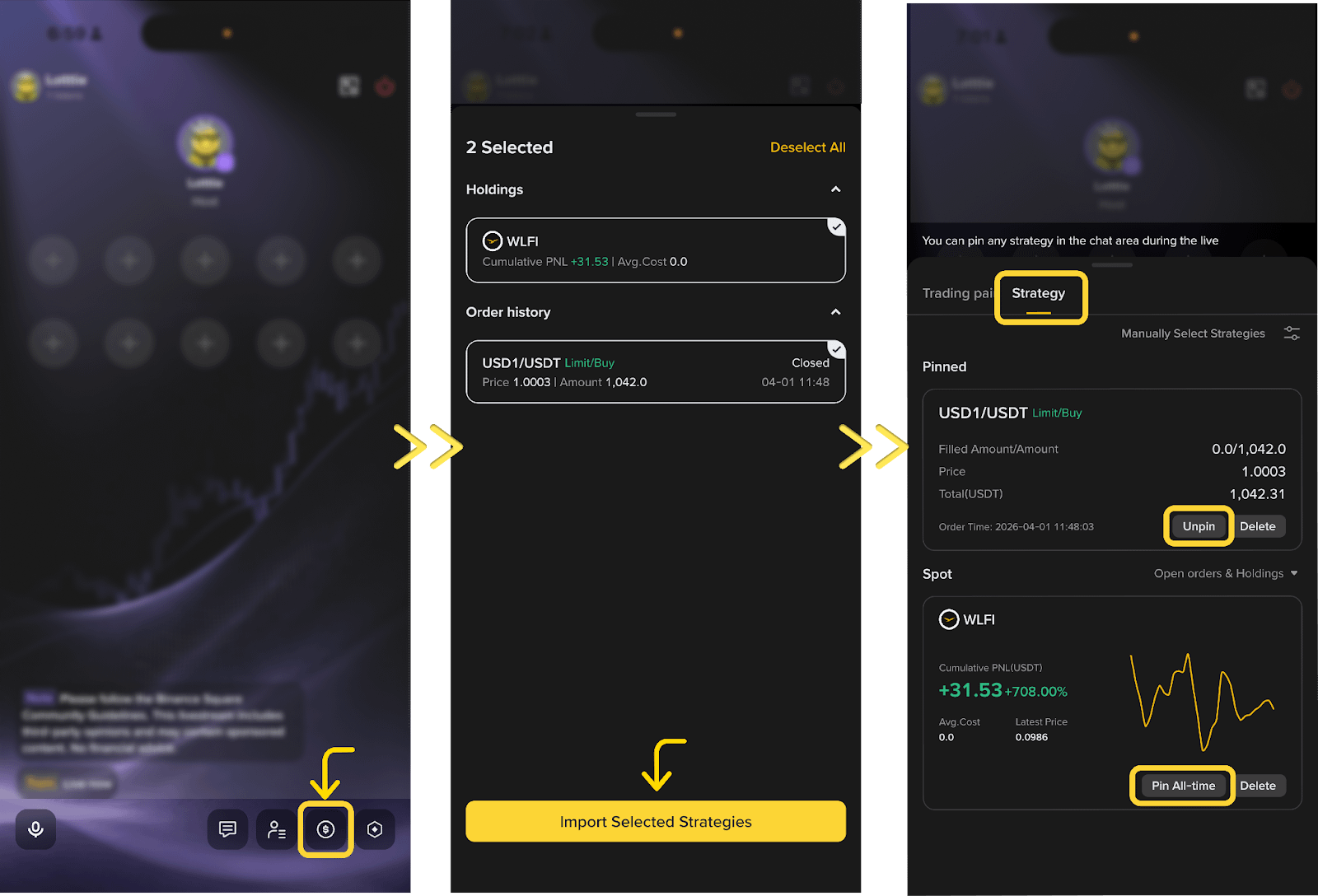
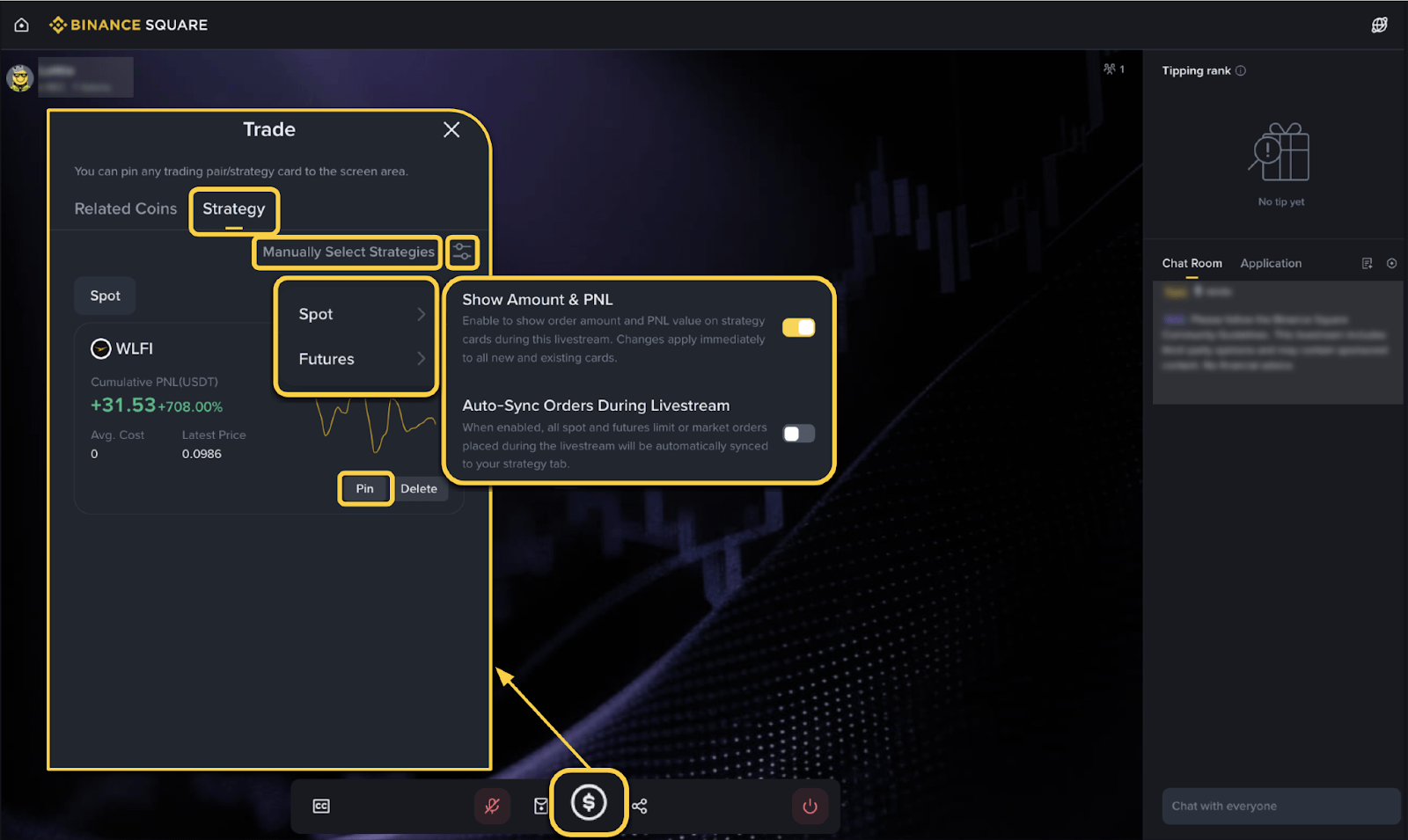 Support
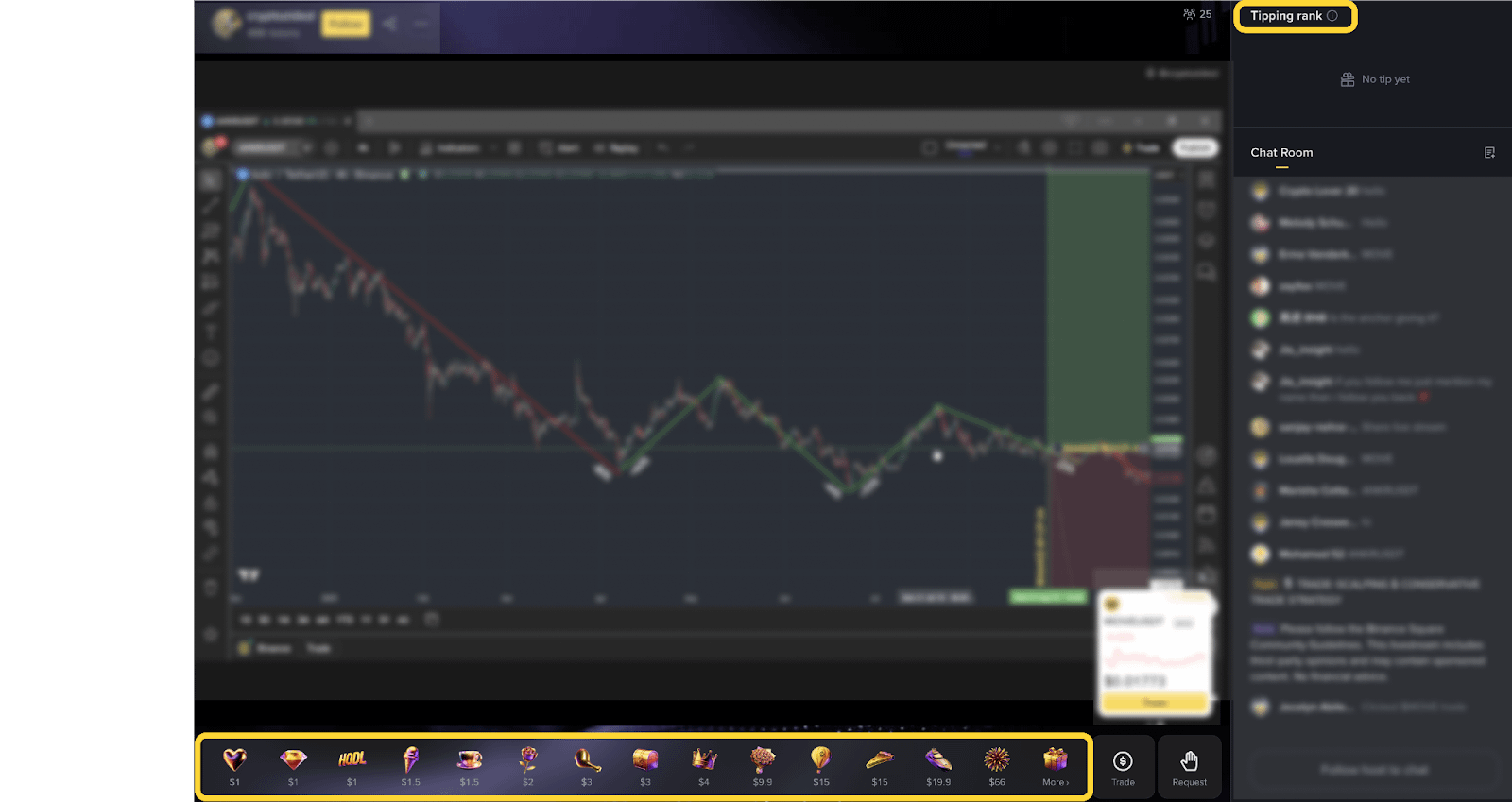
Viewers can send virtual gifts to hosts during the live stream. Hosts receive 100% of the gift revenue in real-time and can view their earnings details through the creators' center.
How to activate support:
Once your followers on Binance Square reach 1,000 or more, go to the creators' center.
Find the support (Tipping) feature and activate it.
After activation, the support option will automatically appear inside the live streaming room.
How to send gifts from viewers:
Enter the live streaming room and click the [Support] button at the bottom.
Choose a gift and then confirm the process.
Red packets:
Hosts can send red envelopes to viewers during the live stream. The feature currently supports the following three types:
Instant red envelope
Can be claimed instantly
Red envelope after a two-minute countdown
Can be claimed after two minutes
Red envelope after a 5-minute countdown
Can be claimed after 5 minutes
Usage steps:
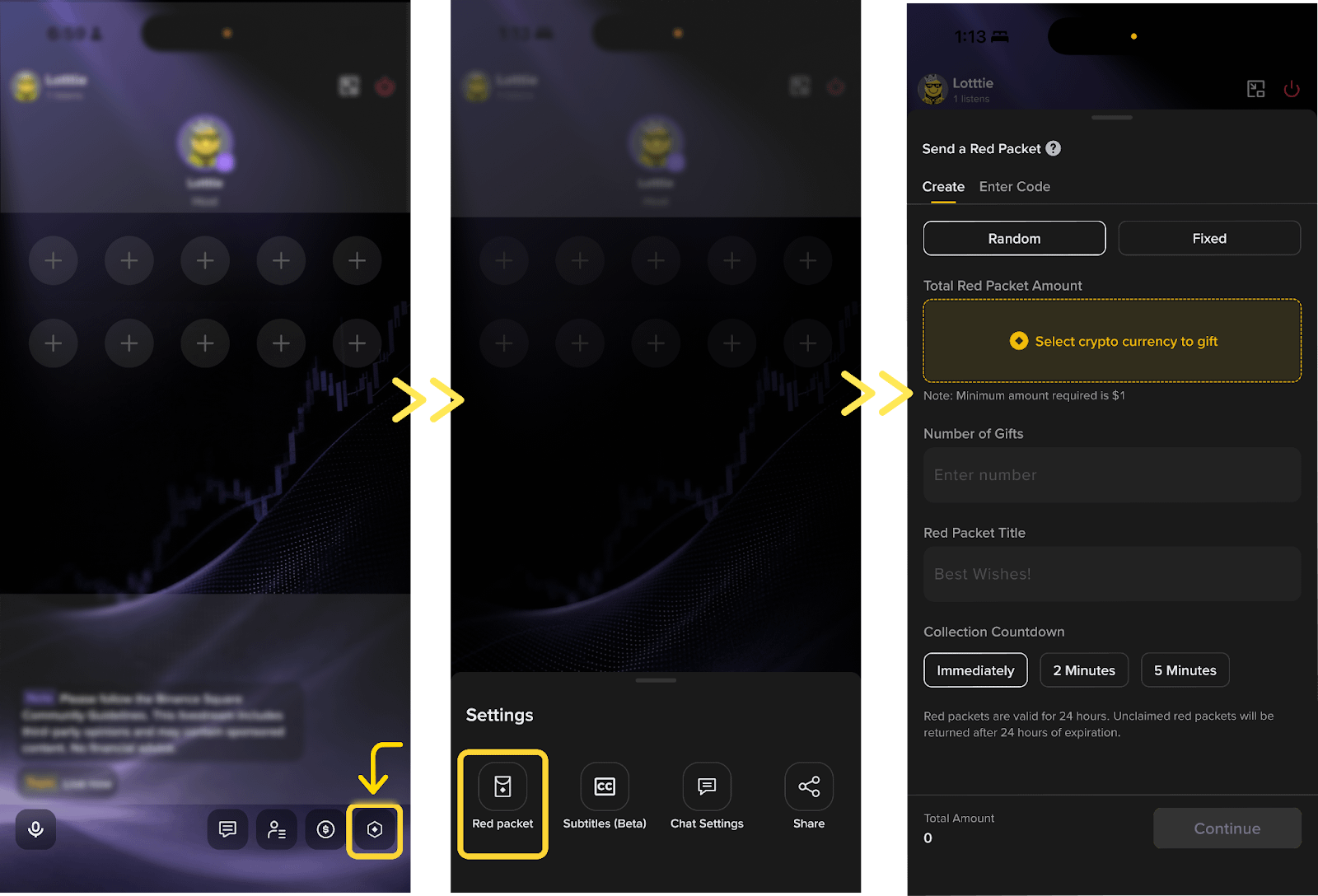
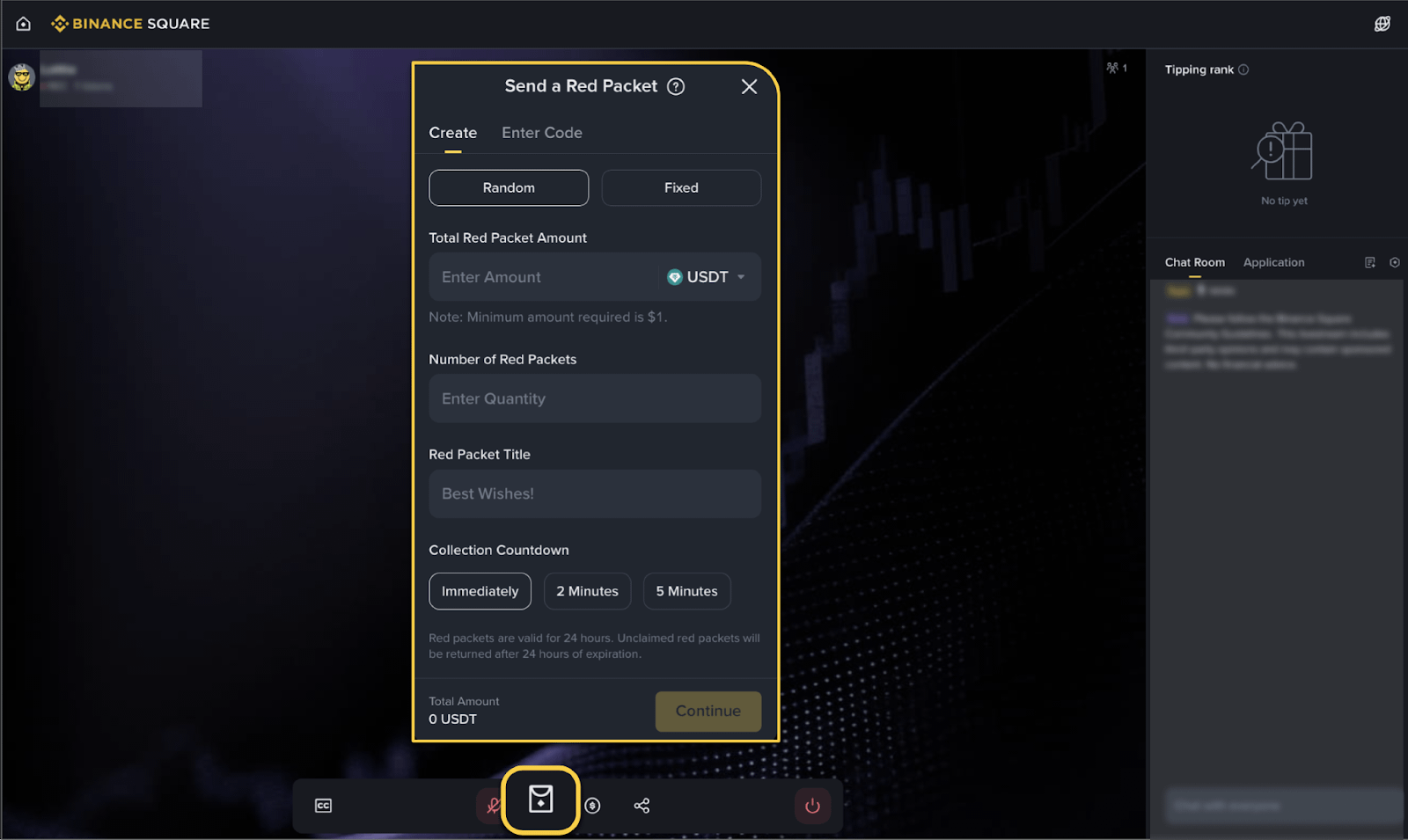
Click on [Settings] then [Red Packet] inside the live streaming room.
Choose the type of red packet and specify the amount method (fixed or random).
Confirm the distribution, and the red packet notification will appear instantly inside the live streaming room.
Request to speak:
This feature is available for live audio streaming only. Hosts can invite viewers to speak in real-time, making it suitable for interactive Q&A sessions, group market analysis, and thematic AMA sessions.
How to manage speakers by the hosts:
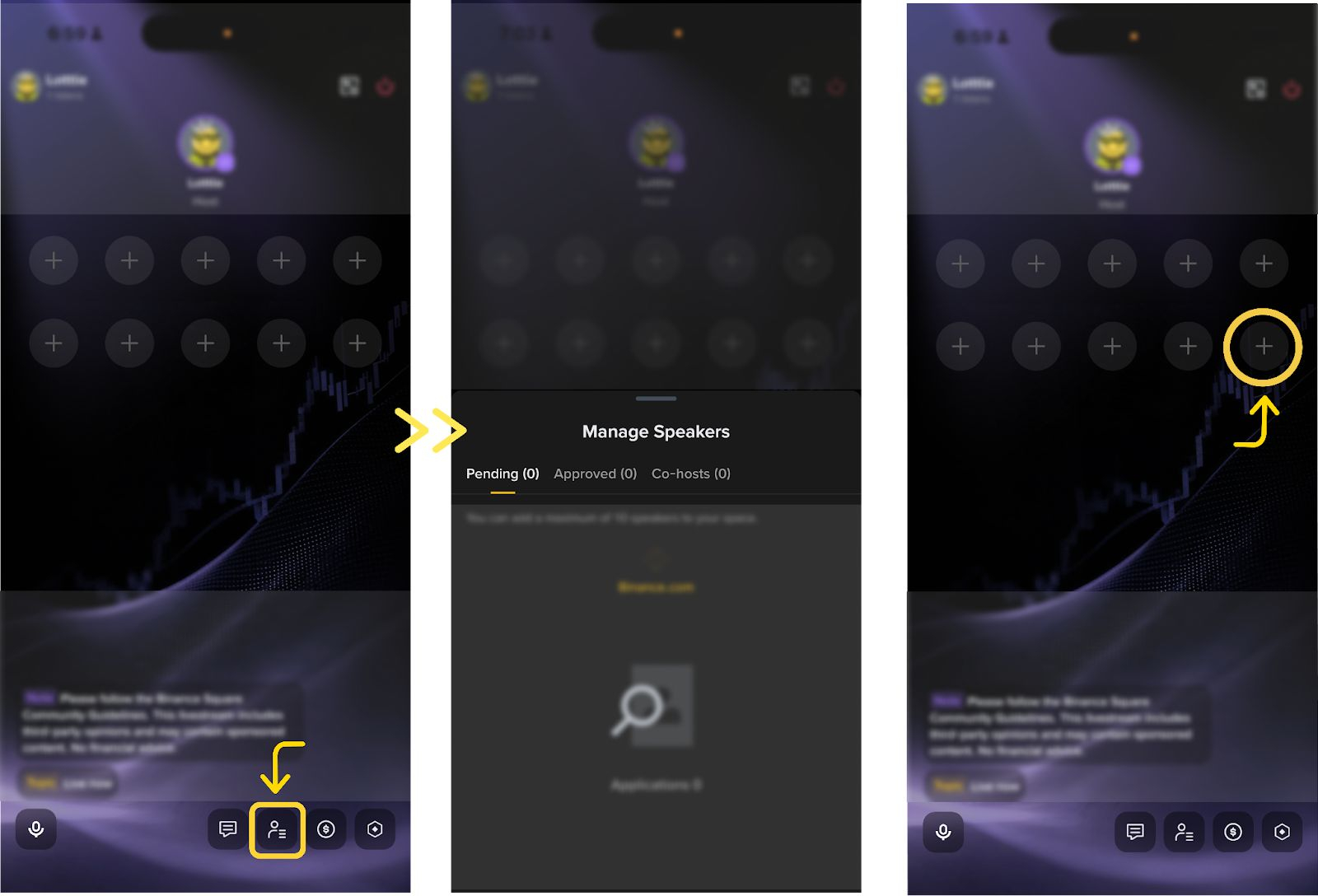
Click on [Manage speakers] in the bottom toolbar to view details of [Pending] and **[Approved]** and **[Co-hosts]**.
Up to 10 speakers can be present at the same time in a single session.
How to invite viewers to speak by the hosts:
Click on [Invite to speak] on the viewer's profile card.
After sending the invitation, the viewer can choose [Accept] or [Decline].
If the viewer has already submitted a request to speak, the invitation will be accepted automatically.
How to invite co-hosts by the hosts:
Click on [Set as co-host] next to the guest to send an invitation.
Once the invitation is accepted, the guest becomes a co-host. If the invitation is declined or the response times out, it can be resent.
Each live stream can include up to two co-hosts, and they will have screen sharing and moderation privileges.
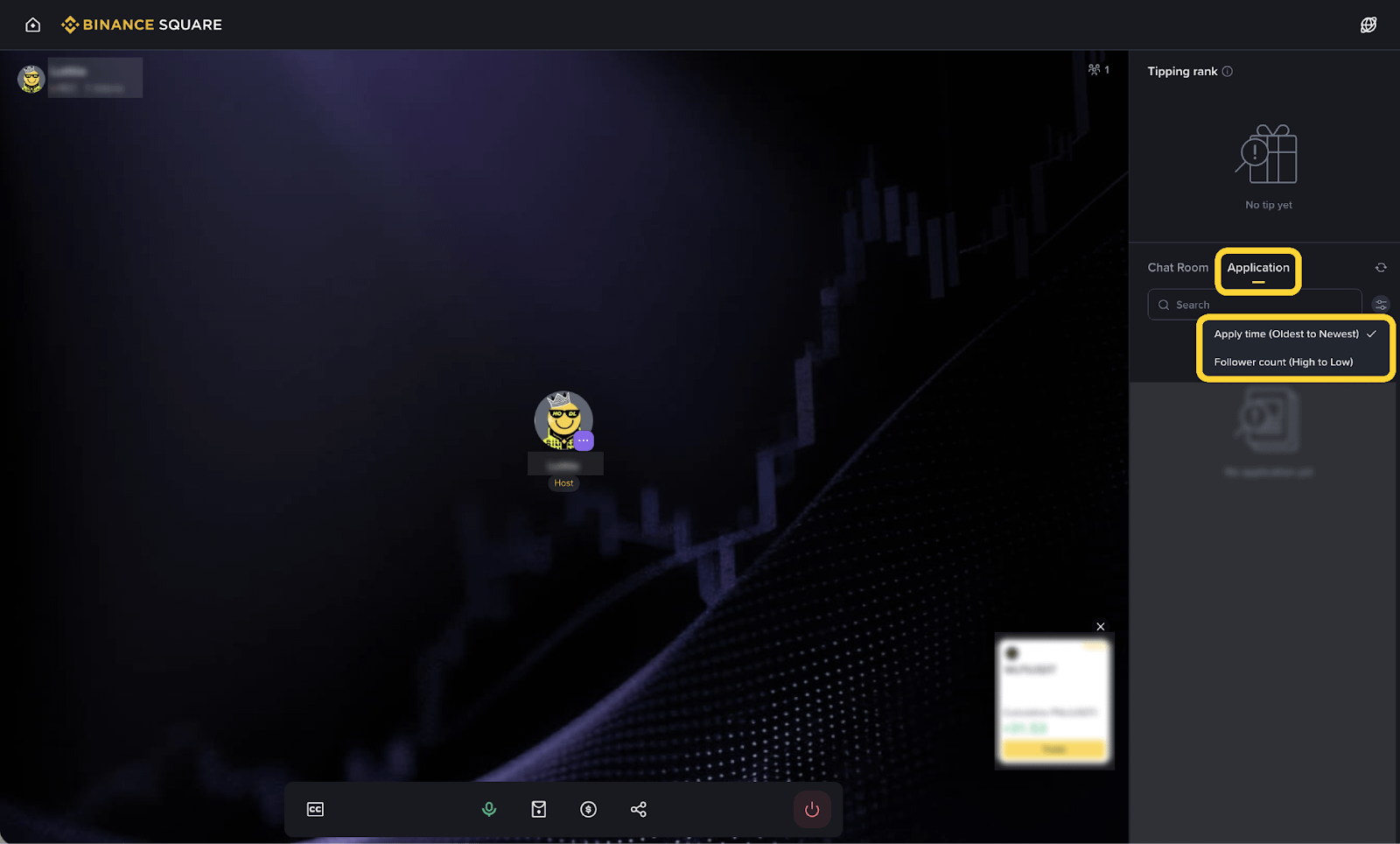
How to request to speak by viewers:
Enter the live audio streaming room.
Click the [+] request to speak button and wait for the host's approval.
Tips for improving the live stream
Best practices:
Share your screen to display charts or market movements or the latest news updates, adding a more professional touch to your content.
Enable the camera to build trust and enhance communication with your audience.
Effectively use red envelopes and audience interventions to keep the room active and increase engagement.
Pin symbols or share trading strategies to guide viewers towards live trading and earn commission-based income.
For more tips on how to earn, please refer to How to Earn from Streaming on Square.
Avoid the following behaviors:
Directing users to channels outside the platform or asking them to add your personal contact information.
Continuing to stream for long periods without providing valuable content, like just playing music or remaining silent.
Adding a large number of co-hosts who do not make actual contributions.
Going off-topic during the stream through excessive side conversations and not providing useful information.
Overusing emojis in titles or using unclear descriptions like “test.”
By providing professional, informative, and engaging live streaming content, you'll be in a strong position to stand out and become one of the prominent content creators on Binance Square.