
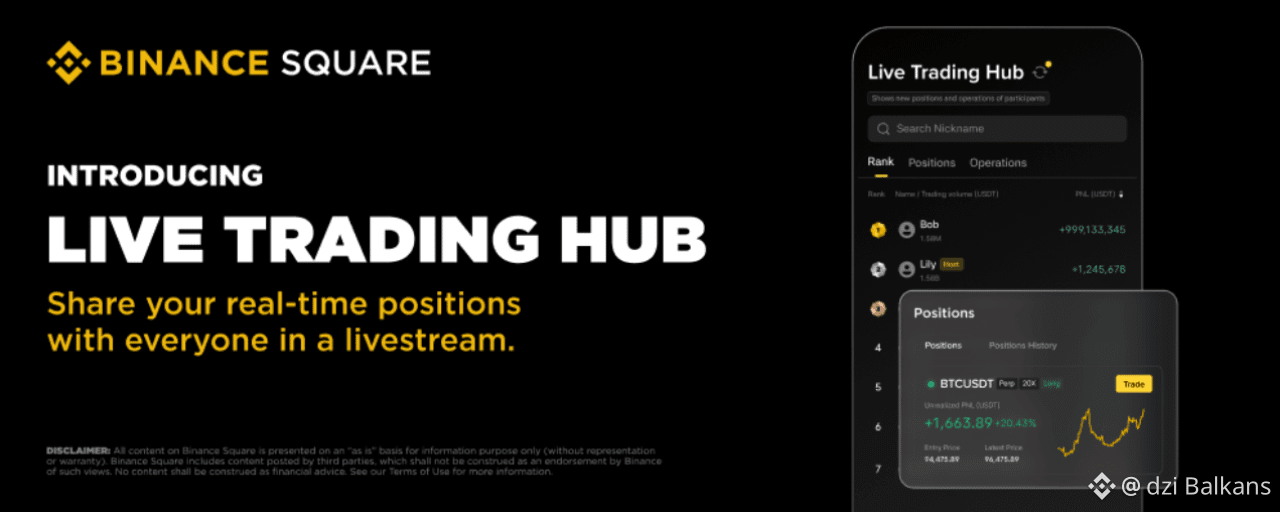
📈 Trading solo can get repetitive. Trading live with others? That’s where things get exciting 🤩
Say hello to Live Trading Hub, a brand-new social trading feature on Binance Square designed to make livestream trading more interactive than ever.
Once a streamer activates this feature, viewers can jump in and publicly share their trading activity in real time. This includes open positions, PnL, and every executed trade, all displayed on a dynamic live leaderboard.
No more talking to an empty audience 🤫 Now everyone participates - showing their trades, reacting in real time, and competing side by side 📈
Note: At the moment, only USDT-M Delivery Futures data is supported. Availability may differ depending on your region.
Extra note: If you're new to livestreaming, feel free to reach out via DM for guidance, or check out the official tutorial here: https://www.binance.com/en/square/post/24263160950562
For Streamers: Enabling Live Trading Hub ✅
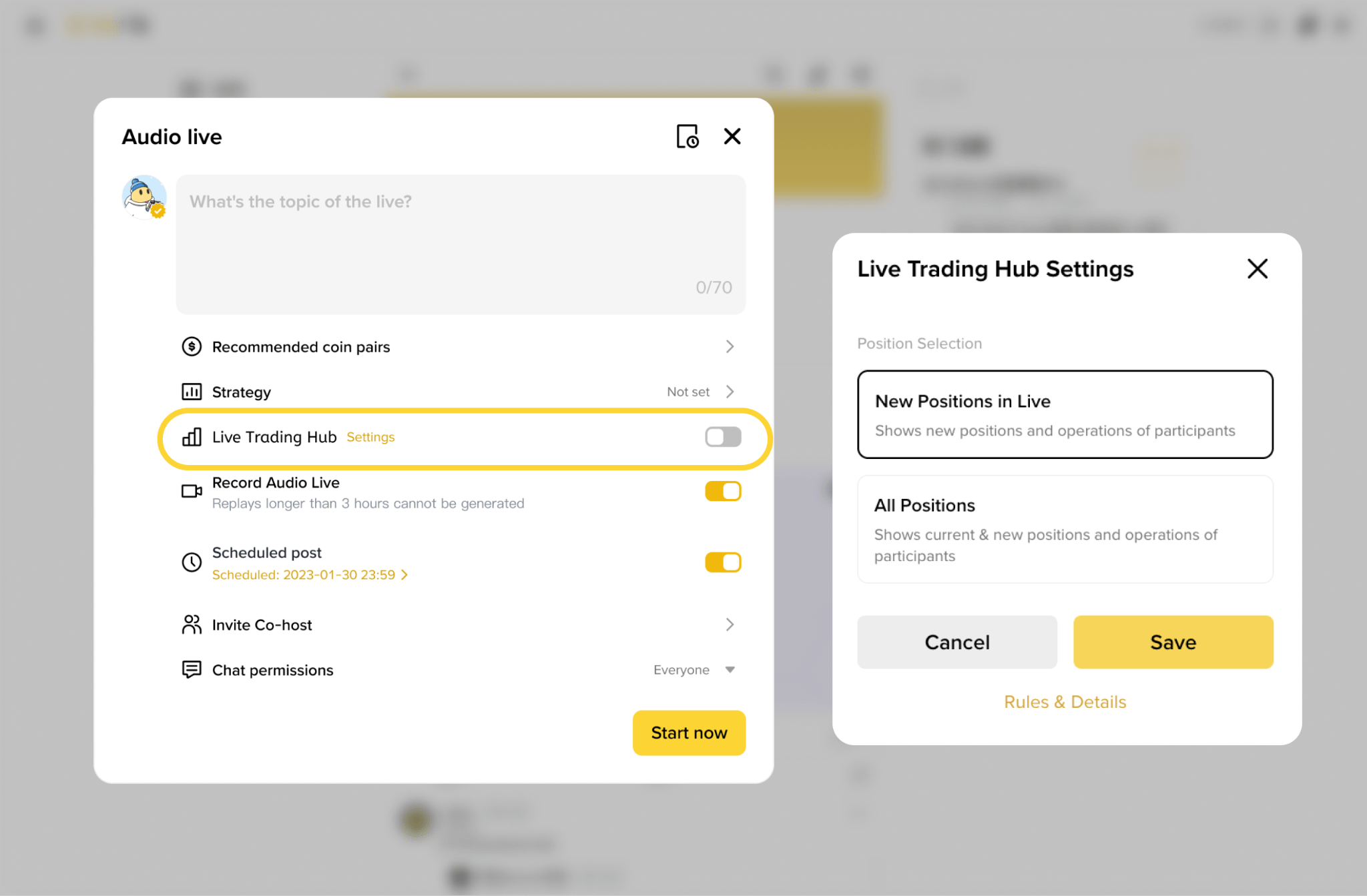
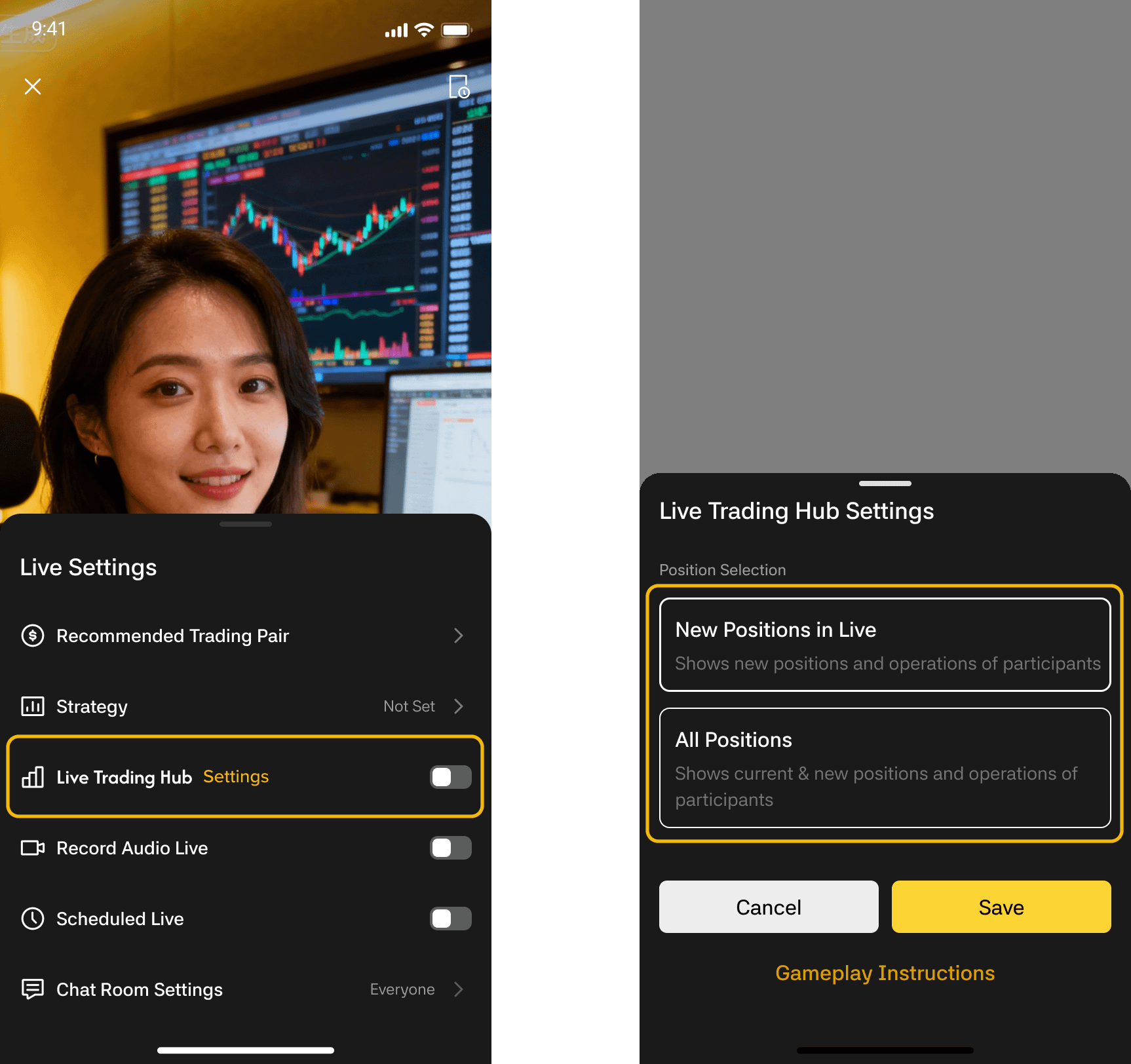
Prepare Before Going Live To get started, open your broadcast editor (works for audio, video, and third-party streams).
Enable the [Live Trading Hub] toggle and choose one of the available modes:
New Positions (default): Displays only positions opened after users join the session
All Positions: Displays both existing open positions and any new ones
Once selected, click [Save] to apply the settings.
Important: The streamer is automatically included in the leaderboard. If no trades are made, the ranking will simply remain empty.
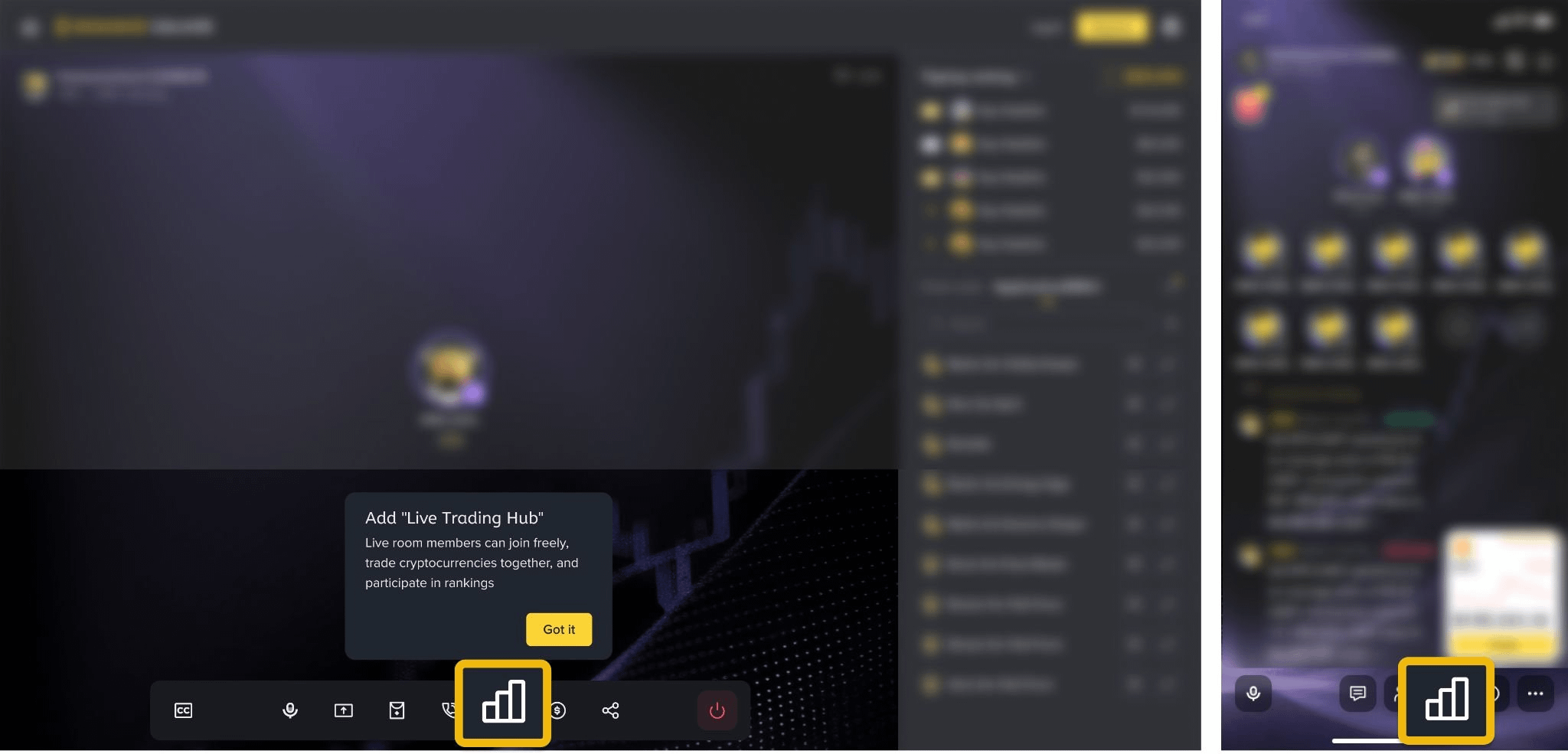
Enable During an Ongoing Stream 🎙️ If you didn’t enable it beforehand, you can still activate Live Trading Hub while streaming.
Just tap the [Live Trading Hub] button from the bottom toolbar, choose your preferred mode, and save your selection.
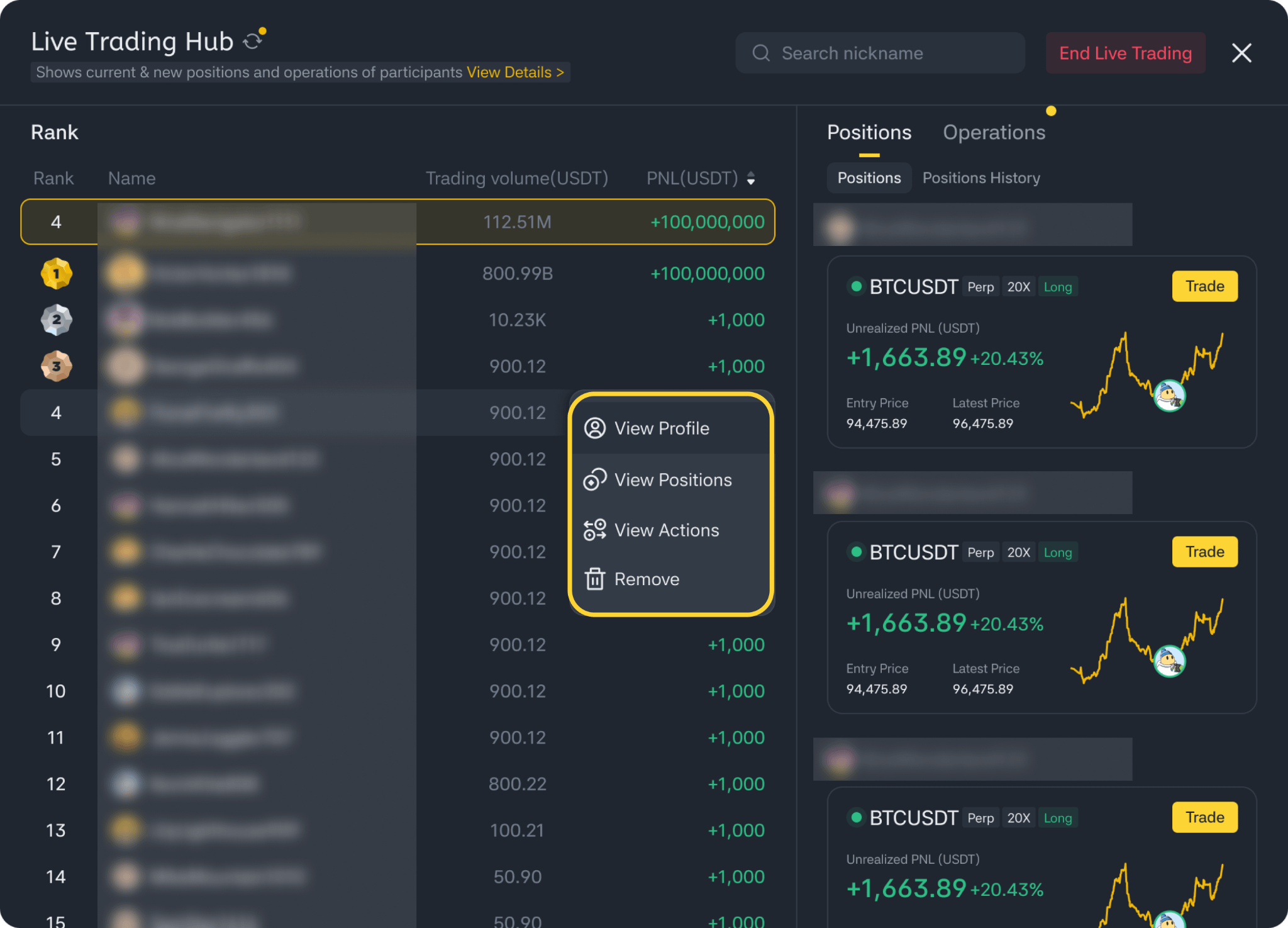
Managing Participants 🫂 You can access the leaderboard at any time by clicking the [Live Trading Hub] button.
From there, you can:
Monitor participant rankings, PnL, and trading volume in real time
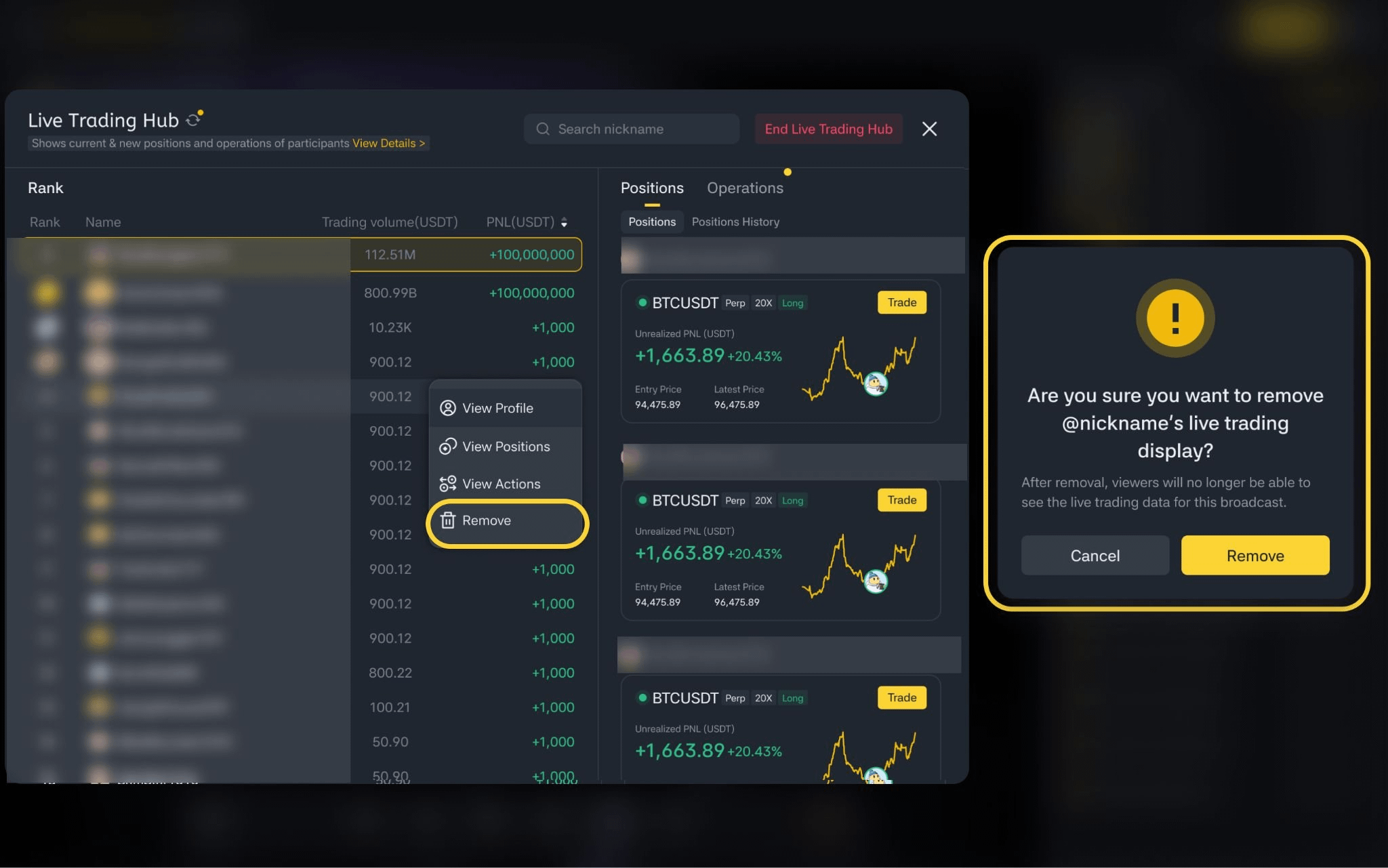
Tap on any user to explore their positions and detailed trade activity
Remove participants from the session (once removed, they cannot rejoin that specific stream)
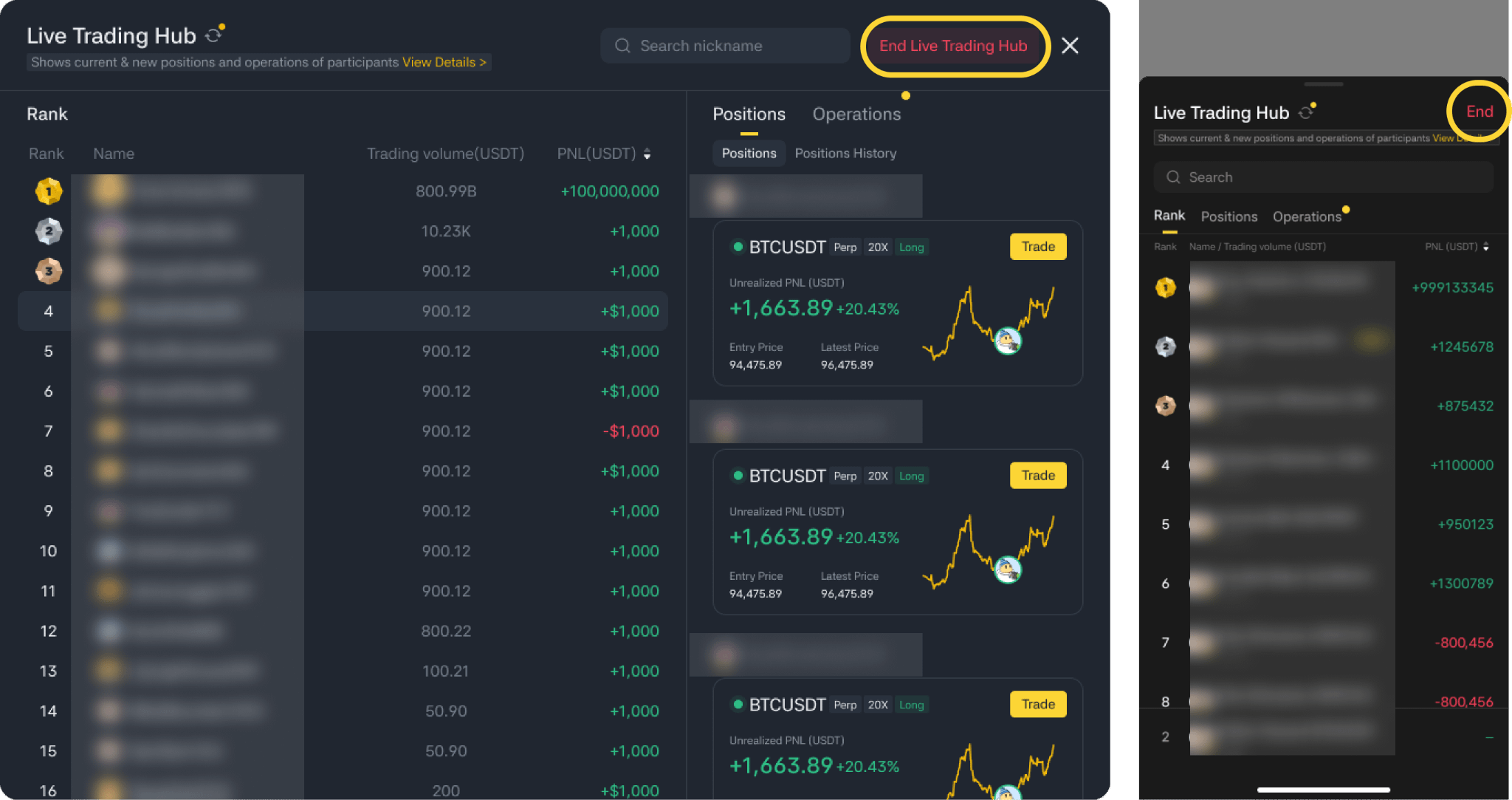
Ending the Session 🎬 When you're ready to wrap up, select [End Live Trading Hub] from the leaderboard and confirm your choice.
This will immediately stop all shared trading data and close the dashboard for everyone. You can always start a new session later from the toolbar.
For Viewers: How to Join and Participate 🫵
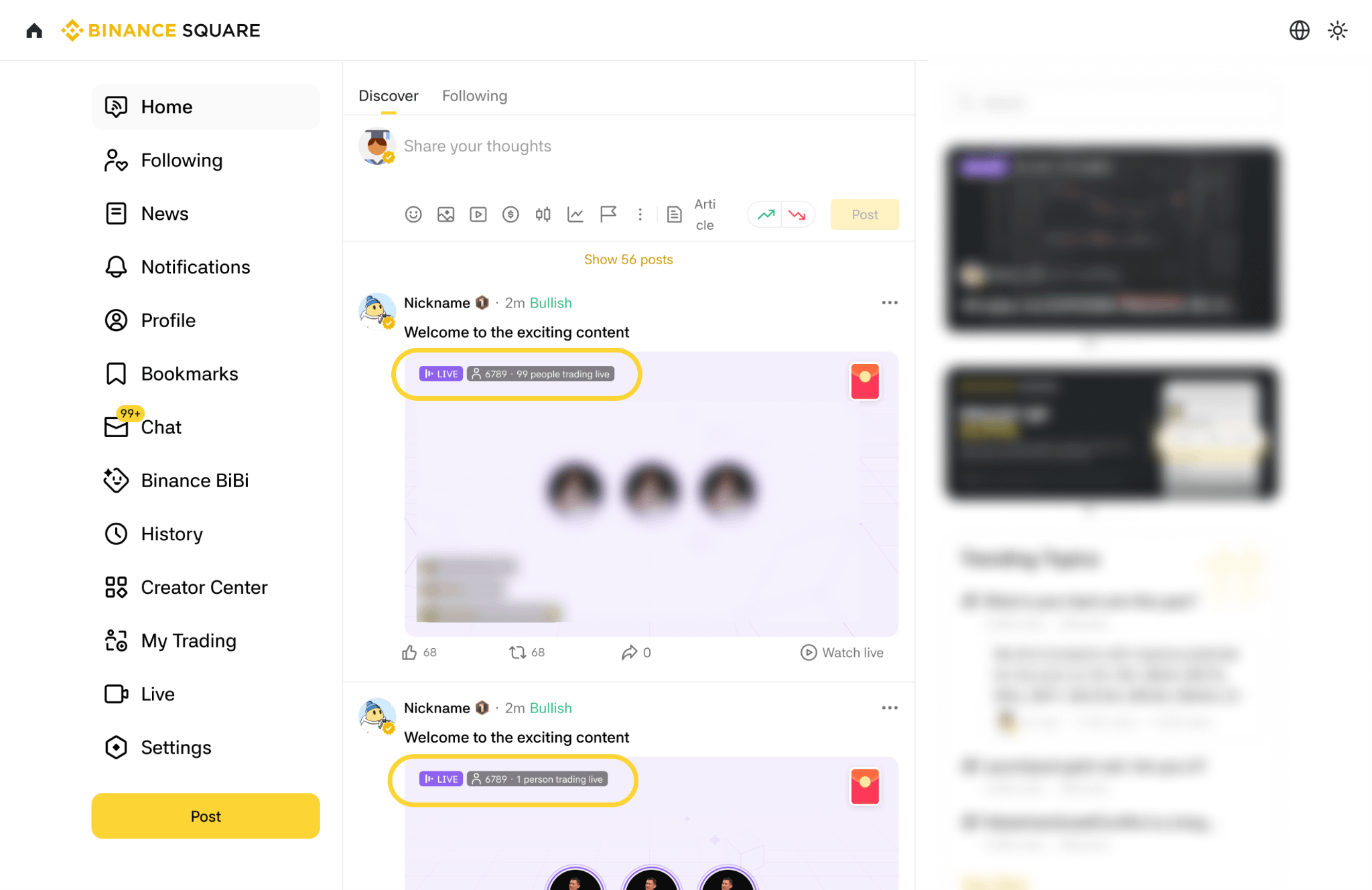
Finding a Live Trading Hub Stream 🎙️ Streams that have this feature enabled are marked with the label "Online · X Trading" on the live preview card.
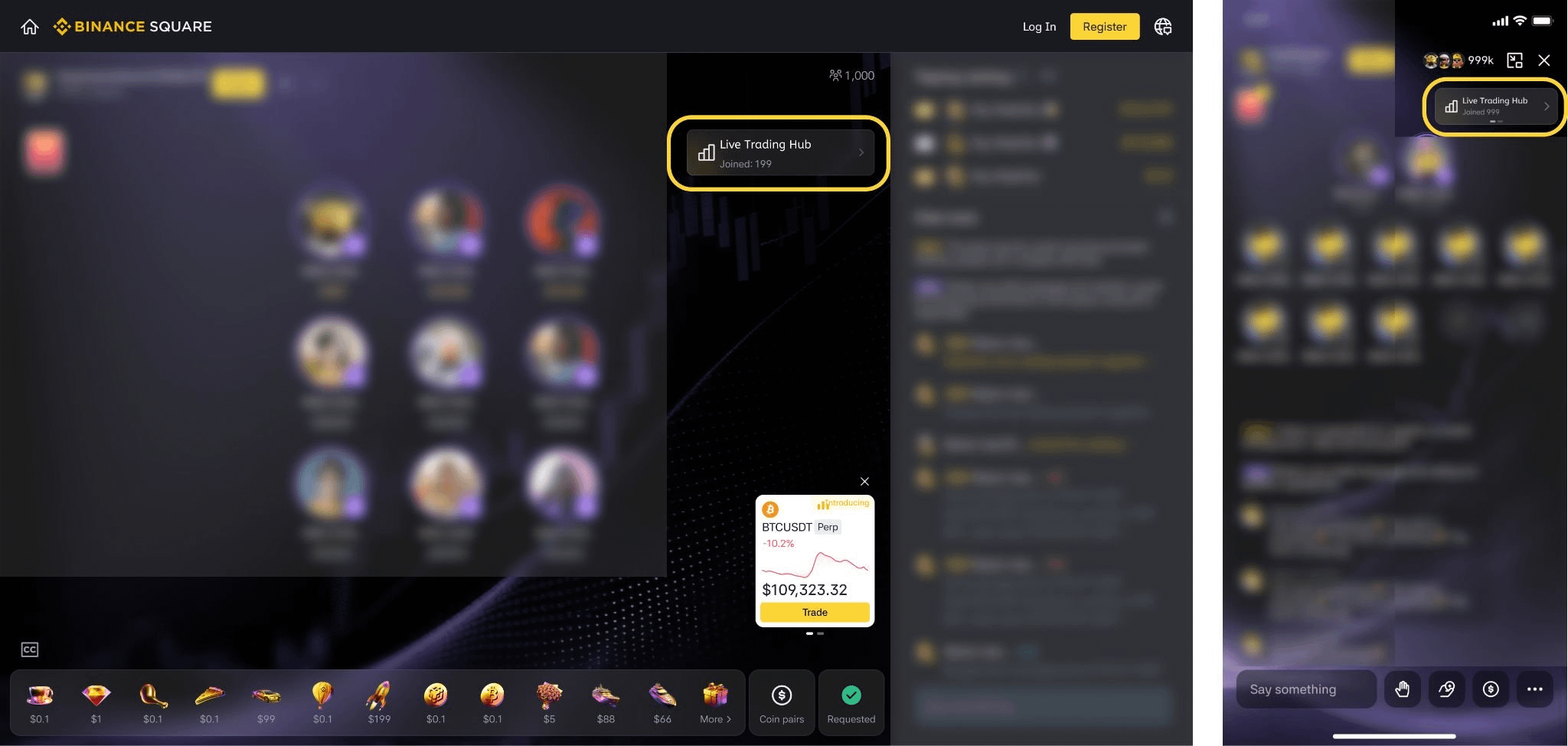
After entering the stream, tap on the [Live Trading Hub] widget to open the leaderboard interface.
Joining the Session 🫵 To participate, tap [Join] at the bottom of the leaderboard and confirm your entry.
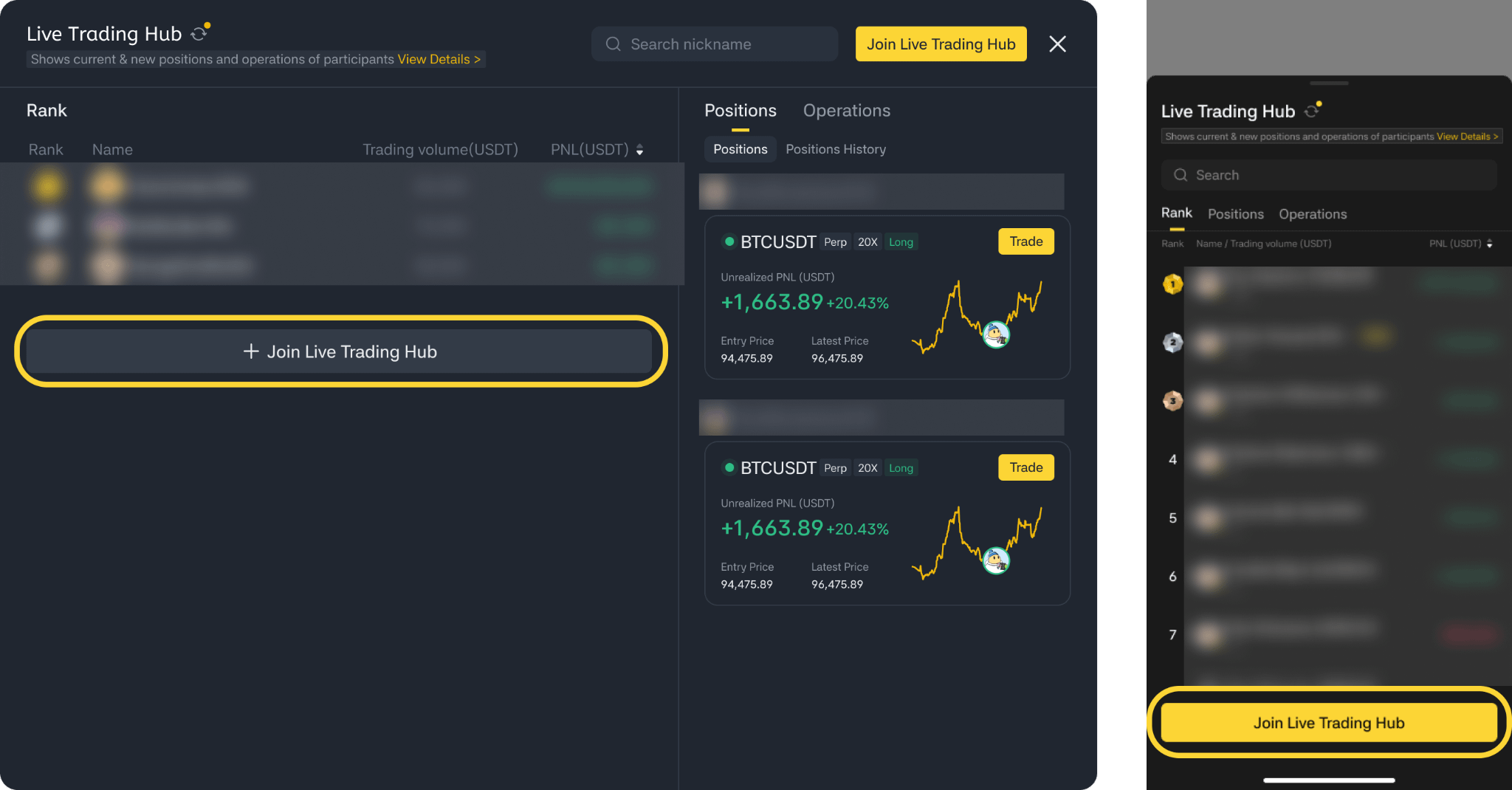
Before joining, keep in mind:
Your account must have at least 10 USDT
You can only participate in one Live Trading Hub session at a time (joining another will automatically exit the previous one)
Each session supports up to 100 participants
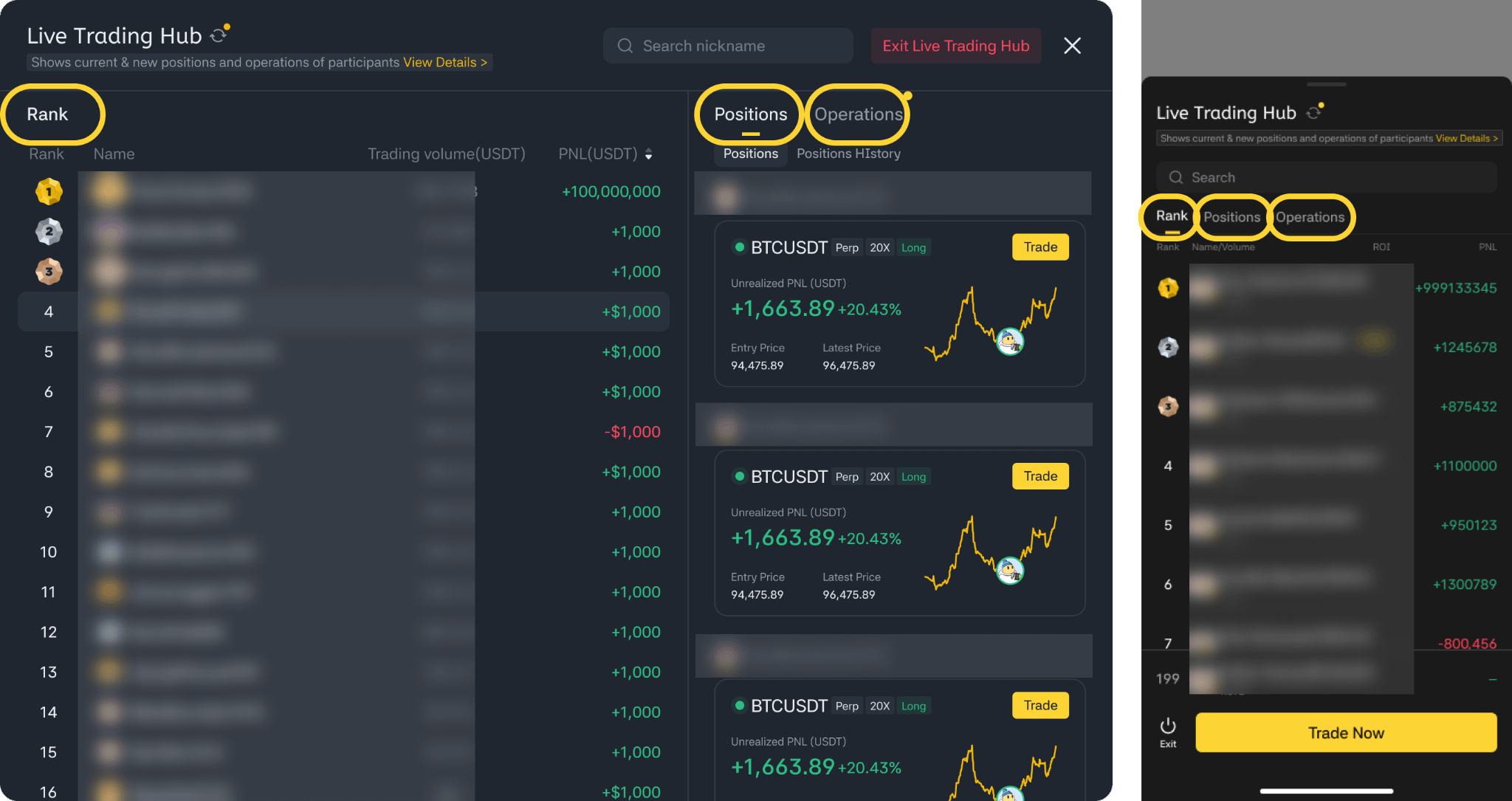
Monitoring Your Trading Performance 📈 Inside the dashboard, you’ll find three main tabs:
Leaderboard: Displays all participants ranked by PnL. You can tap any user to view their positions and trading history
Positions: Shows both open positions (sorted by PnL) and closed positions (sorted by time)
Trade Activity: A live feed of all executed buy and sell orders
If you notice a yellow dot on the refresh button, it means new data is available. Tap it to update manually.
You can also search for specific users by their nickname for quicker access.
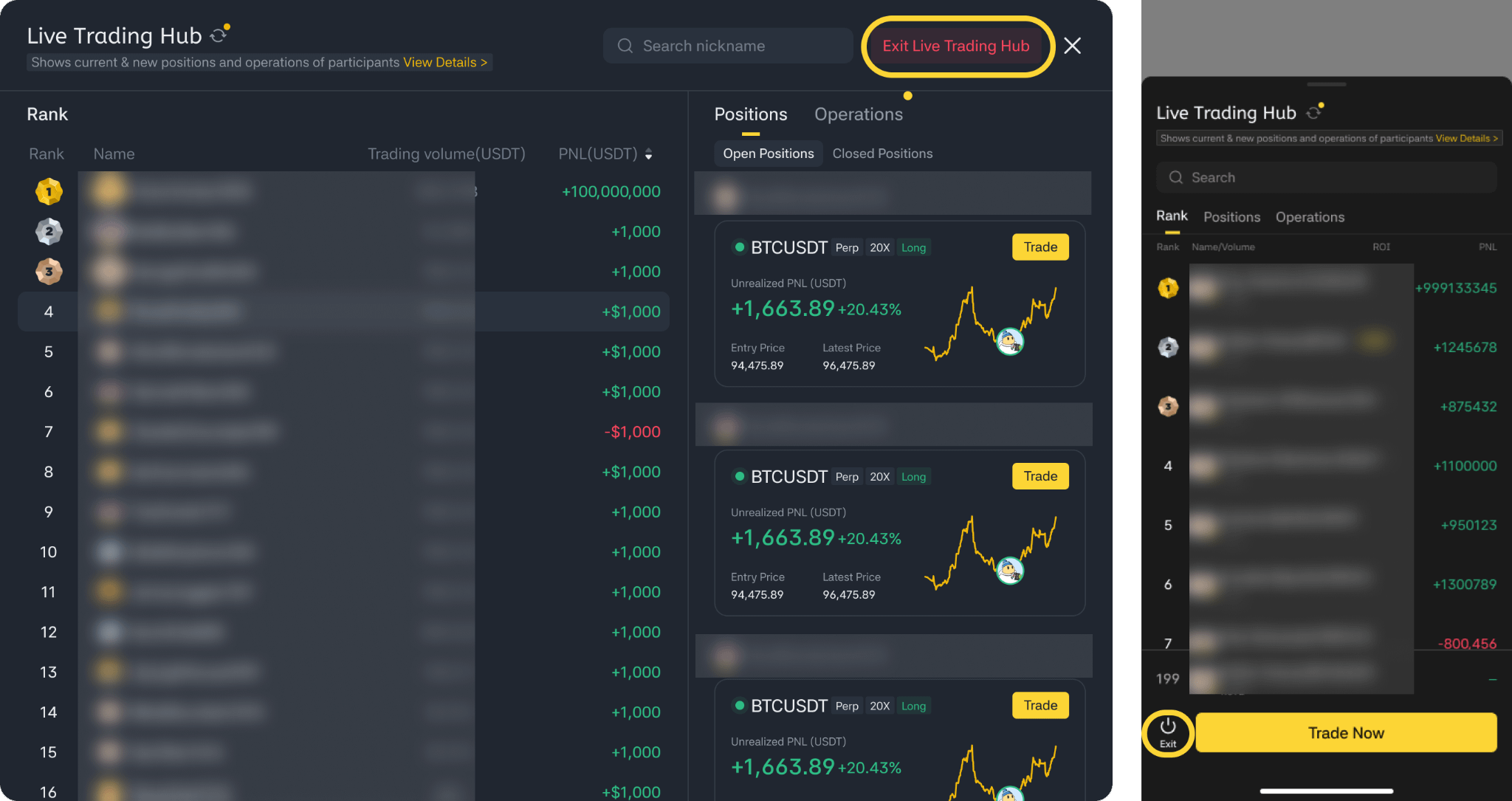
Leaving the Session 🎬 If you decide to exit, tap [Exit Live Trading Hub] at the bottom of the dashboard.
Once you leave, your trading data will no longer be visible to others. However, you’re free to rejoin anytime, as long as the session is still active.
FAQ 📚 Q1: Does Live Trading Hub expose all my trading data? No. Personal account details are never shared. Only USDT-M Delivery Futures data is displayed. The visibility depends on the selected mode:
New Positions shows trades made after joining
All Positions includes both existing and new positions
Q2: Can I join multiple sessions at the same time? No. You are limited to one active session. Joining another automatically removes you from the current one.
Q3: What happens if I leave the livestream? Leaving the stream also removes you from the Live Trading Hub. Your data will stop being displayed. Note: Picture-in-picture mode does not count as leaving.
Q4: Why am I unable to join a session? Possible reasons include:
Your balance is below 10 USDT
You’ve been removed or blocked by the streamer
The session has reached its participant limit (100 users)
You are already in another active session
Q5: How are rankings determined? Participants are ranked based on their PnL (in USDT), from highest to lowest by default. You can adjust the sorting order if needed. Your own position is highlighted for easier tracking.
Q6: How frequently is the data updated? The system refreshes data every 30 seconds. A yellow indicator appears when new data is available, allowing manual refresh.
Q7: Can I access the data after the session ends? No. Once the streamer ends the session, all dashboards close and previously displayed data is no longer accessible.
Q8: How can I become a streamer? Livestream access is automatically unlocked once you reach 1,000 followers on Binance Square.
If you haven’t reached that milestone but already have livestreaming experience or a strong content background, you can apply through this form: https://www.binance.com/en/survey/df184cd88ee340c49f034b77f792aaa3