
Task 1, 2: Follow + Retweet X post
If you need to operate, just find Pieverse's account on X (formerly Twitter), click 'Follow', and then retweet the designated post; after completing, the task will show 'Completed'.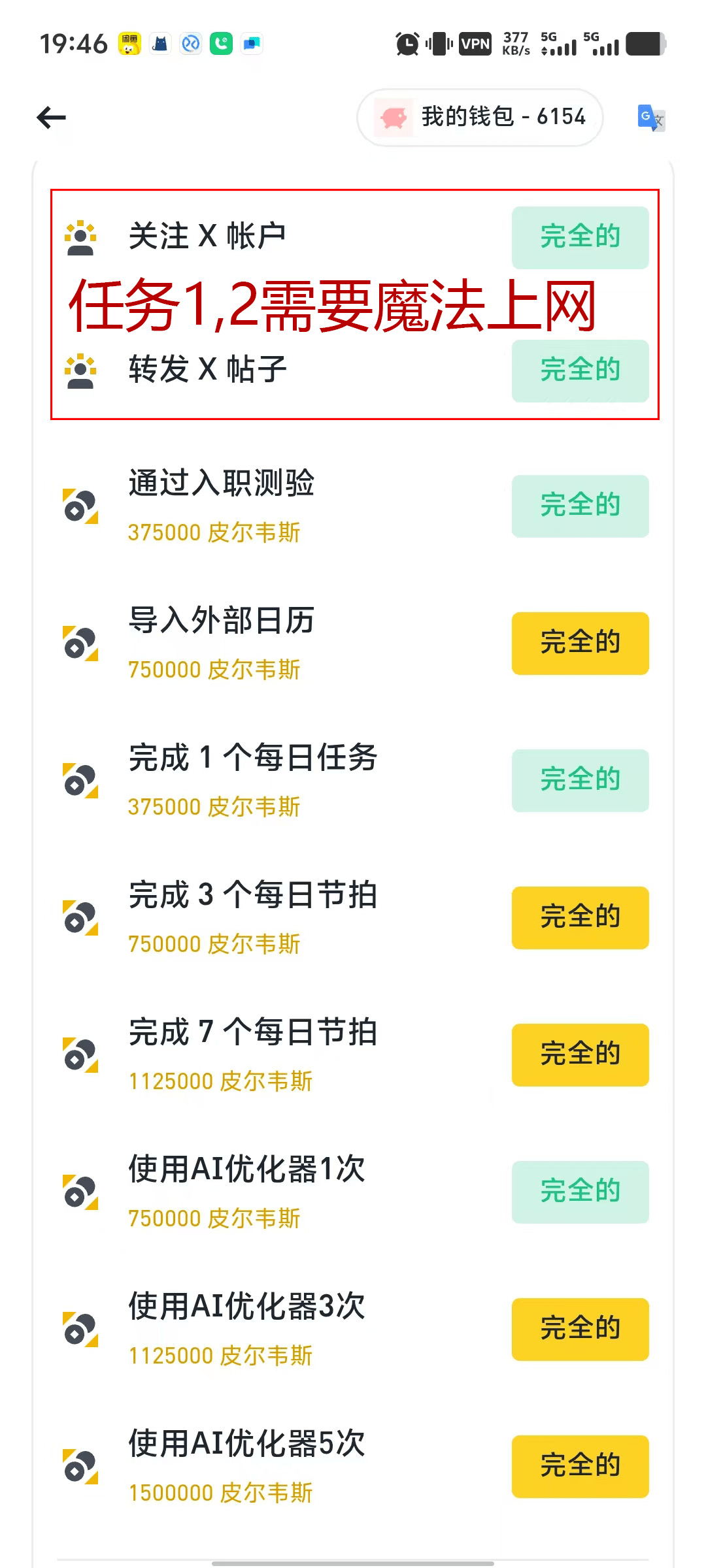
Task 3: Pass the onboarding quiz
Click the link 'Pass the onboarding quiz', and once inside, take a look at 'What is the Pieverse AI Assistant for?'.
Follow the page instructions to connect your Binance wallet (there will be a connect button on the page, just click it).
Scroll down to take the quiz, select the 1st and 3rd options, then click 'Submit Quiz' to submit, and the task will show 'Completed'.
 Task 4: Import external calendar
Click the bottom 'Today', or go to the 'Plan Your Day' page, and click the 'Import' button.
Select 'Google Calendar', but it currently shows 'Under maintenance', so it can't be done for now. After maintenance is complete, copy the link to the browser and associate it with your Google account.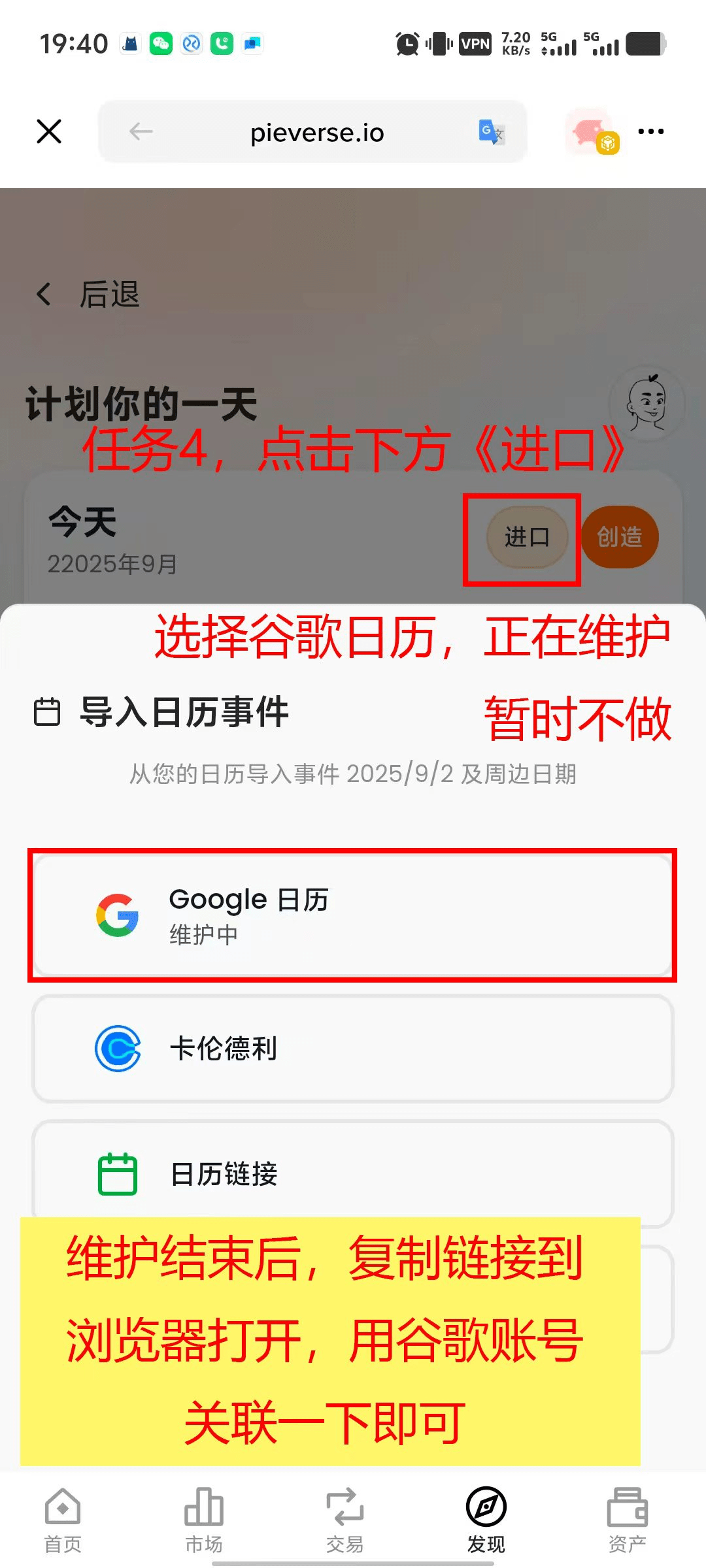
Task 5: Complete 1 daily task
Go to the 'Plan Your Day' page, and click the 'Create' button in the upper right corner.
Fill in casually: Goal Title (for example, write 'Eating'), Goal Description (for example, write 'Late-night snack'), the date defaults, and make sure to turn on the 'All-Day Goal' switch.
Click '+ Create this goal'. After creating, find the new task in the 'Your Schedule' list, click the circular button on the right of the task to submit, and the task will be completed.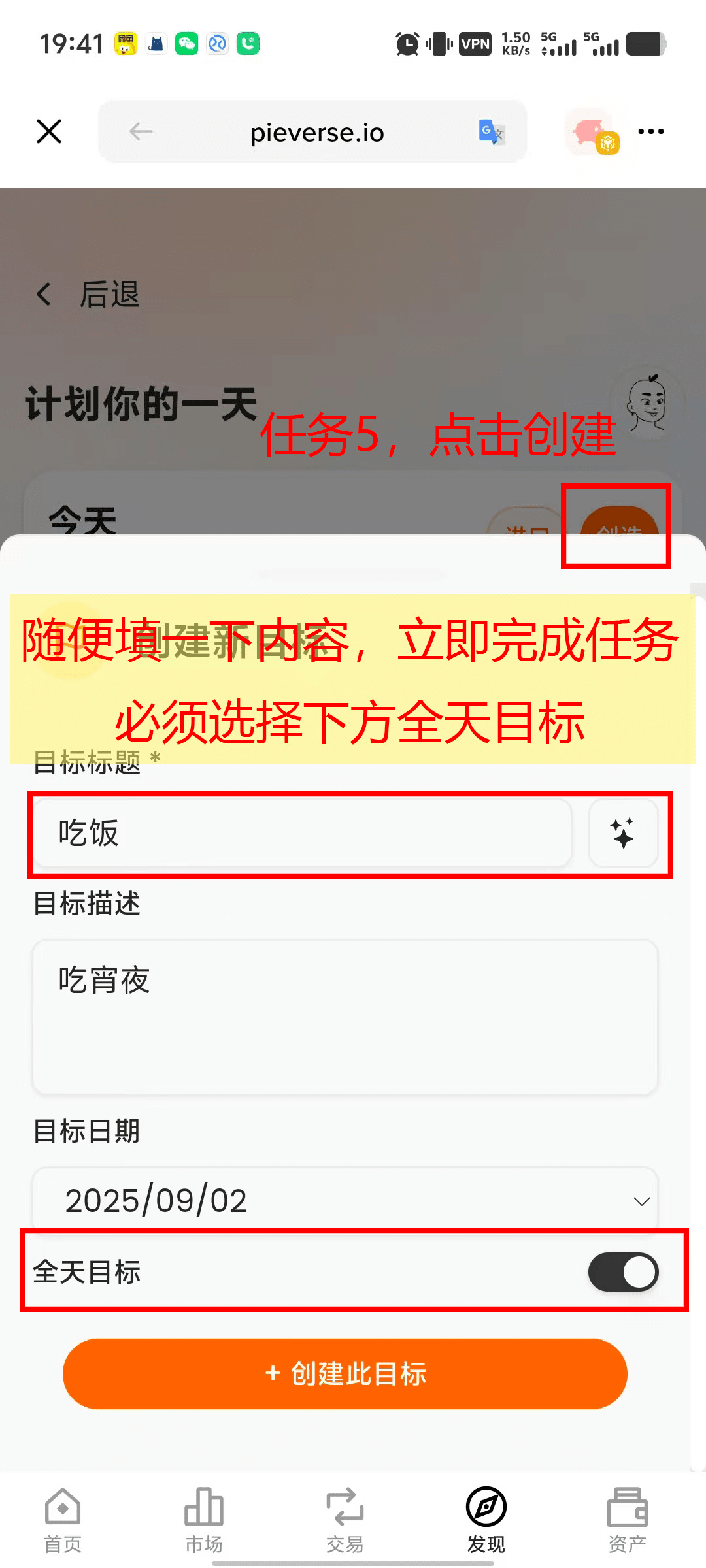
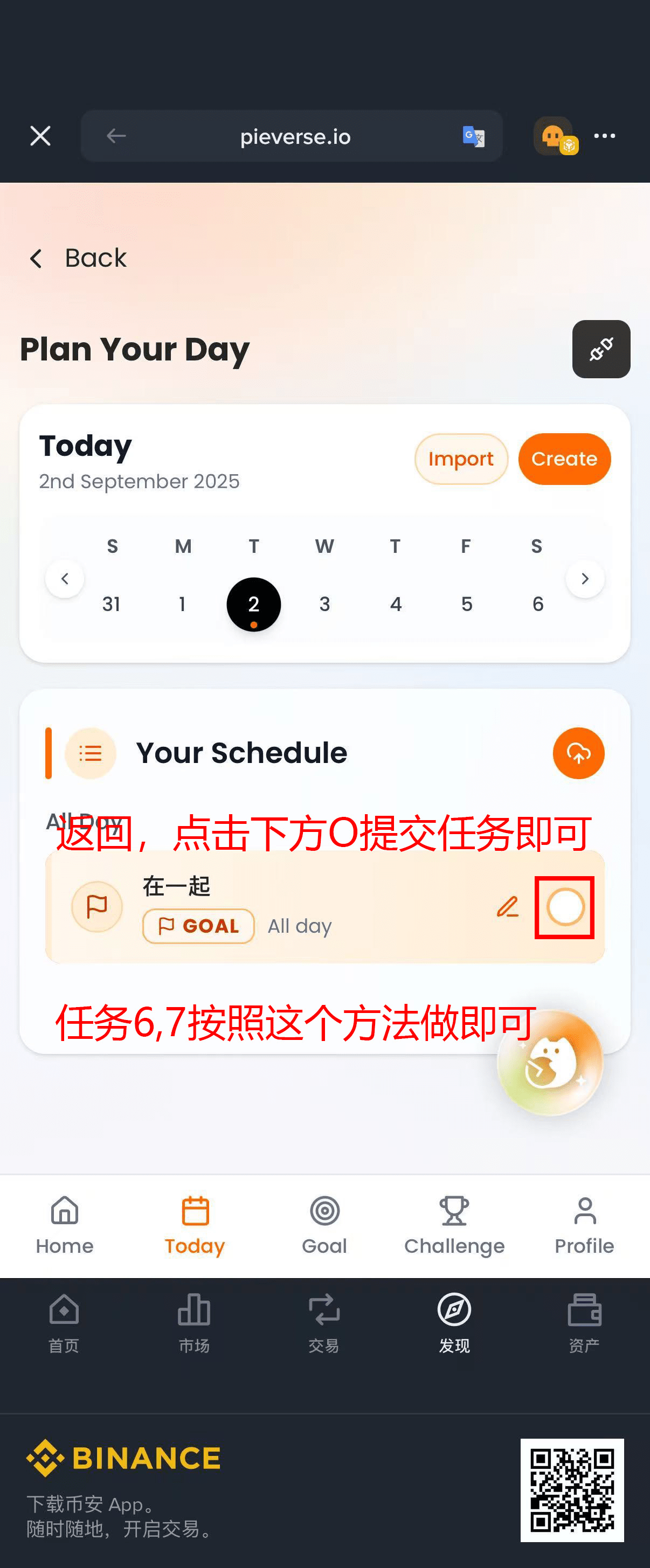 Task 6, 7: Complete 3 / 7 daily beats
Just like Task 5, repeat the operation of 'Create task + Submit', doing it 3 times and 7 times respectively, and after completing, the task will show 'Completed'.
Task 8: Use the AI Optimizer once
On the 'Plan Your Day' page, click 'Import', and select the 'Demo Activities' with a star icon at the bottom.
Casually write more than 15 characters of skills (for example, write 'I am a freelancer, trying a different style'), click 'Next'.
Casually select 1 or more topics of interest (for example, 'Blockchain', 'Metaverse'), click 'Next'.
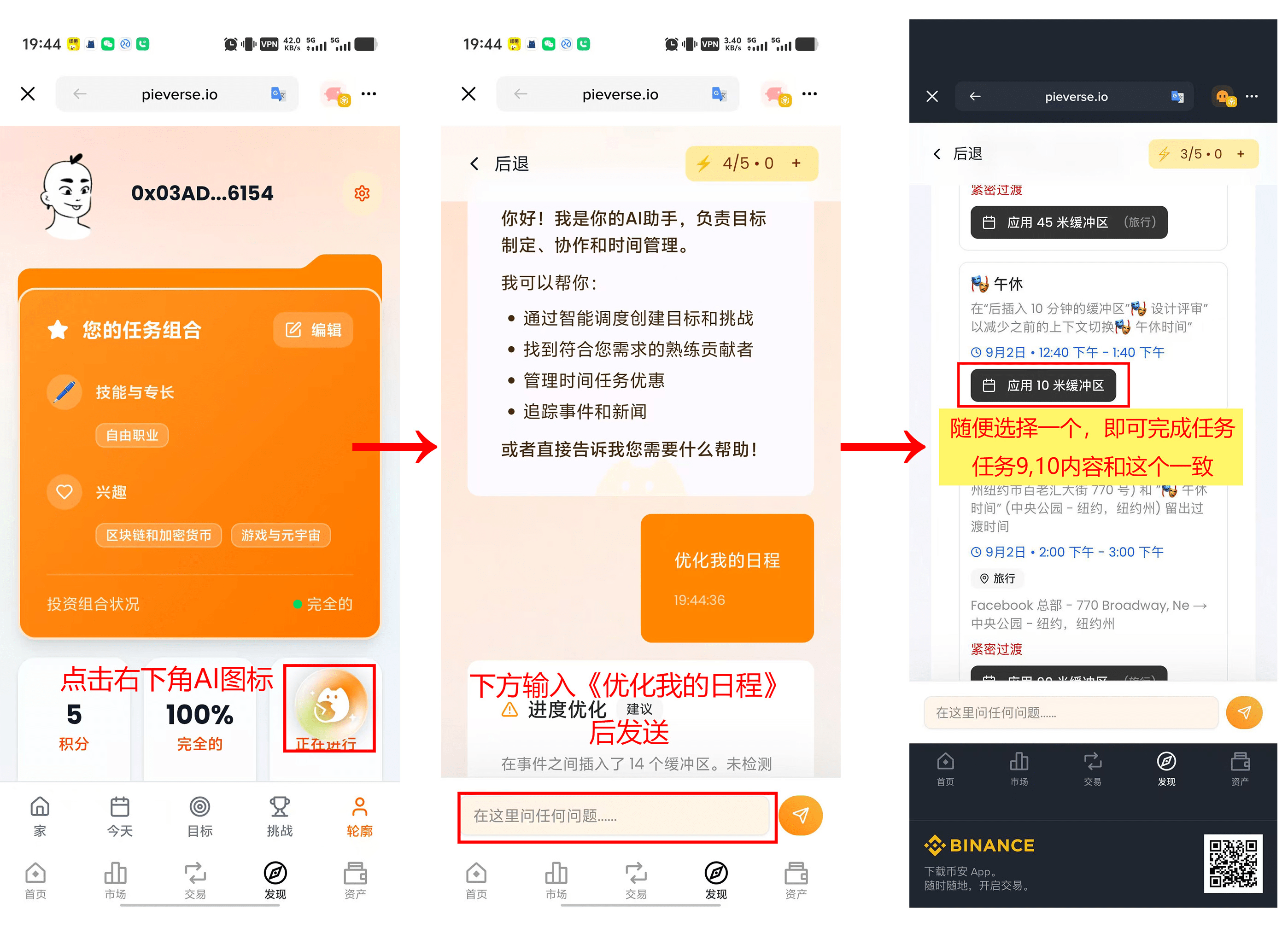
After arriving at the profile page, click the AI icon in the lower right corner that says 'In progress'.
In the bottom input box, send 'Optimize my schedule', then casually choose an optimization option given by AI (for example, 'Apply a 10-meter buffer'), and the task will be completed.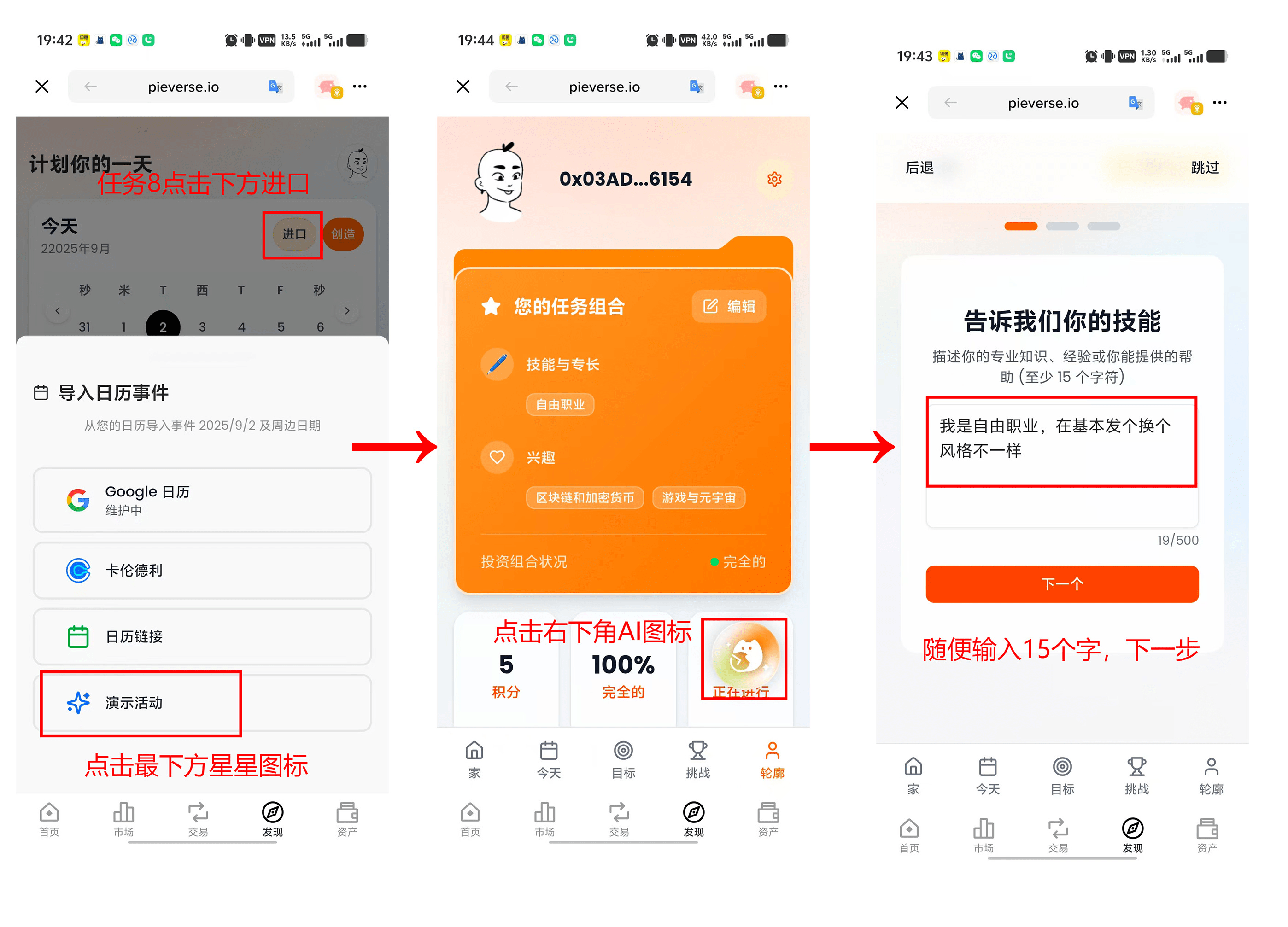
 Task 9, 10: Use the AI Optimizer 3 times / 5 times
Just like Task 8, repeat the operation of 'Select an option using the AI Optimizer', doing it 3 times and 5 times respectively, and after completing, the task will show 'Completed'.